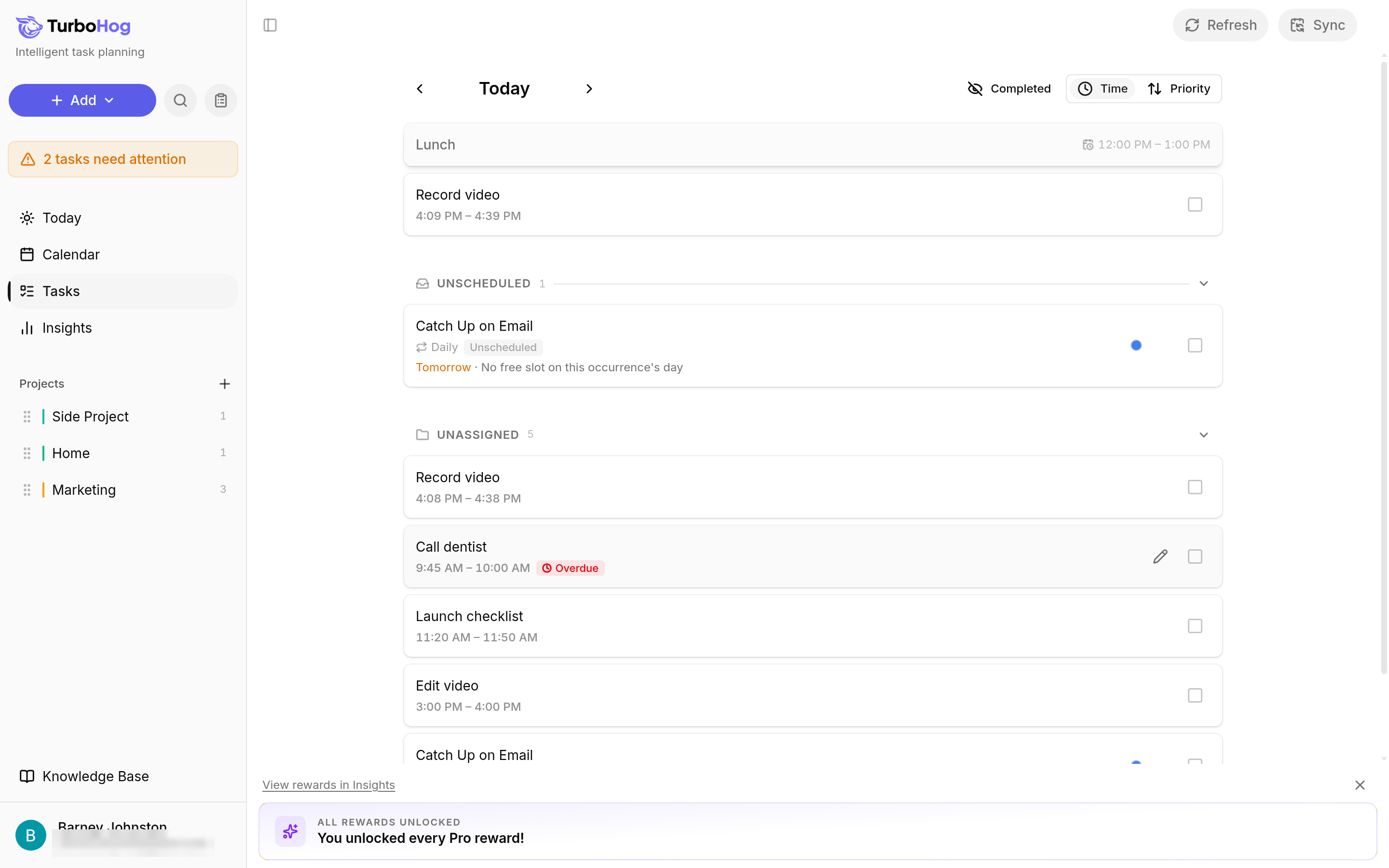
Tasks page: click the task's row, or hover over it and click the pencil icon.
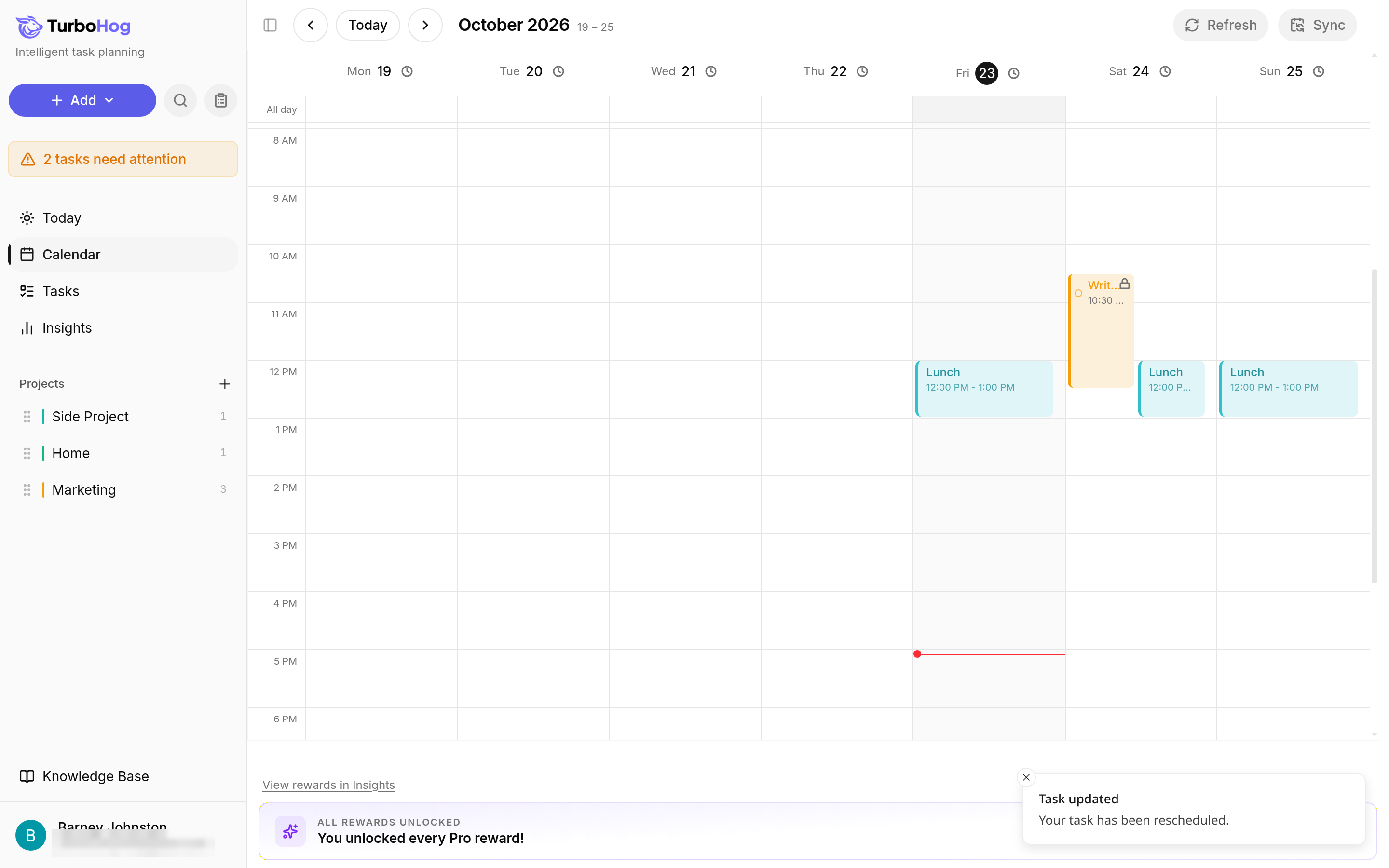
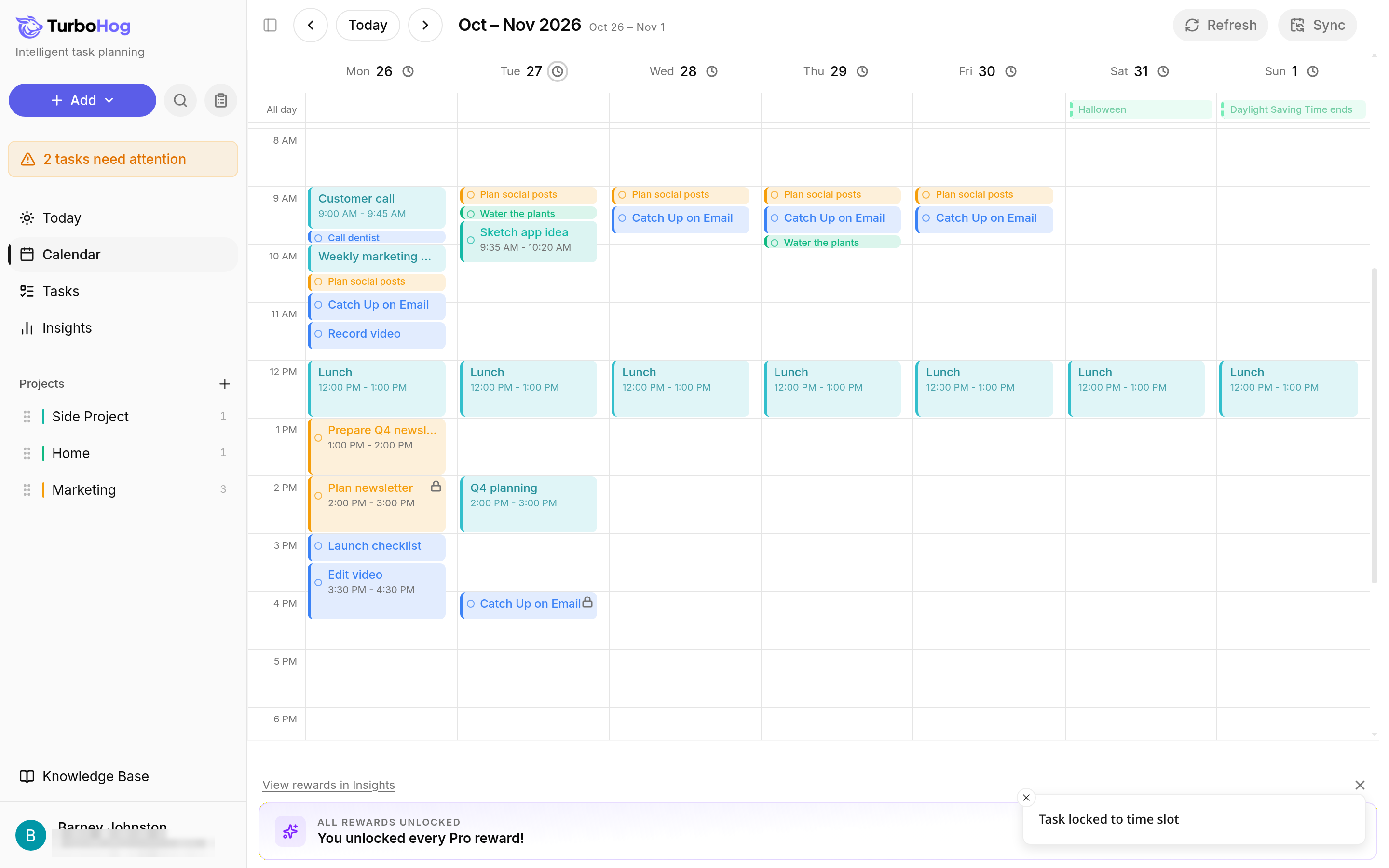
Calendar: click the task.
Search: press Ctrl + K (Cmd + K on a Mac), type part of the task's name, and click "Edit", or use the arrow keys and press Enter. Learn more in Searching Your Tasks.
Making Changes
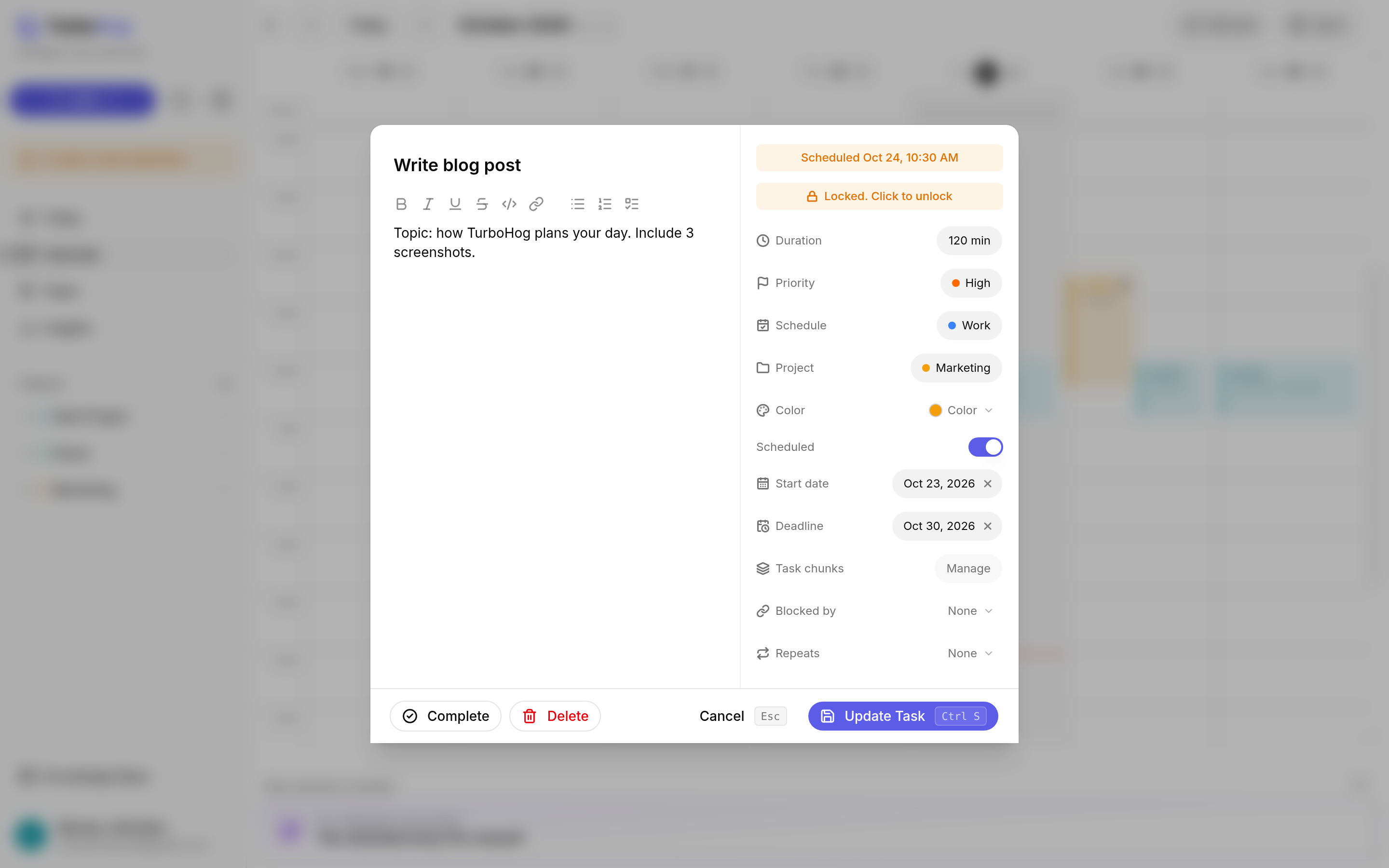
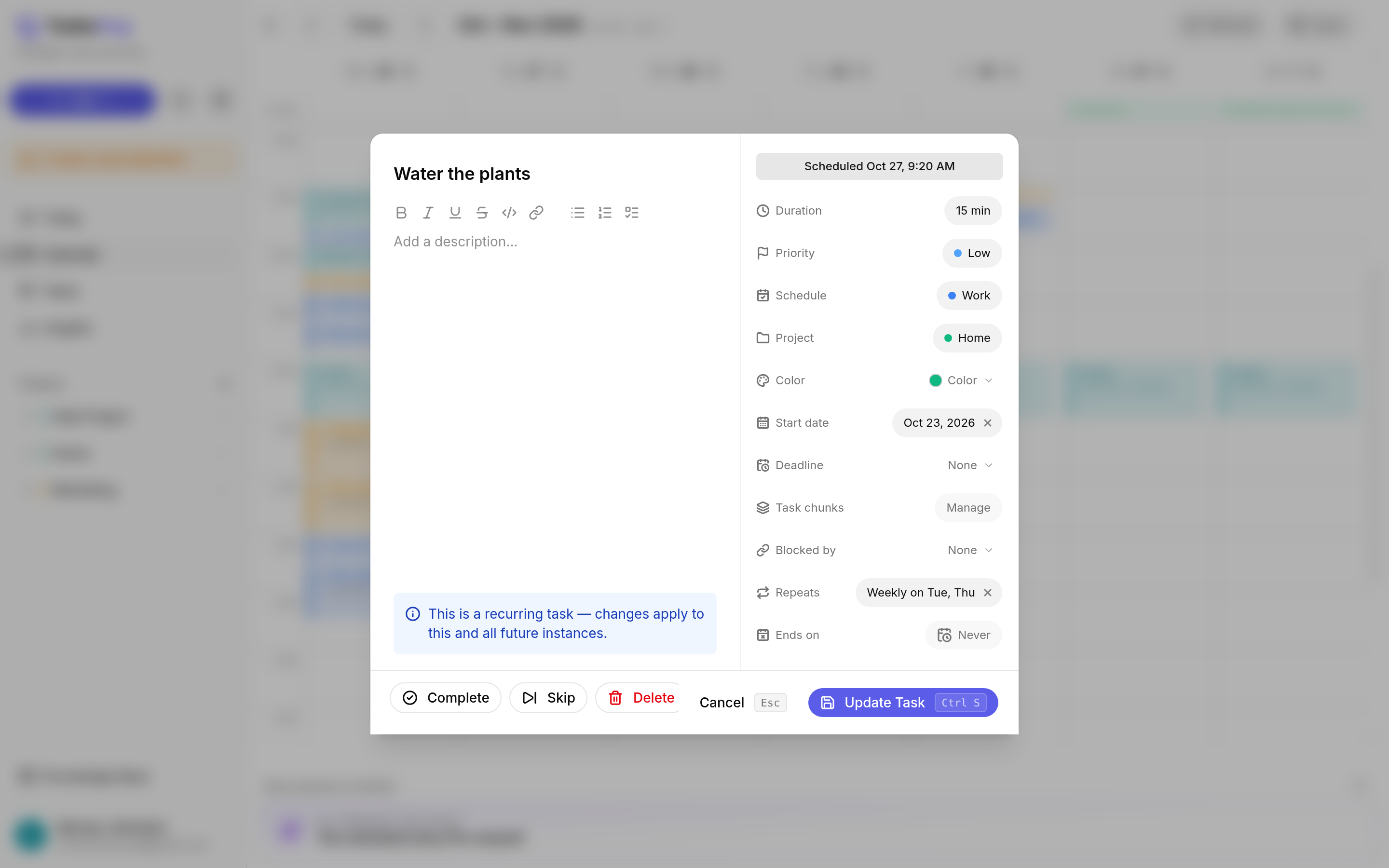
Open the task. The top of the window shows when it is scheduled, such as "Scheduled Oct 23, 12:05 PM". Hover over the "Scheduled" date and time to see its scheduling info.
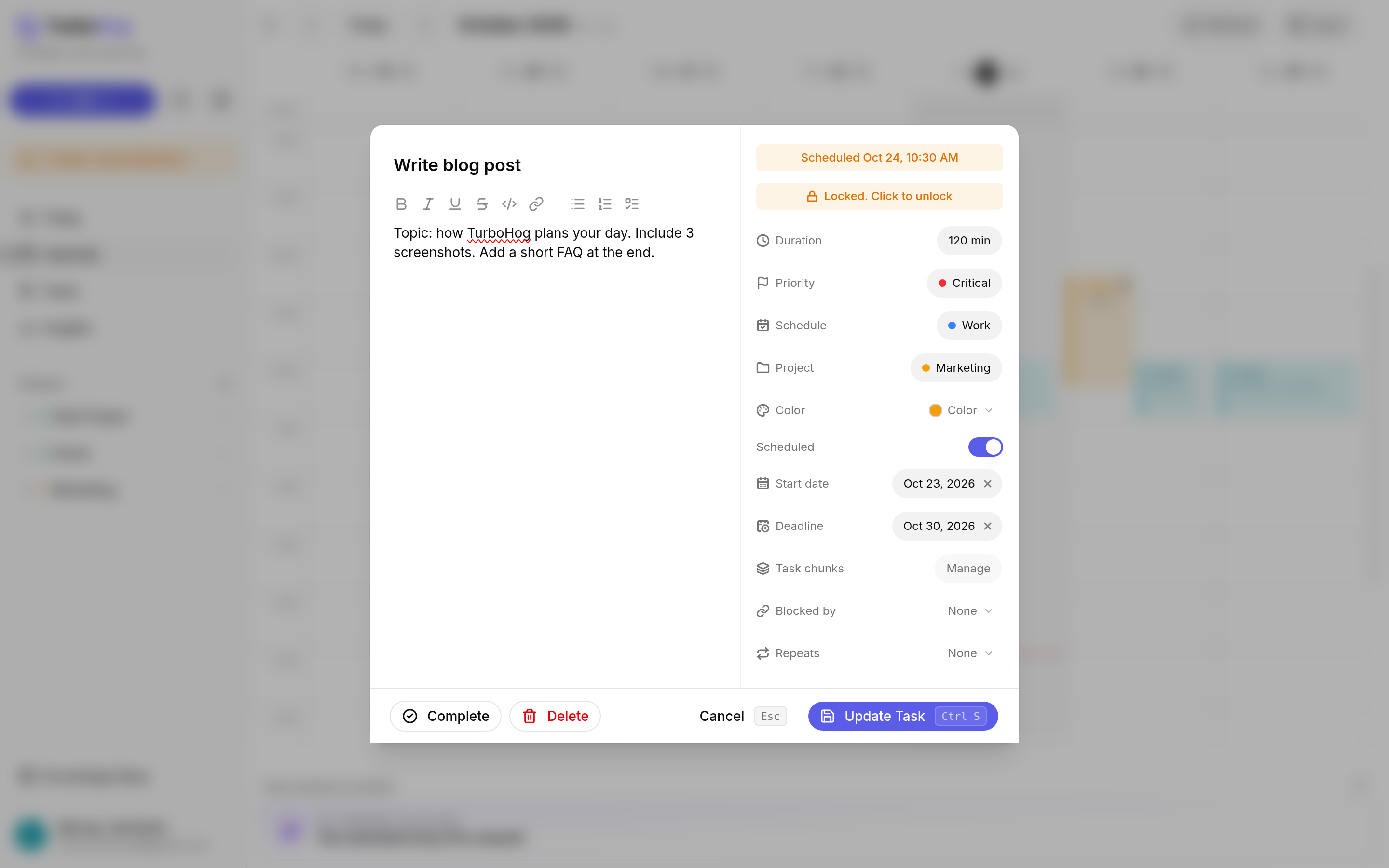
Change any field, such as the name, description, duration, priority, schedule, project, dates, chunks, or blockers.
Click "Update Task", or press Cmd + S (Ctrl + S on Windows and Linux).
TurboHog shows "Task updated" and re-plans the task.
To leave without saving, click "Cancel" or press Escape.
To do it all from the keyboard, press Ctrl + K (Cmd + K on a Mac), type part of the task's name, press Enter to open it, make your change, and press Ctrl + S (Cmd + S on a Mac) to save.
Editing a Recurring Task
When you open a recurring task, TurboHog tells you that changes apply to this and all future occurrences. You can also click "Skip" to skip just this one. Learn more in Recurring Tasks.
Moving a Task on the Calendar
On the Calendar, drag a task to a new time. TurboHog locks it to that time so it is not moved again. Learn more in How Auto-Scheduling Works.
Completing or Deleting From the Edit Window
Click "Complete" to mark the task done. Learn more in Completing Tasks.
Click "Delete" to remove the task.
To learn about every field in the task form, read Creating a Task.