Making a recurring task is easy. Here’s a quick step-by-step overview.
Click the “+ Add” button in the top left of the app and select “Task”.
Fill out the task, duration, priority, schedule, and project.
You can also set a start date if you want the recurring task to start on a specific date before it begins recurring.
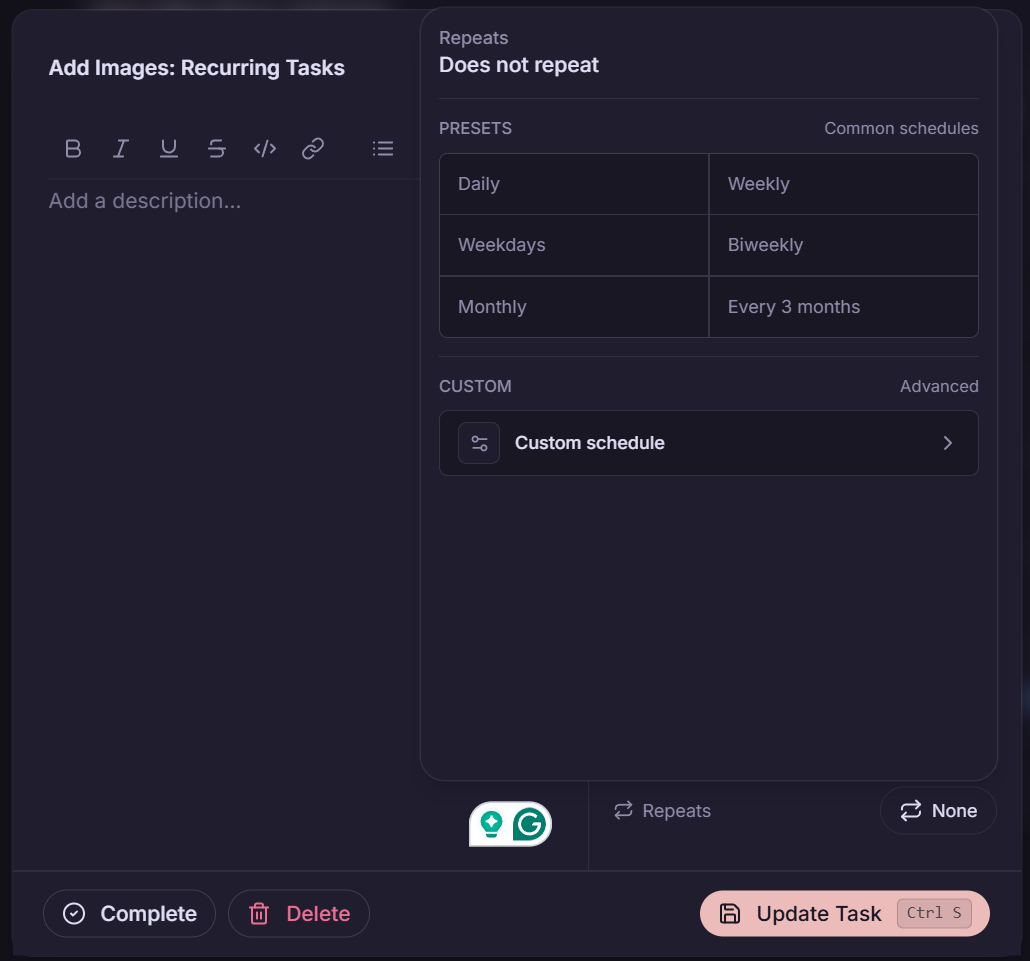
Click the “Repeats” module and select the frequency you want your task to repeat on.
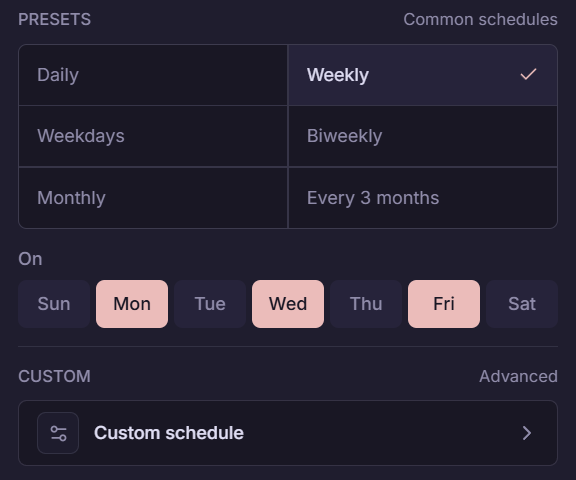
For weekly and bi-weekly tasks, you can set what days the task repeats on. That means you can have tasks repeat on Monday, Wednesday, Friday, or just on weekends, etc.
For Monthly and Quarterly tasks, you will be able to set the day of the month a task repeats on.
Finally, create the task, and it will automatically be scheduled and start recurring.
How Recurring Tasks Work
Recurring tasks allow you to set up work that comes up over and over again to appear automatically on your schedule without any thought other than getting the task done.
On TurboHog, each recurring task is treated separately. That means they get auto-scheduled when it makes the most sense each day. You can also add notes and make changes to a specific recurring task, and other tasks won’t be updated unless specified.
Recurring Task Frequencies
There are different options that you can select for recurring tasks.
Daily: Tasks will be scheduled every day of the week.
Weekly: Tasks will recur on the select days. This can be used to create tasks that occur on Mondays, Wednesdays, Fridays, or just on weekdays.
Weekdays: Tasks will recur every Monday thru Friday.
Bi-Weekly: Tasks that occur on a bi-weekly basis. You can also specify a specific day of the week here.
Monthly: When selected the task, we recur every month. You can pick the specific day the task recurs.
Every 3 months: If you want something to recur every quarter, select every 3 months. You can also choose the day the task will appear.
Skipping Recurring Tasks
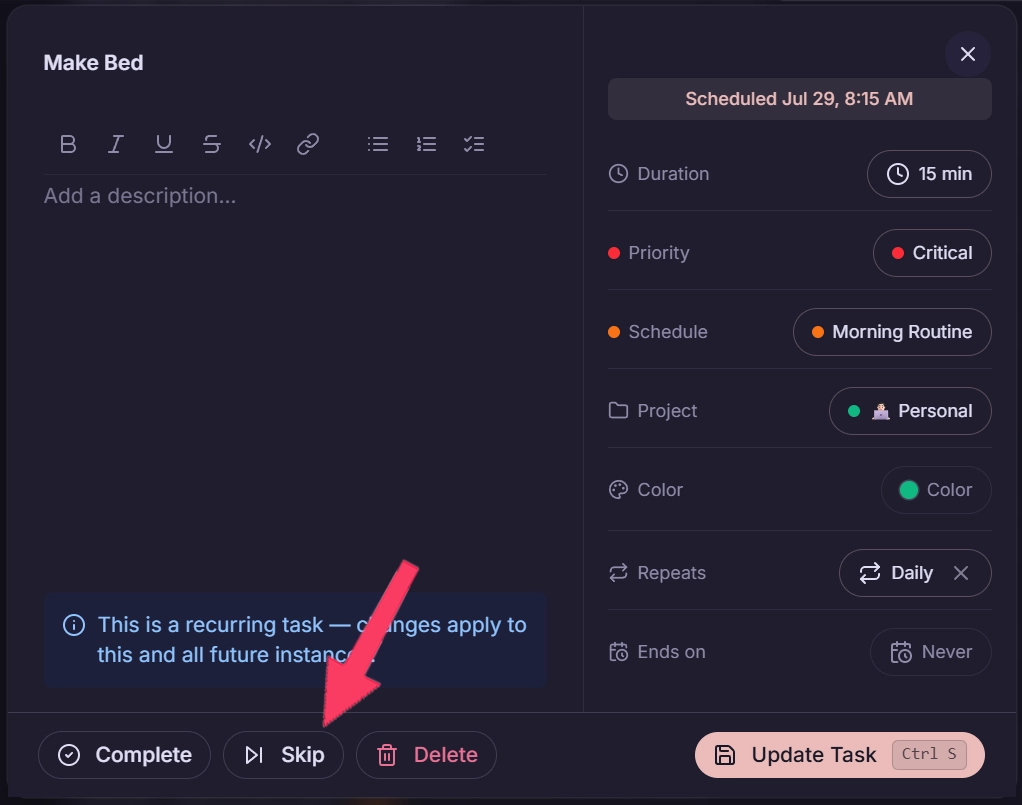
You can skip a recurring task if you don’t need to complete it. This can be done by click on the task in your “Tasks” list or on the calendar.
Then, just click the “Skip” button. It will then be removed and appear on your schedule again when it is due next.
What Happens if I Miss a Recurring Task?
Tasks react differently when they are missed, depending on the frequency they are set to recur on.
Daily: Any tasks with a daily recurrence will be skipped if they are missed. This is because they will automatically appear on the next day.
Weekly, Weekday, Bi-Weekly, Monthly, Every 3 months: These tasks will automatically be moved to the next available day. For example, a work task scheduled monthly on the 3rd wouldn’t be able to be scheduled if the 3rd were a weekend. It would appear on the following Monday in this case.
Examples of Recurring Tasks
There are a bunch of different ways to use recurring tasks, but we wanted to give a few common examples.
Payroll
Typically, payroll is done bi-weekly. So when creating the task, you would set it to recurring bi-weekly on the day of the week you run payroll.
It will automatically appear each week to ensure you always complete payroll on time.
Complete Quarterly Review
If you need to complete a quarterly review each quarter, you would set this task to occur every three months on the first day of the month.
Doing this means it will appear on the first working day of the month, since if the 1st is a weekend, it appears on the next available day automatically.
Walking the Pig
Walking your pig (dog) is something many of us do daily. In that case, we would create a daily task for this.
With that, it would appear every single day like clockwork. If you miss it, no worries. The task is skipped and appears on the next day automatically.