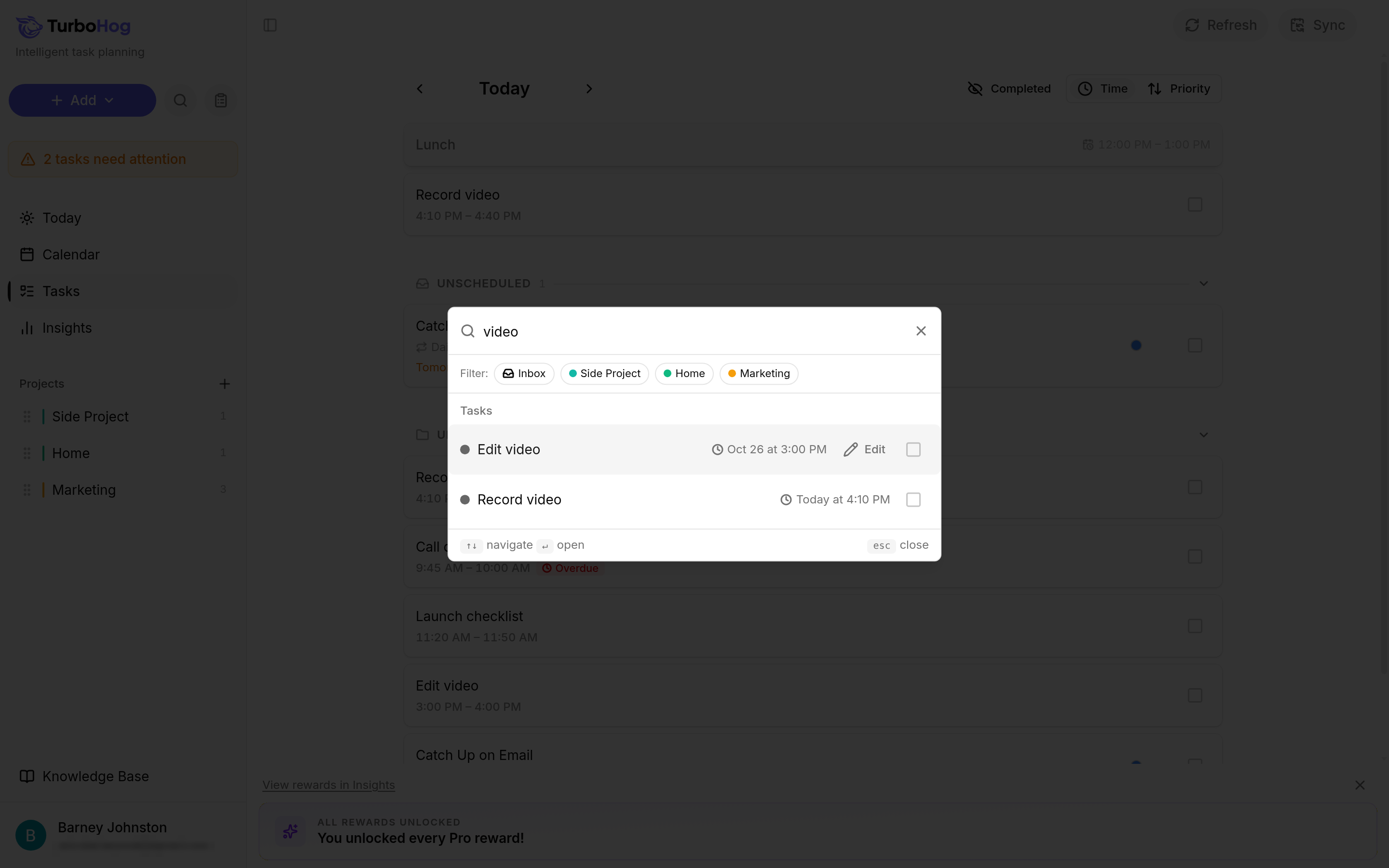
Click the magnifying glass icon next to "+ Add" at the top of the sidebar, or press Ctrl + K (Cmd + K on a Mac). The search window opens with the box "Search tasks and projects…" and your recent items.
Finding a Task
Type part of the task's name, such as "blog".
Matching tasks show under "Tasks", with when each one is scheduled.
To narrow the results, click a project under "Filter". Click the "Inbox" filter to see only Unassigned tasks, which are tasks with no project.
Acting on a Result
Click "Edit" to open the task.
Check the box to complete it.
Use the up and down arrow keys to move through results, Enter to open one, and Escape to close the window.
Once a task is open, save your changes with Ctrl + S (Cmd + S on a Mac). To learn more about editing, read Editing a Task. For other shortcuts, read Keyboard Shortcuts.