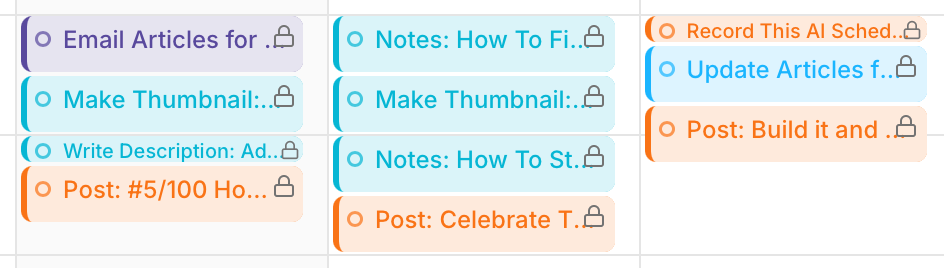
The auto-scheduler takes your schedules, task duration, priority, start date, deadline, and blockers to create your daily agenda.
This is done instantly in the background, and it takes into account your events, free/busy availability, etc. to ensure you meet every deadline and make it to every meeting.
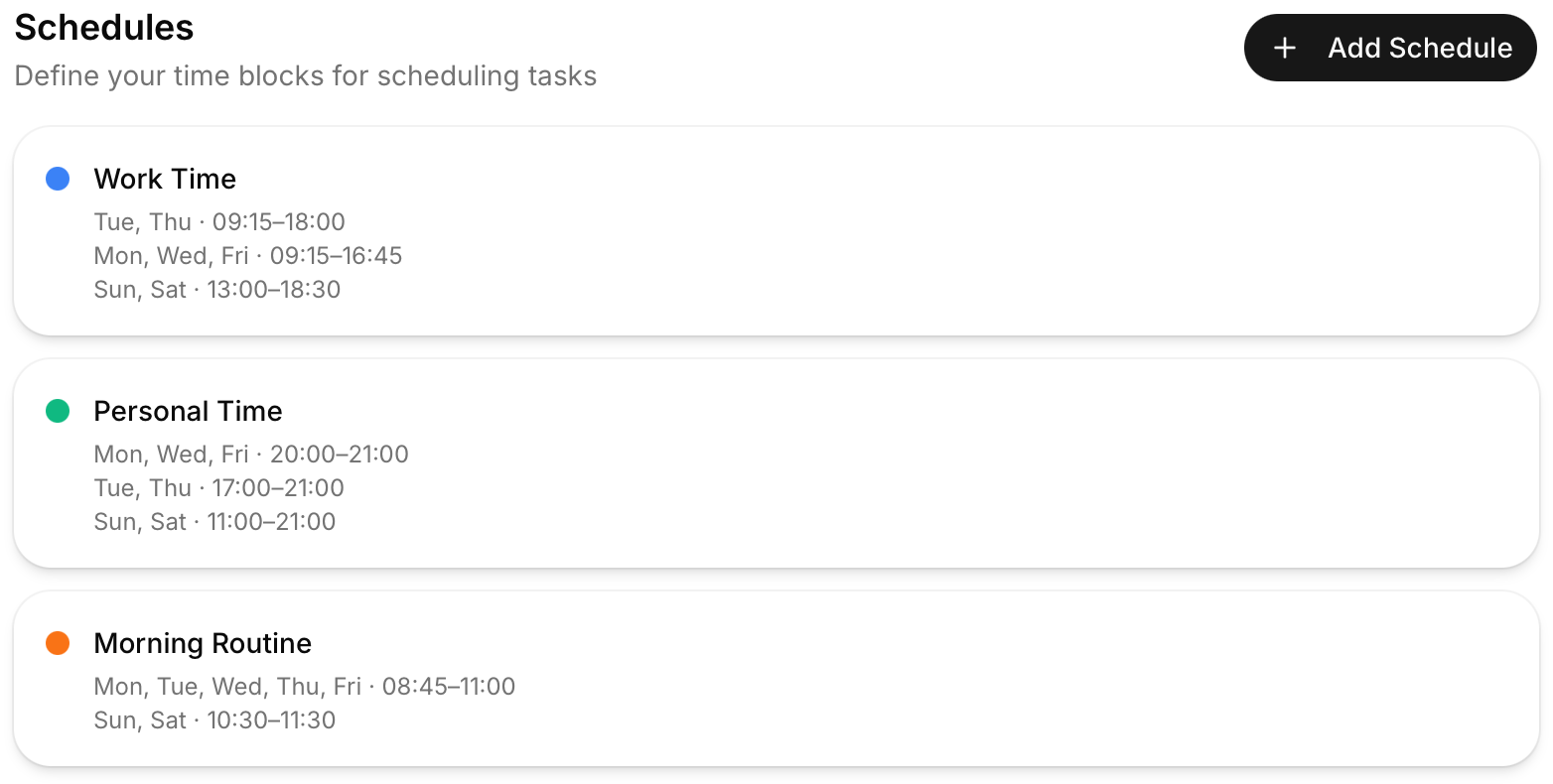
When initially setting up TurboHog, you created your schedules. Additional schedules can be added and existing ones can be edited by clicking your name in the bottom left of the app, selecting “Settings”, and going to the “Schedules” tab.
Each tasks gets assigned to a schedule and will be added to your calendar during that window.
Work and Personal schedules are great for getting you started, but you can use schedules in other ways as well.
If you have tasks that you need to complete each morning, and “Morning Routine” schedule can be great for those.
You can also create schedules for specific projects if you only want to work on those during specific days of the week.
There a multiple ways to adapt schedules to your specific workflow.
Tasks are what the auto-scheduler actually schedules. It takes tasks and places them on your calendar letting you know “what's next” at all times.
A few specific items are considered when scheduling tasks.
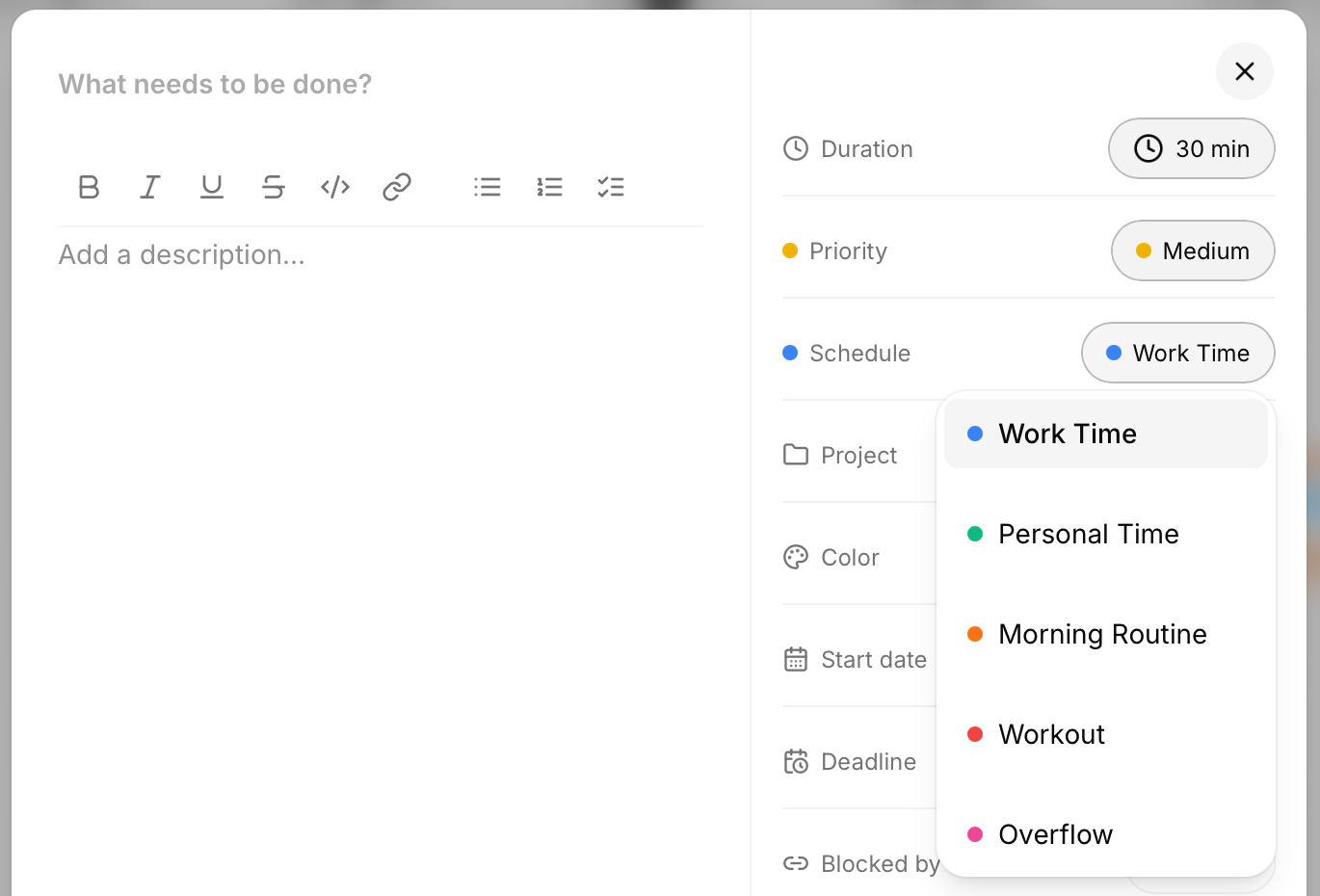
Each task has a schedule associated with it. The scheduler will auto-schedule tasks during this window. If a task cannot fit in the window without missing your deadline, it will put the task in another schedule to ensure it is completed on time.
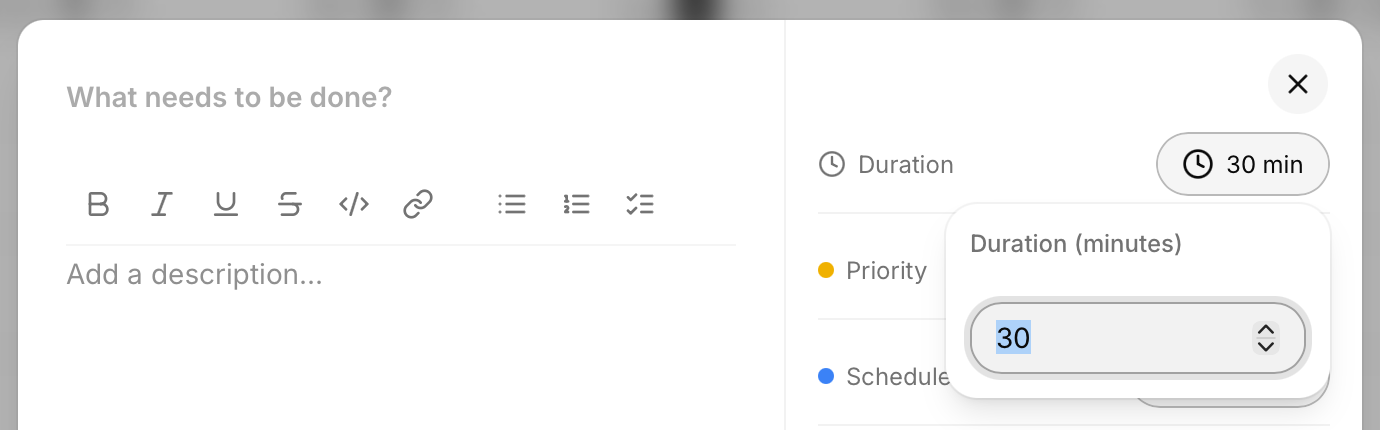
This is how long a task will take to complete. This is needed to accurately map your time and make sure you have enough time to complete tasks in your day.
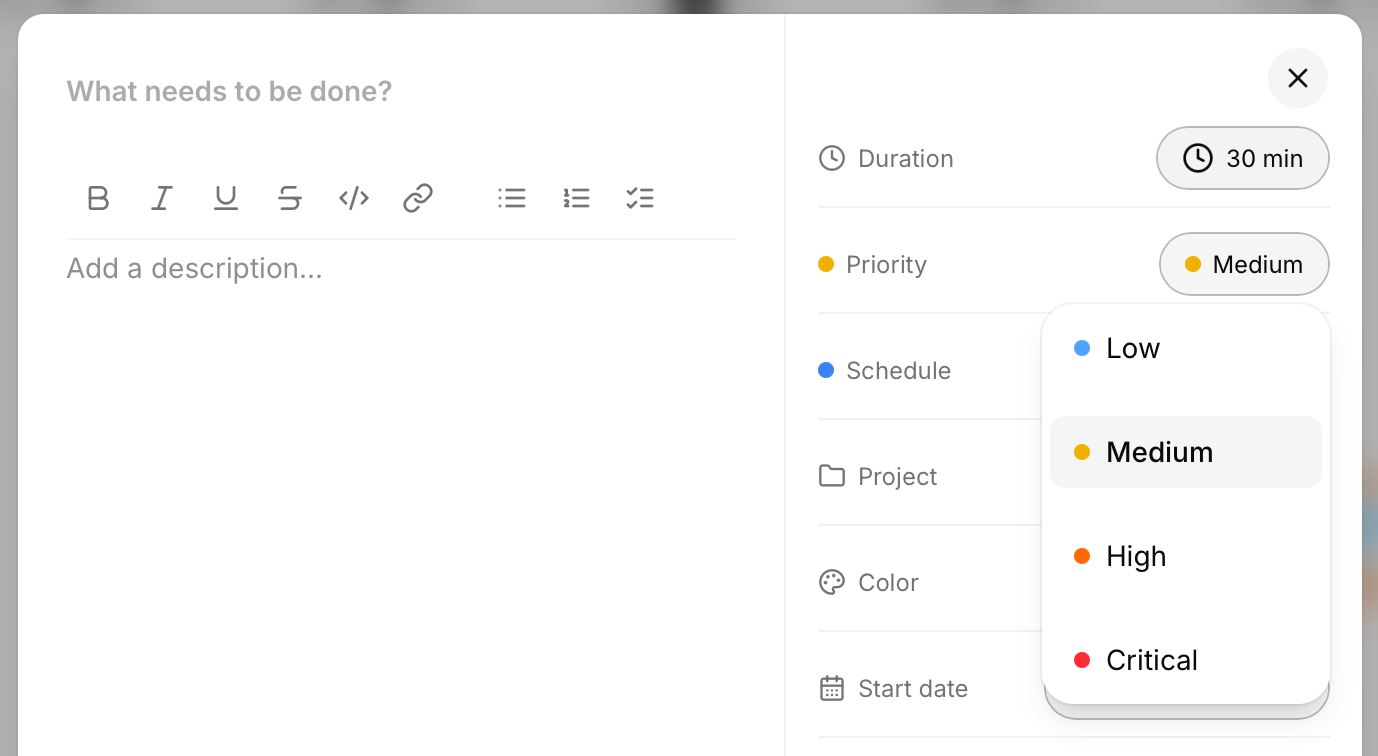
One of the highest considerations of the auto-scheduler is task priority.
Critical tasks will also be scheduled to be completed right away, first thing.
High priority will be scheduled over medium.
Medium priority is the base and ensures that things are done ahead of time.
Low-priority tasks get the lowest ranking and will be deprioritized until nearing their deadline.
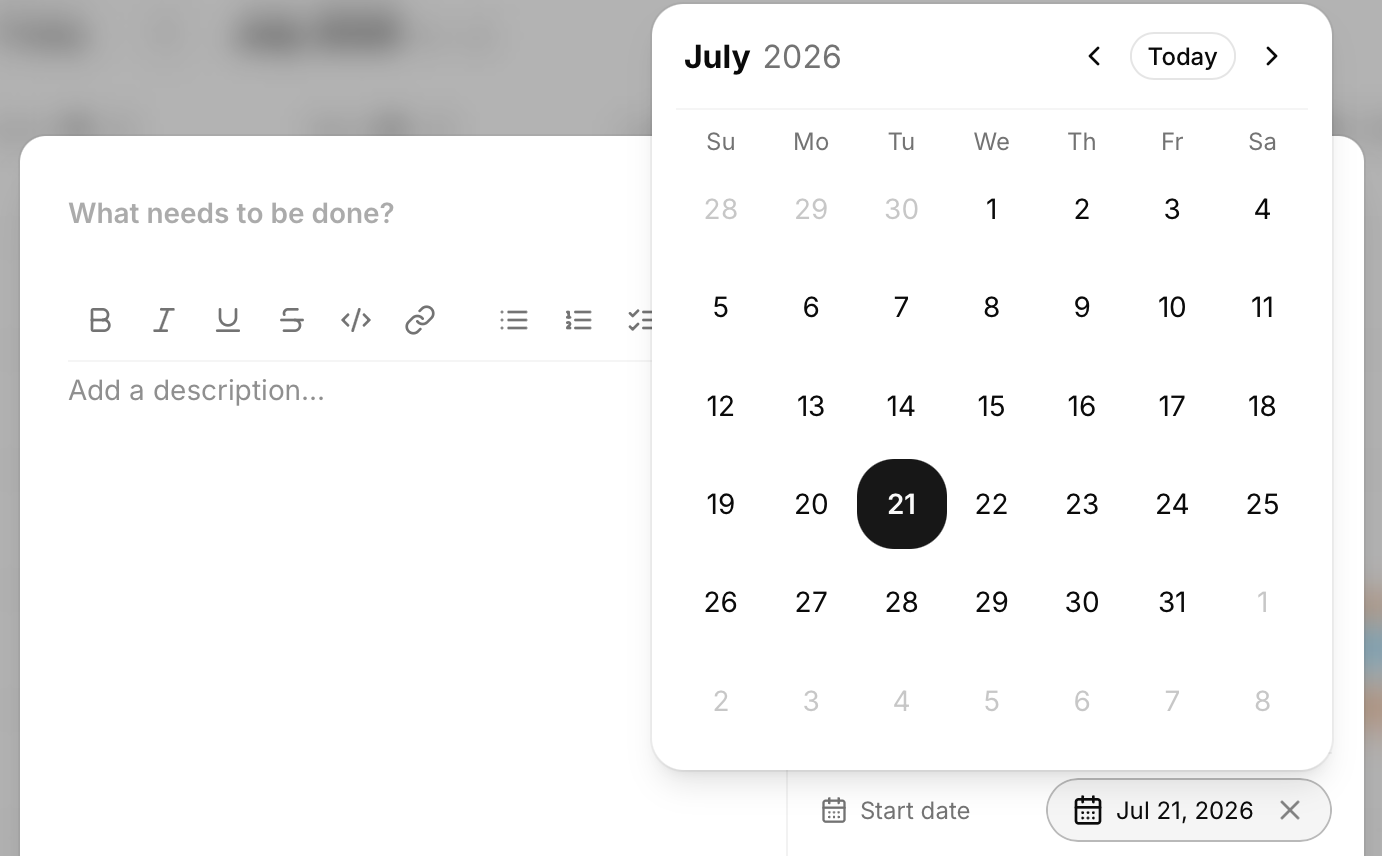
Some tasks can't start until a specific date. When you set a start date in the future, the task will not be scheduled until that day or later.
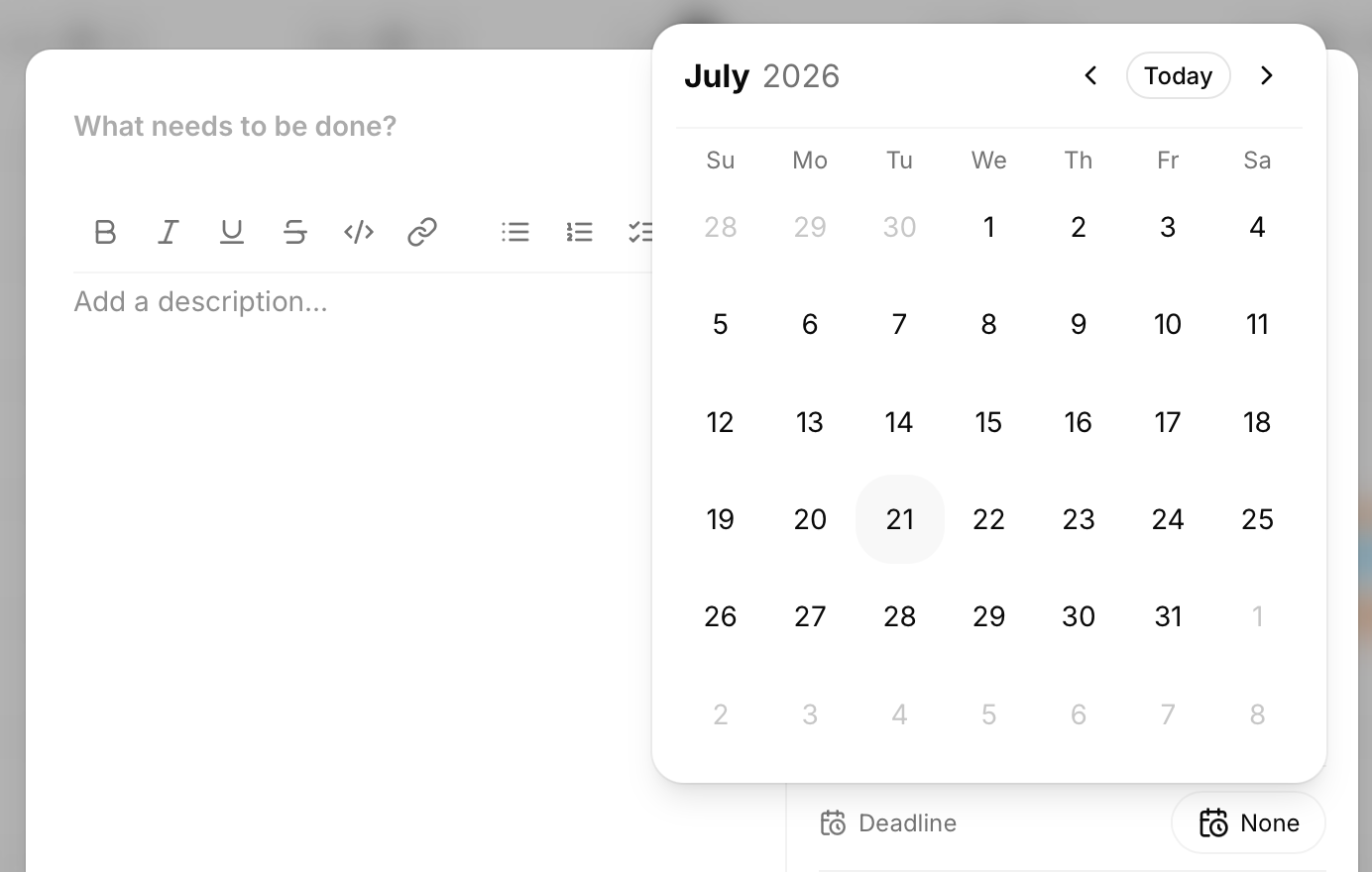
When is your task due? The task will be scheduled at latest on this date, and TurboHog tries to schedule things to get them completed before the deadline set.
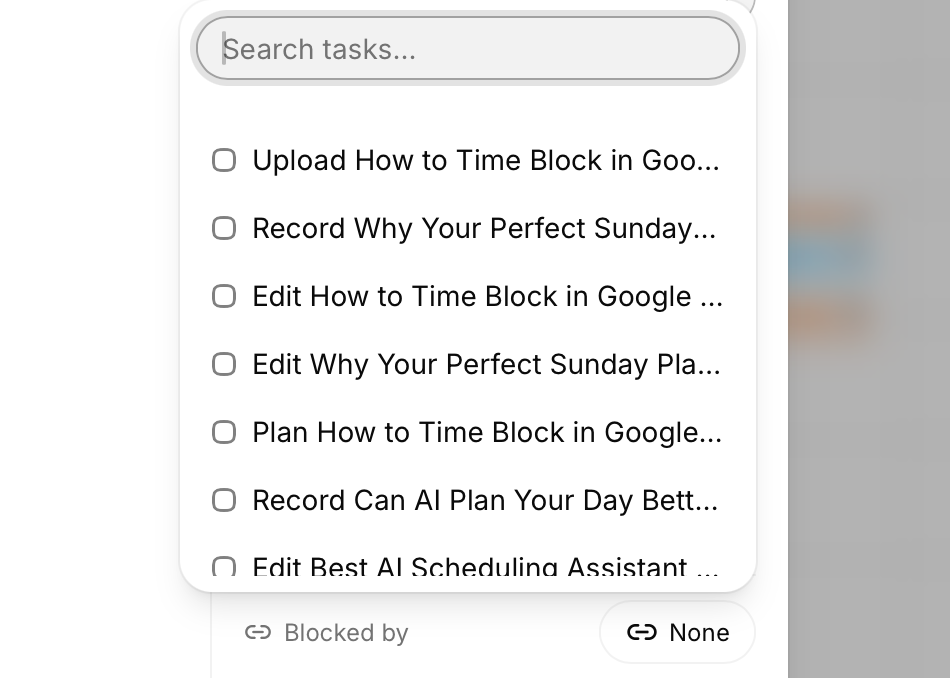
If one task must be completed before this task can be completed, you can use task blocking to ensure they are scheduled in the right order.
For example, a video can't be edited until it is recorded. By adding the recording task as a blocker on the editing task, TurboHog will ensure that the editing task is auto-scheduled after the recording task even if the editing task is a higher priority.
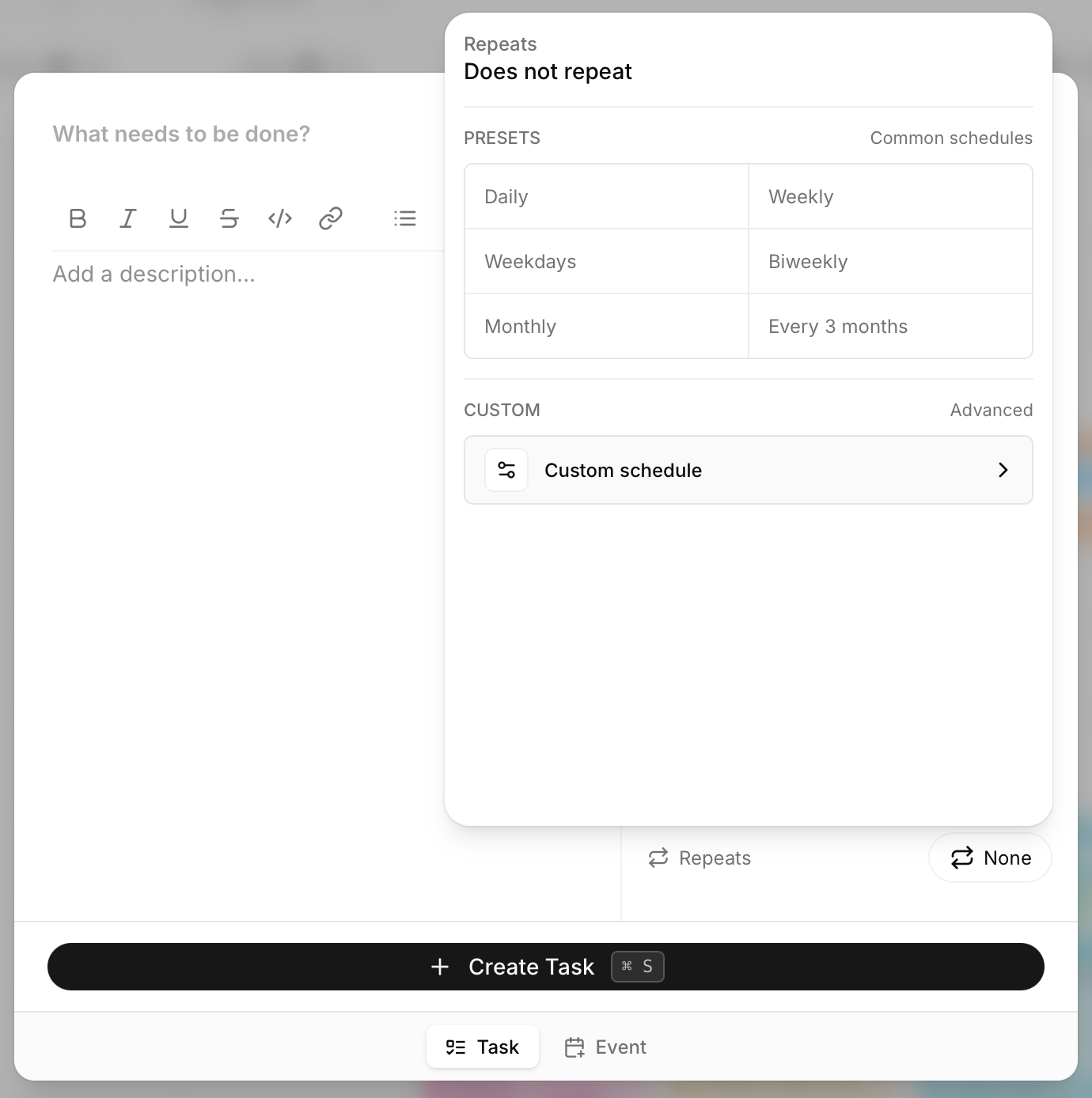
When creating a task, you can select a repeating schedule to make it recurring. Each instance of a recurring task is scheduled with the auto-scheduler.
That means recurring tasks can be scheduled at different times each day. If you want them at a consistent time, using a specific schedule for the recurring task can achieve this.
You can drag-and-drop tasks to specific timeslots on your calendar. Doing this gives you control over a task that you want to complete now or at a specific time in the day.
The auto-scheduler will then reschedule your remaining tasks around this locked task.