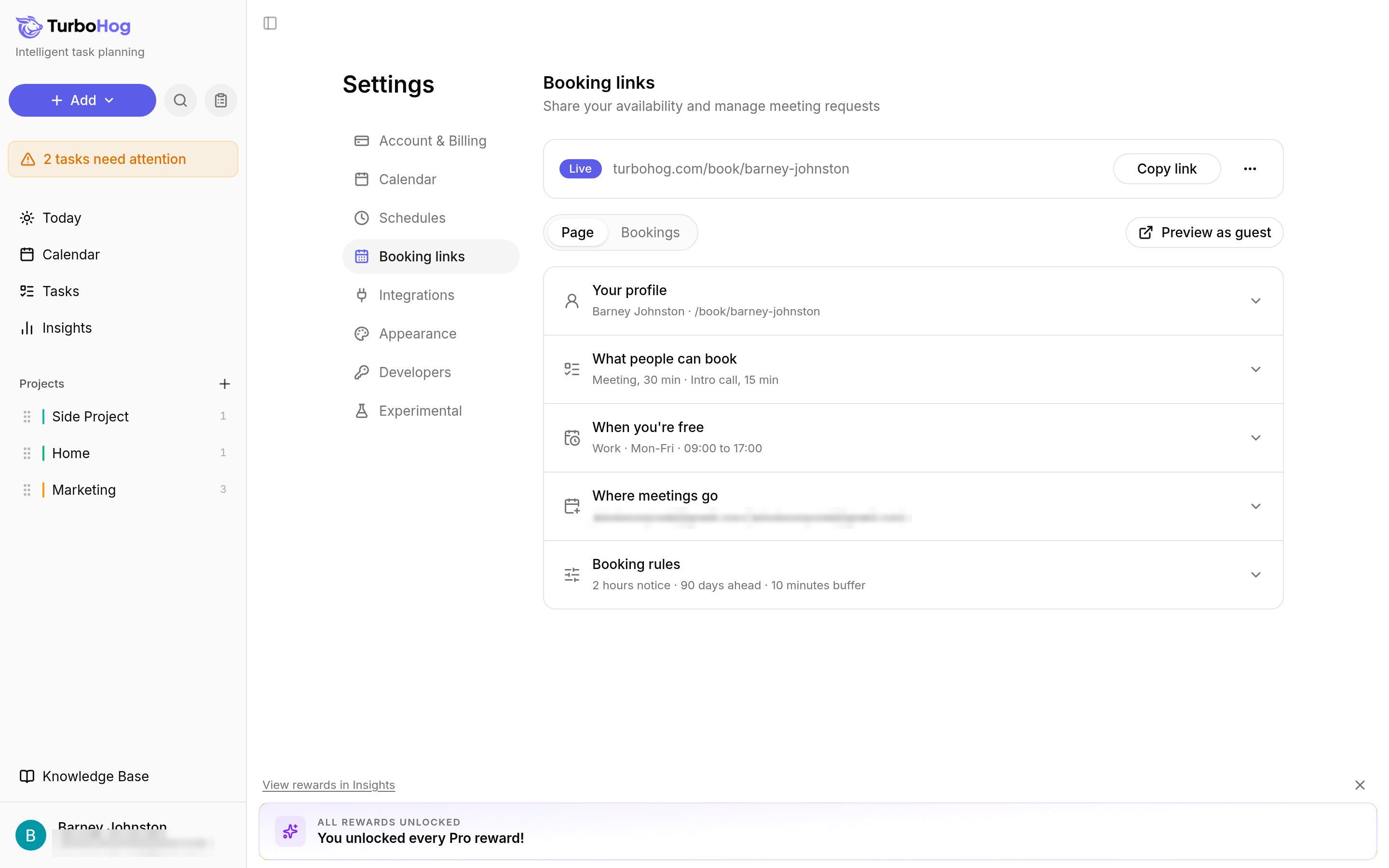
You choose what people can book, the hours they can book within, the calendar bookings go on, and a few booking rules. Guests see only your open times, never the details of your other events. When someone books, the meeting is added to your calendar and a calendar invitation is sent.
Nothing is public until you publish, so you can set everything up first.
Your booking page has lots of customization options, and you can have multiple meetings that can be chosen from.
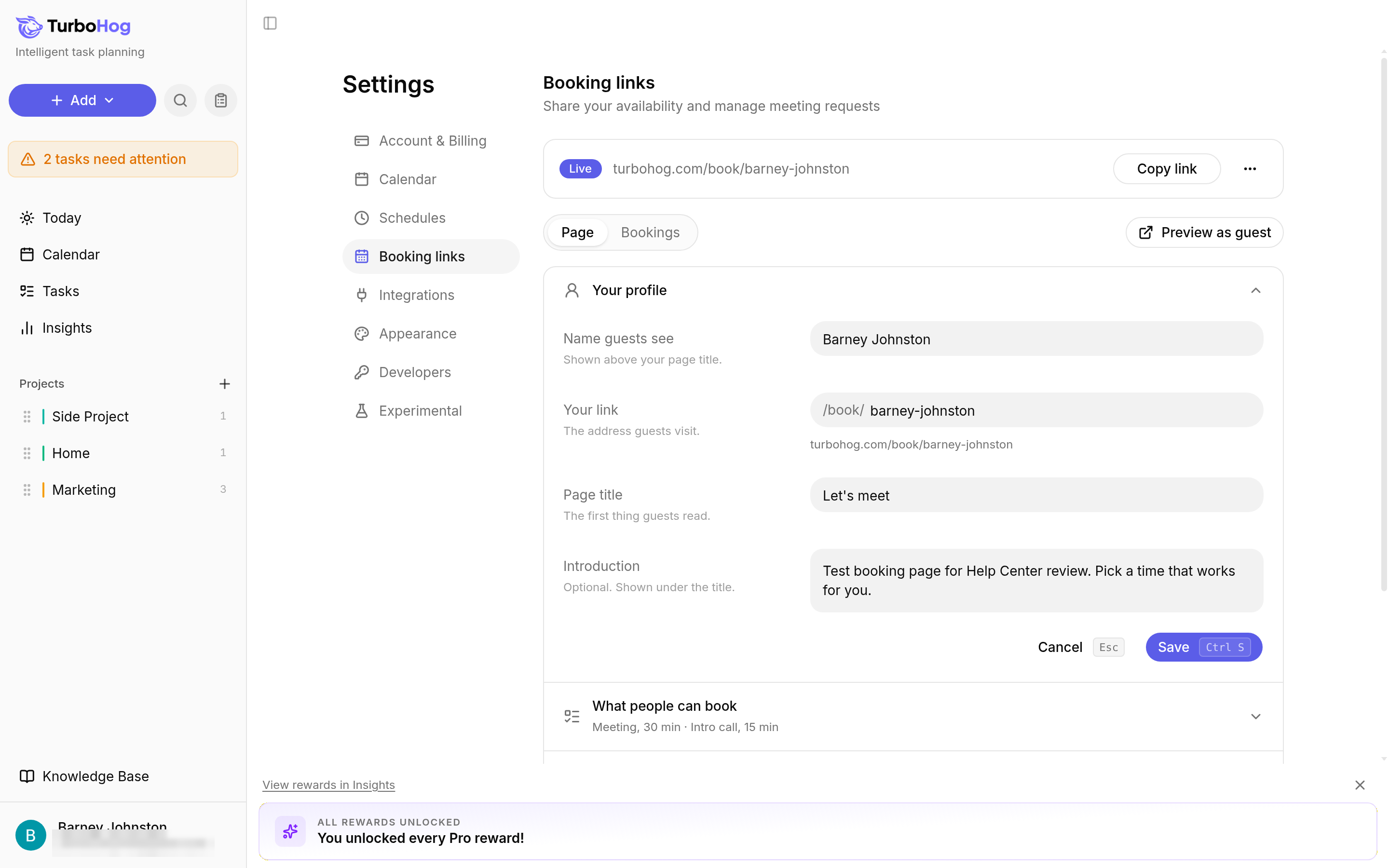
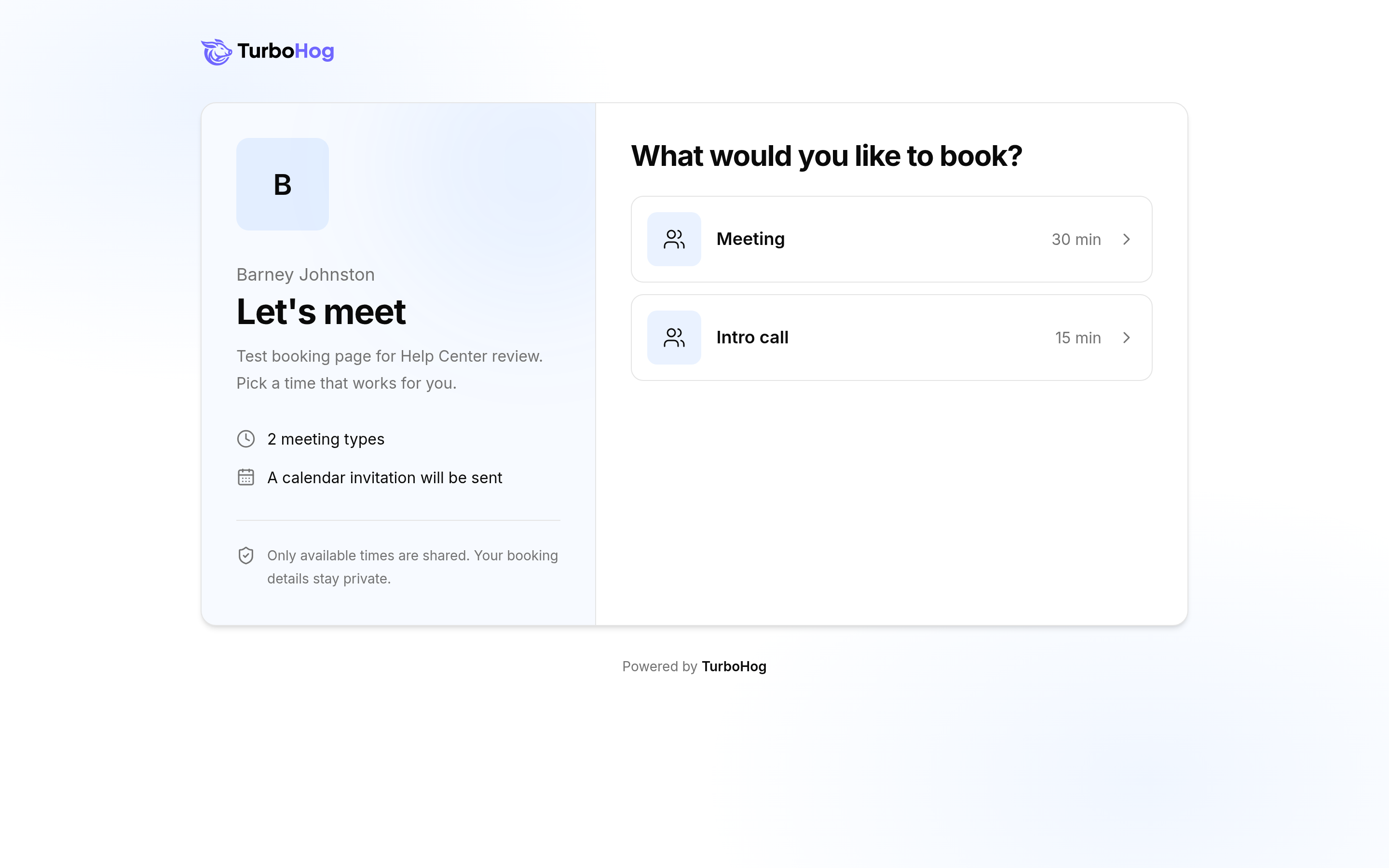
Offer one meeting type or several, such as a 30-minute meeting and a 15-minute intro call.
Guests pick one of these when they book.
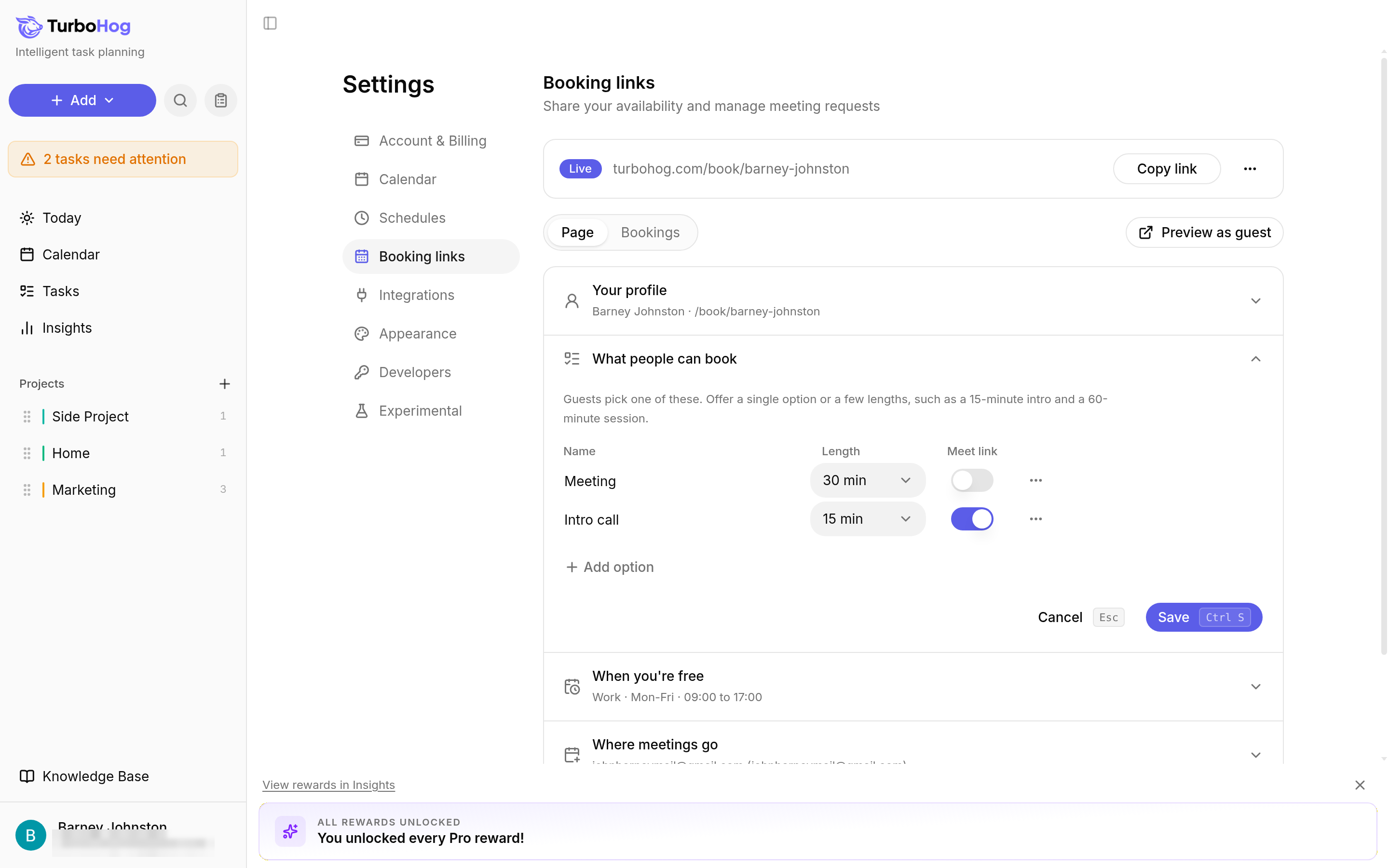
In this section, under "Schedule", choose the schedule people can book within, such as your Work schedule from Monday to Friday, 09:00 to 17:00. The hours are shown in your own timezone.
If you change that schedule later in Settings, under "Schedules", your booking page follows the change straight away.
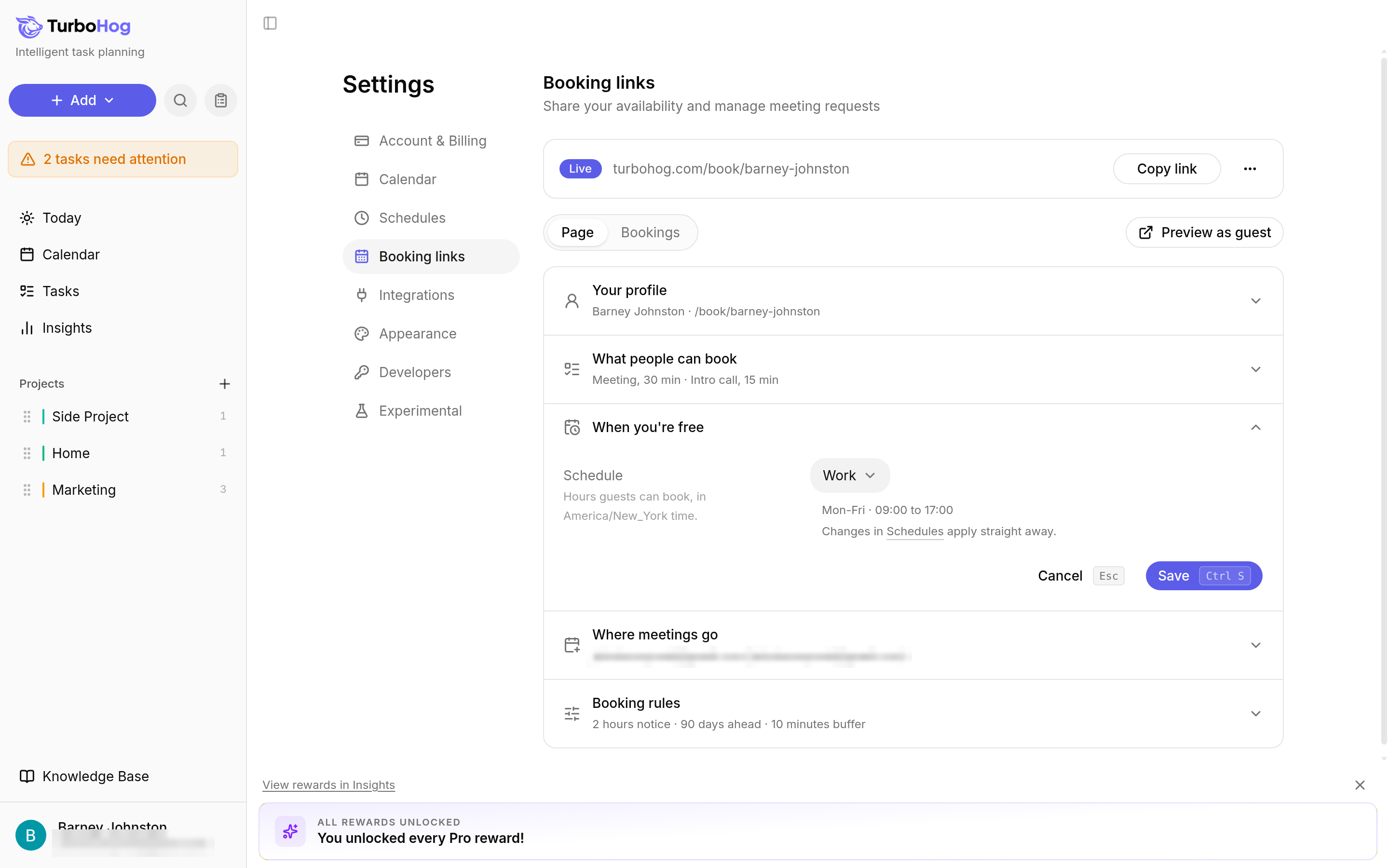
Busy events on all your enabled calendars, and tasks you locked to a time, block those times from booking. Flexible tasks move around new meetings. To create a schedule only for meetings, read Schedules.
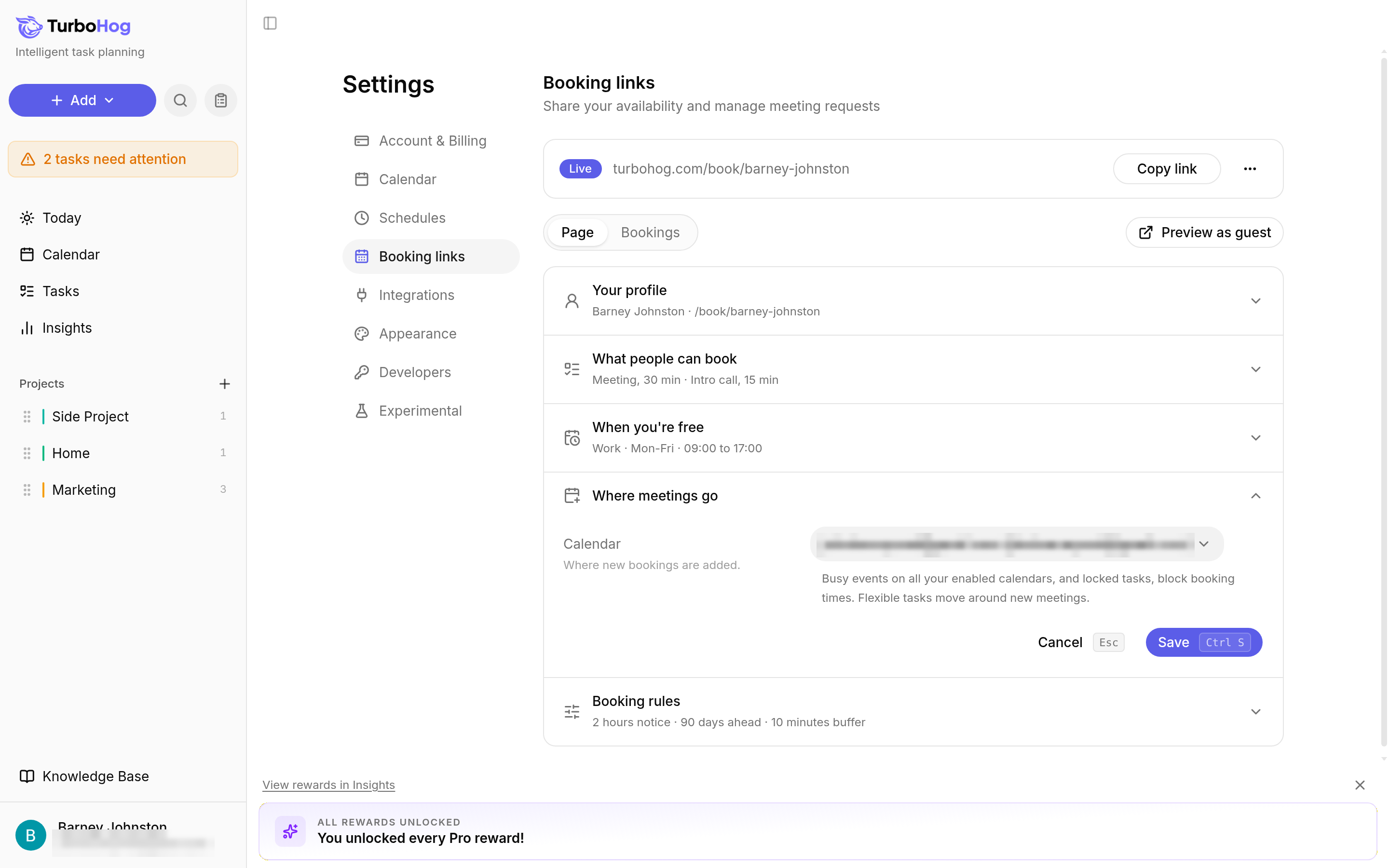
This is the calendar where booked meetings will live. This can be a Google or Outlook calendar of your choosing, and you can customize this on a per meeting basis depending as well when create your booking options.
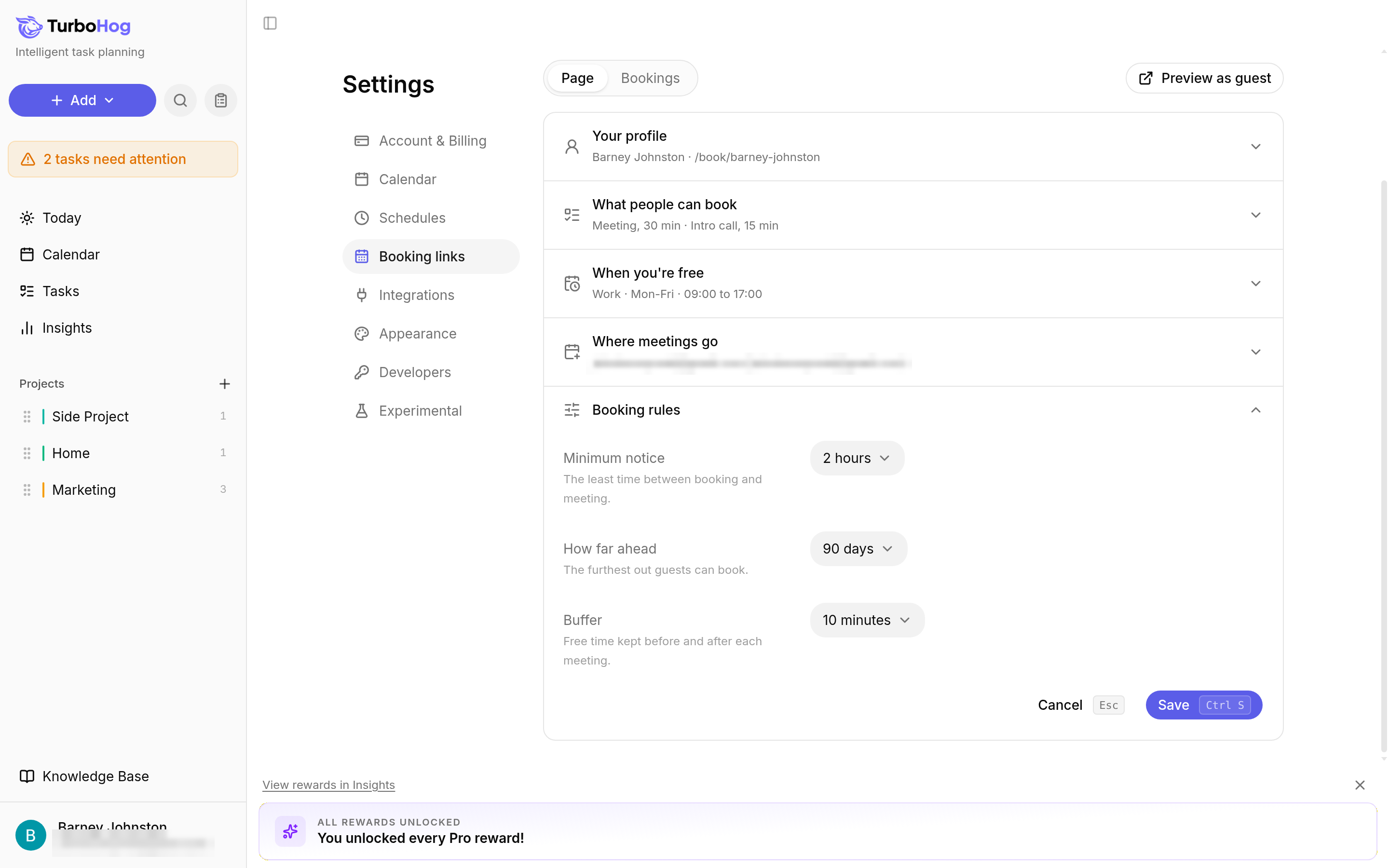
Booking rules control how and when people can book. "Minimum notice", "How far ahead", and "Buffer" are all in this section.
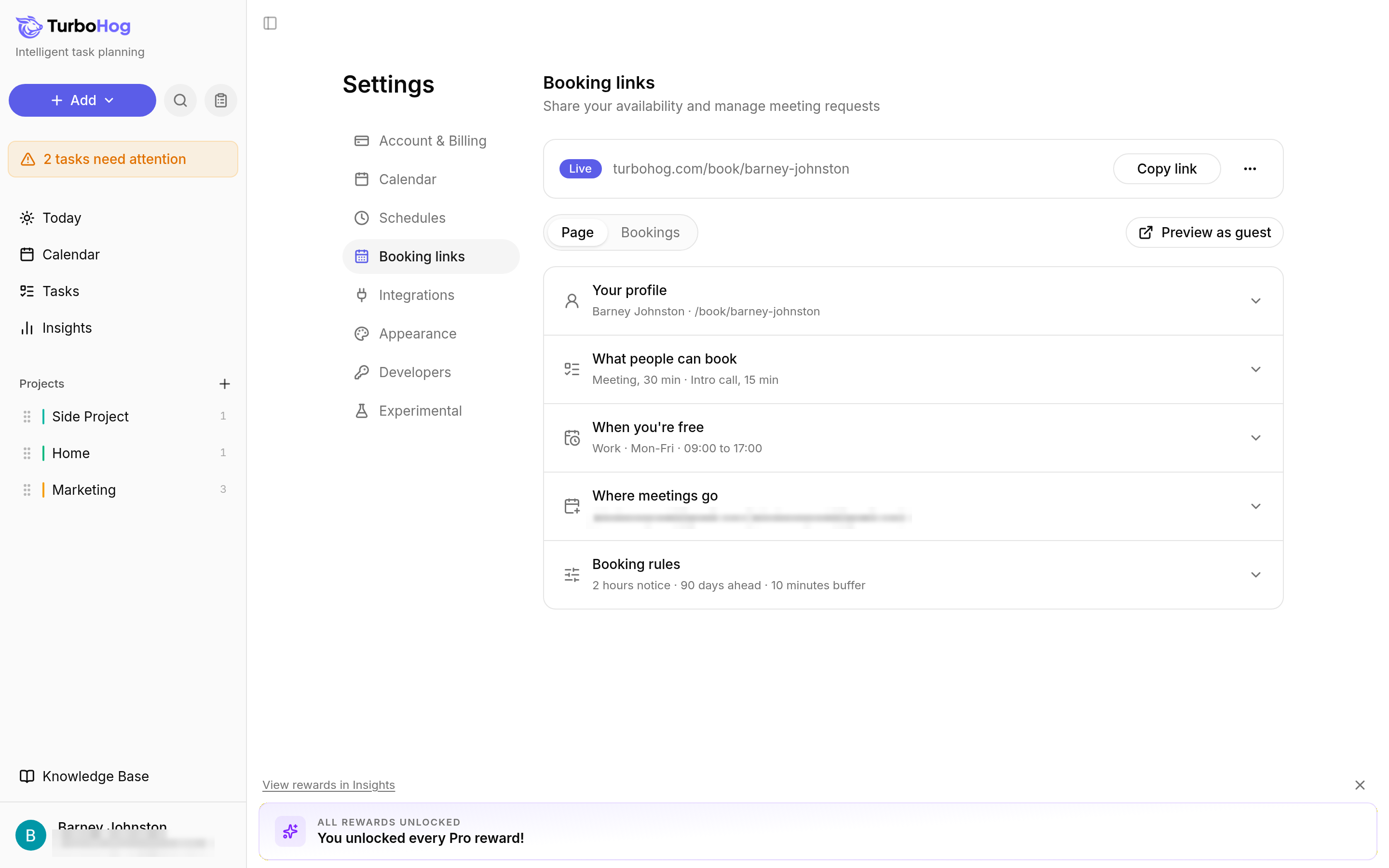
When you close the section, it shows a summary, such as "2 hours notice · 90 days ahead · 10 minutes buffer".
Before you publish, click "Preview as guest" to see your page the way guests will look when people come to book time with you.
Once you are ready, click "Publish" at the top of the page.
The top bar changes to "Live" and shows your link. TurboHog also copies the link for you and shows "Copied", so you can paste it right away into an email or message.
When someone opens your link, they see your name, your intro text, how many meeting types you offer, and a note that a calendar invitation will be sent. Only your available times are shared.
Times you are busy, such as a lunch event, are not offered.
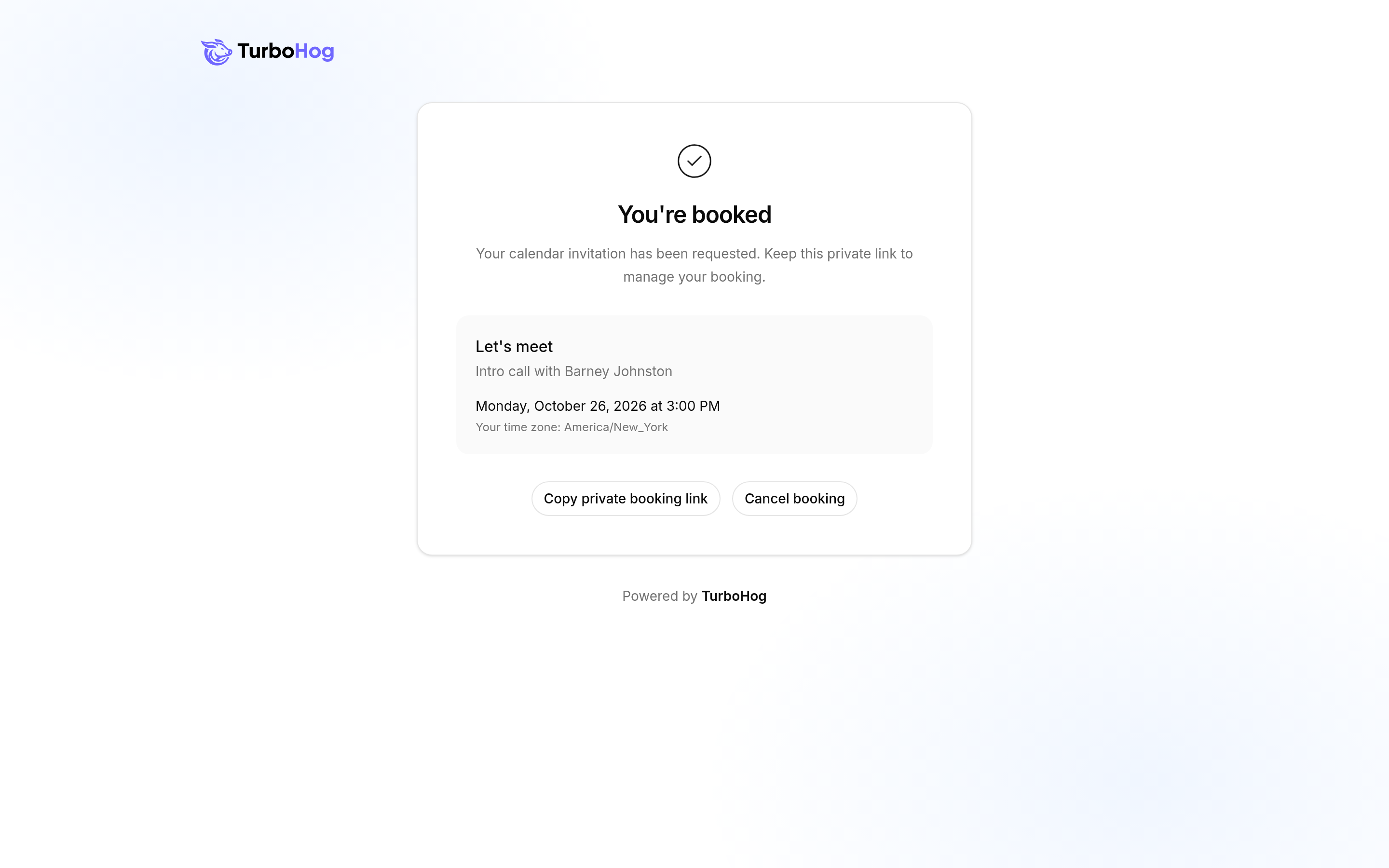
When the booking goes through, the guest sees "You're booked" with the meeting, the date and time, and their timezone. The page says their calendar invitation has been requested and asks them to keep the private link to manage the booking. They can click "Copy private booking link" or "Cancel booking".
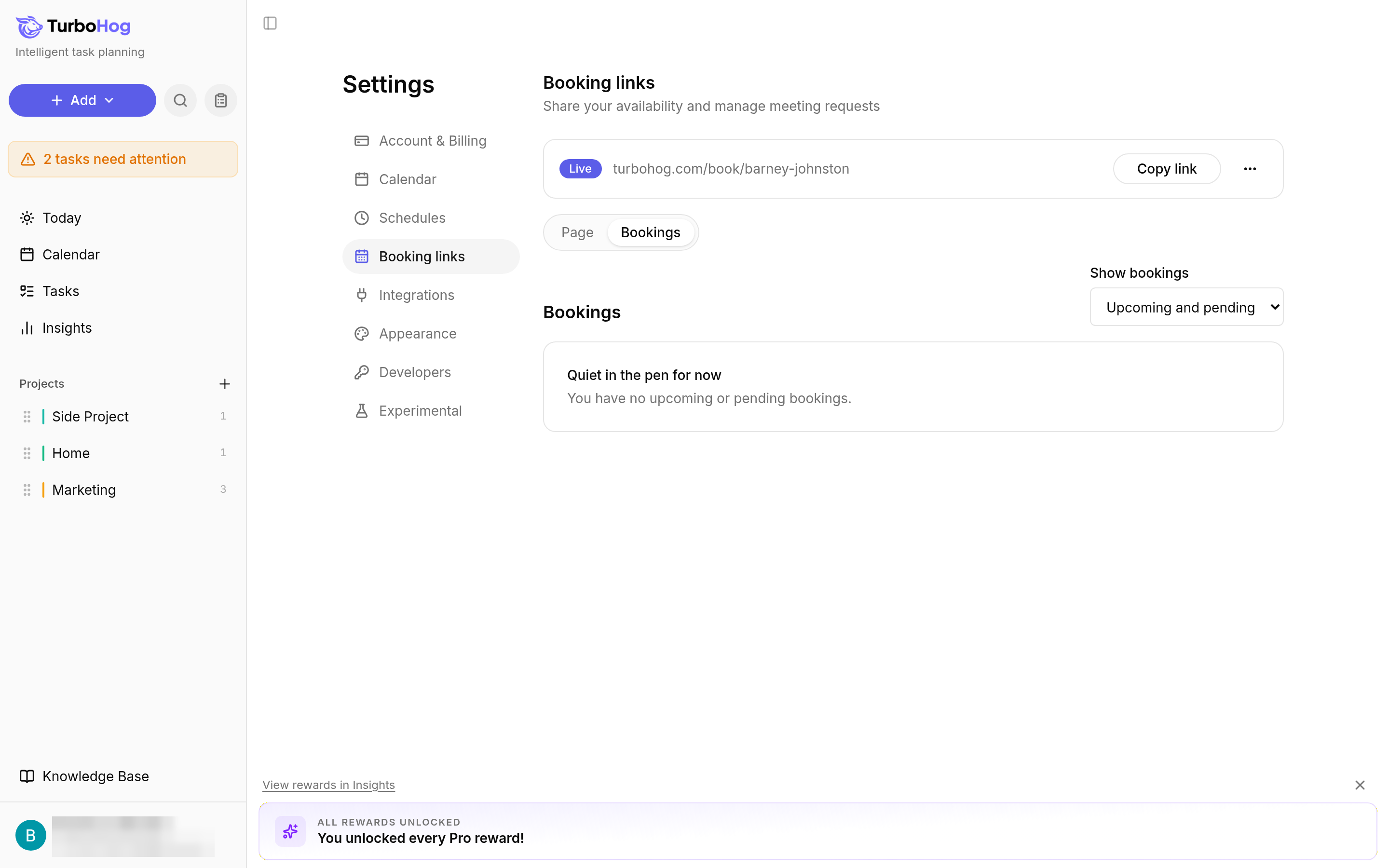
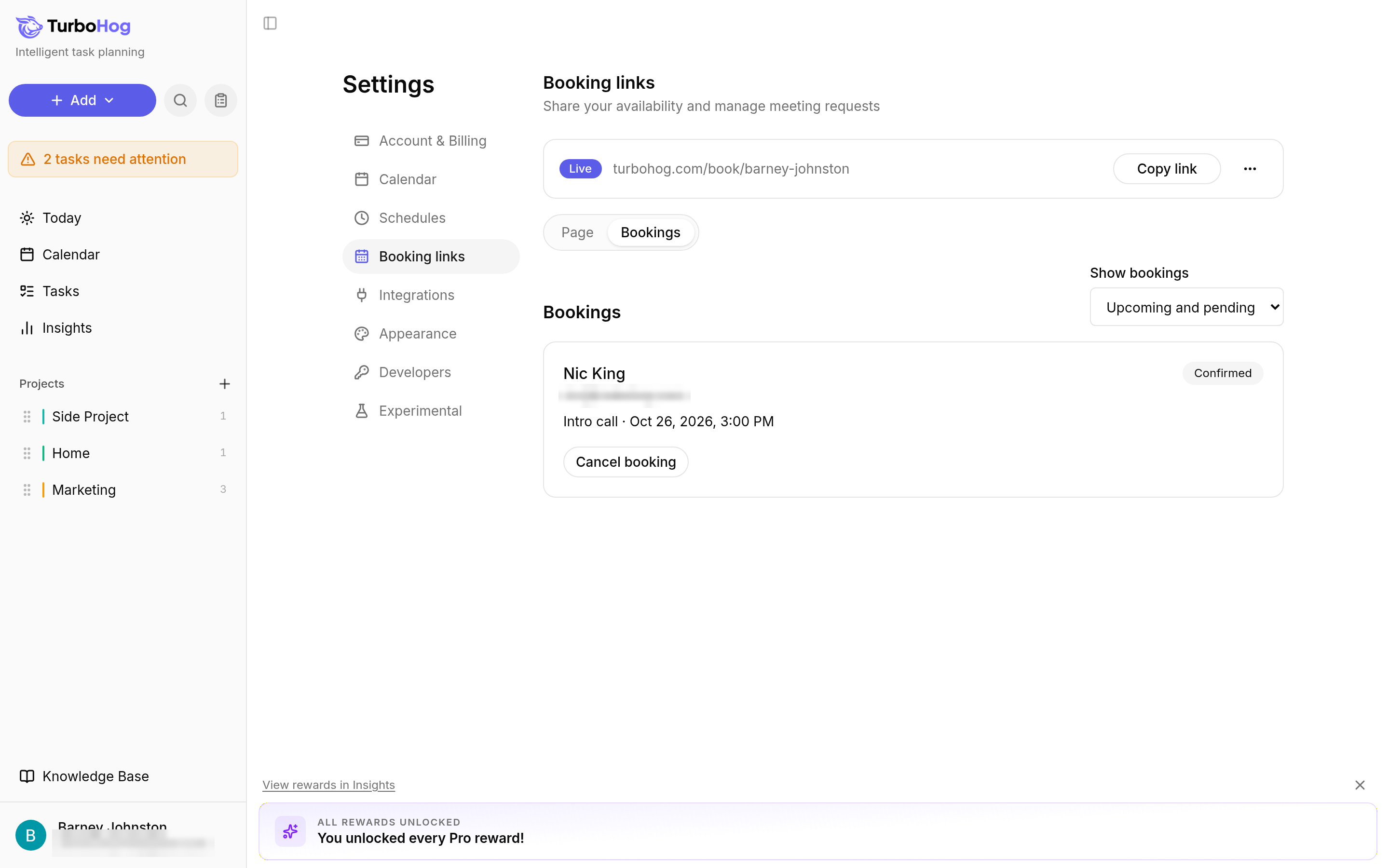
Click the "Bookings" tab at the top of the Booking links tab to see the meetings booked through your page. Use the "Show bookings" menu to filter the list. It starts on "All bookings".
Each booking shows the guest's name and email, the meeting type with its date and time, such as "Intro call · Oct 26, 2026, 3:00 PM", and its status, such as "Confirmed" or "Canceled".
The booking's status changes to "Canceled", and TurboHog removes the meeting from your calendar. The booking stays in your list.
Click "Copy link" at the top of the Booking links tab to copy your link again. Paste it into an email, a message, or your email signature.
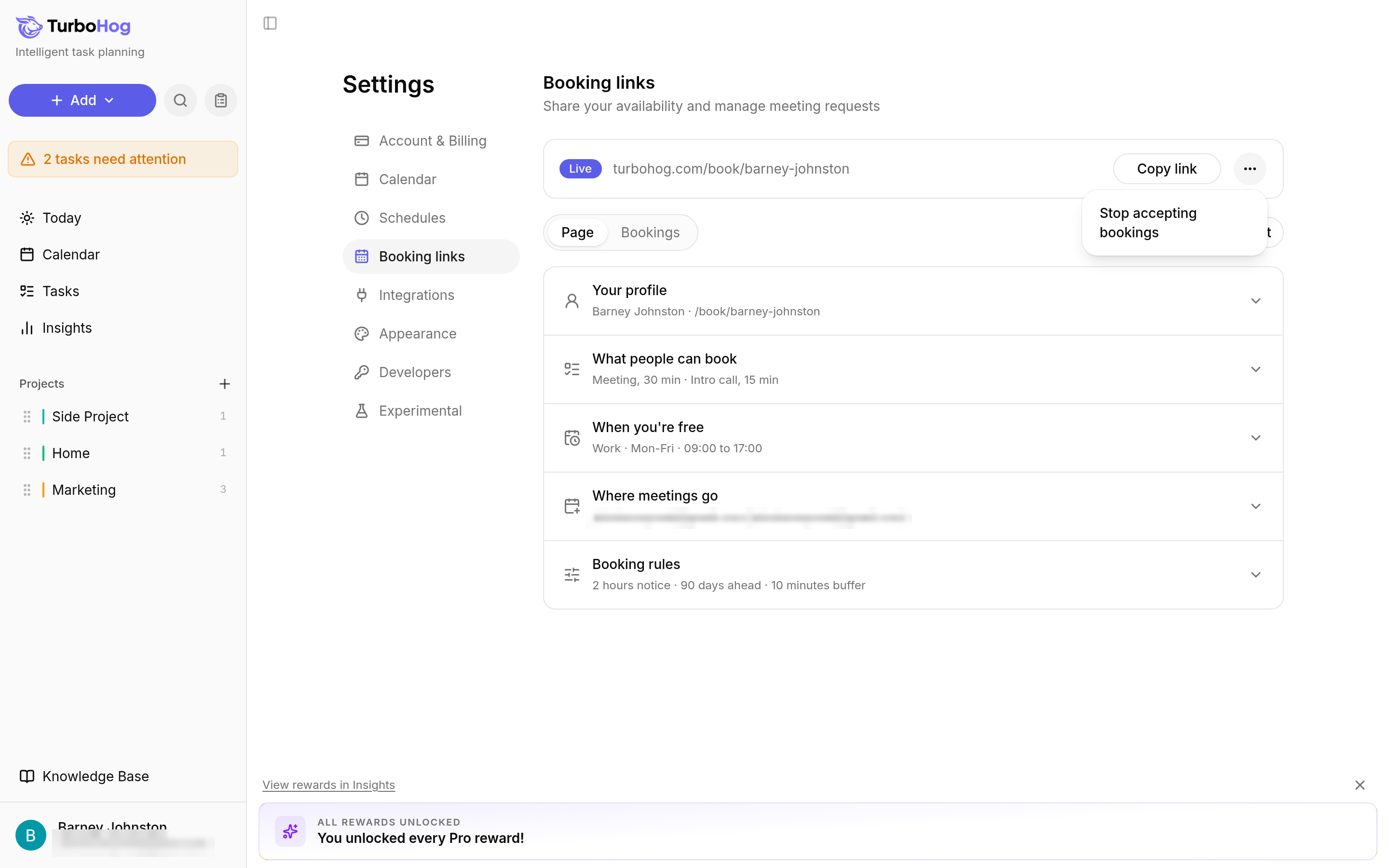
Turning off a calendar in Settings, under "Calendar", also stops new bookings through its booking link. Existing bookings stay active.
Booking links are included in the 7-day free trial. To see how booked meetings fit into your plan, read How Auto-Scheduling Works and The Calendar View.