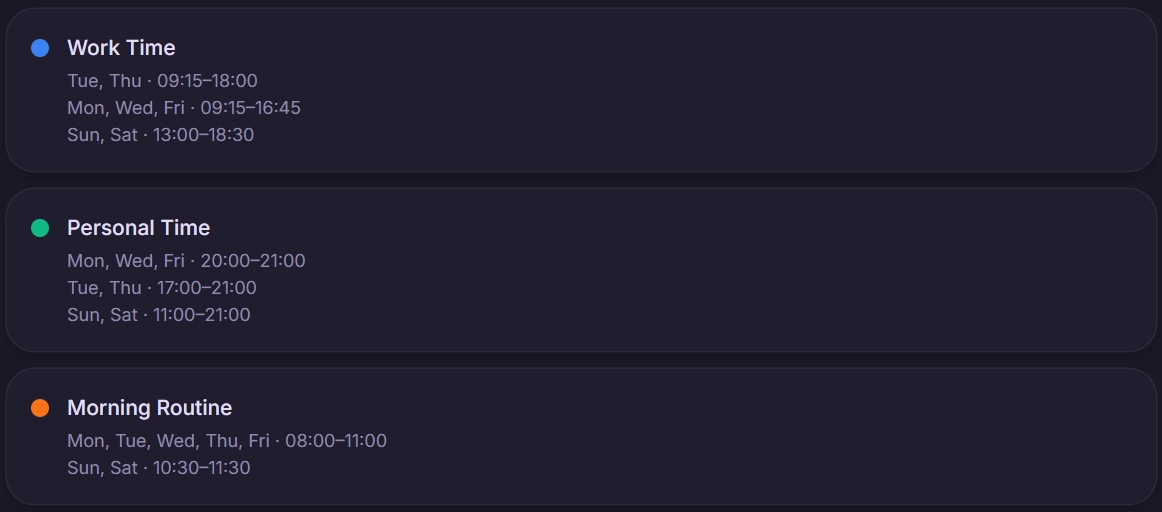
Schedules are what auto-scheduling uses to make sure tasks are placed within the correct window. That means you won’t see work tasks outside of work hours unless a deadline is going to be missed.
You can also use schedules to work on specific projects, businesses, or classes on specific days.
You could create a Tuesday, Thursday schedule for client work, and a Monday, Wednesday, Friday schedule for your side-project. There are many ways schedules can work for you.
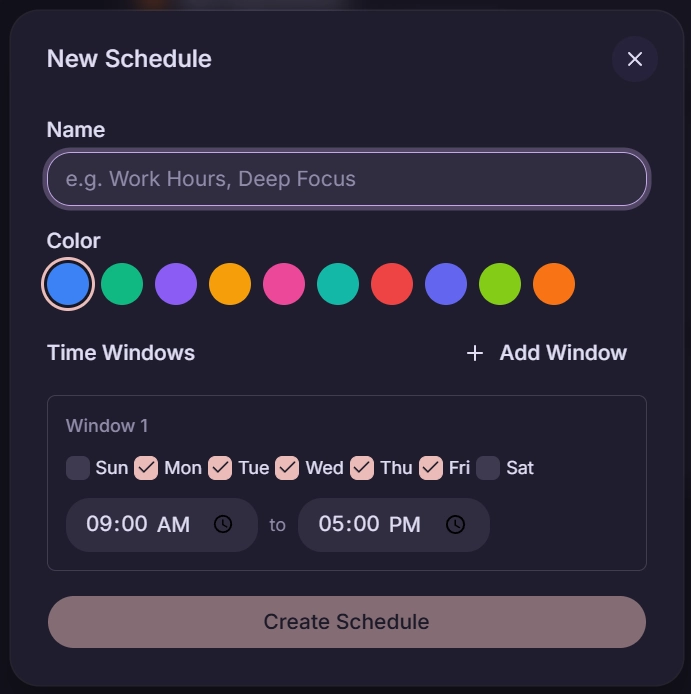
You will initially make a schedule when you first set up TurboHog. However, you can create and edit schedules in the app as well.
To do this, click your name and email in the bottom left of the app and select “Settings”. Then, click on the “Schedules” tab.
Here, you can hover over a schedule and click the “Edit” pencil to change an existing schedule.
To make a new one, click the “+ Add Schedule” button. Then, you can set the schedule you’d like and save it.
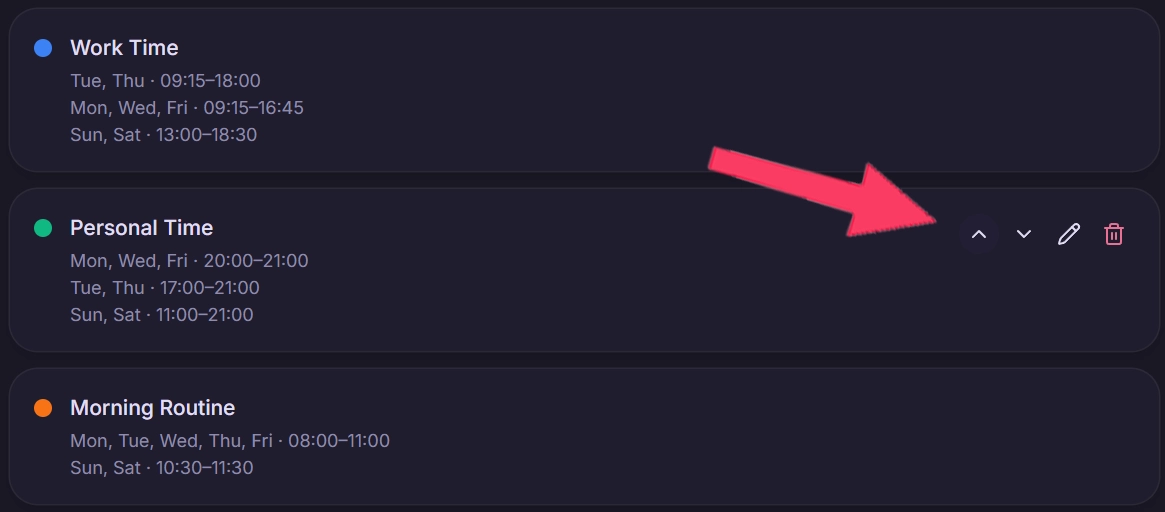
To set the default schedule that is selected when making a new task, go to the “Schedules” tab. Then, hover your schedules, and you will see arrows appear. Use these arrows to move your schedules around. The top schedule will be the default one when making a task.
You can always manually change a task to another schedule when creating a task.
The auto-schedule will only schedule a task outside of its set schedule if that task’s deadline would be missed otherwise.
For example, if you have a bunch of tasks due on the same day, and there isn’t enough time in your work schedule to complete them all, the auto-scheduler will move tasks to another schedule in your day. That means you may see a work task appear in personal hours.
If you adjust the task's deadline, it will automatically reschedule to a time slot within the schedule since it is no longer at risk of the deadline being missed.
TurboHog is meant to work in a way that fits your life and flows the best. That means you can use schedules in multiple ways depending on your workflow.
This is what we consider the classic setup. The schedules would be as follows.
In the above example, TurboHog manages your entire life, and personal tasks are scheduled in personal hours while work tasks live during the work week in the “Work” schedule.
Many of us run multiple projects. Schedules can be used to dedicate specific days of the week to a project. Here is how the schedules would work.
This dedicated three work days to project one, two to project two, and personal time each night and on the weekend.
If you work with multiple clients, you can use schedules to dedicate days, or even blocks of days, to them.
The above schedules show how you can assign specific client work to specific schedules and batch that work within those time blocks.
A “General Work” schedule is also included throughout the week. This could be used for more general work in your business that doesn’t go to a specific client, and it will automatically schedule right alongside client work. As you can see, schedules can overlap, and TurboHog just handles it.
Finding time for a side project can be difficult. TurboHog makes that easier.
Work time is protected, but side-project and personal time overlaps. This means that side-project and personal tasks will be scheduled together, allowing you to get everything done, including launching that new side project.