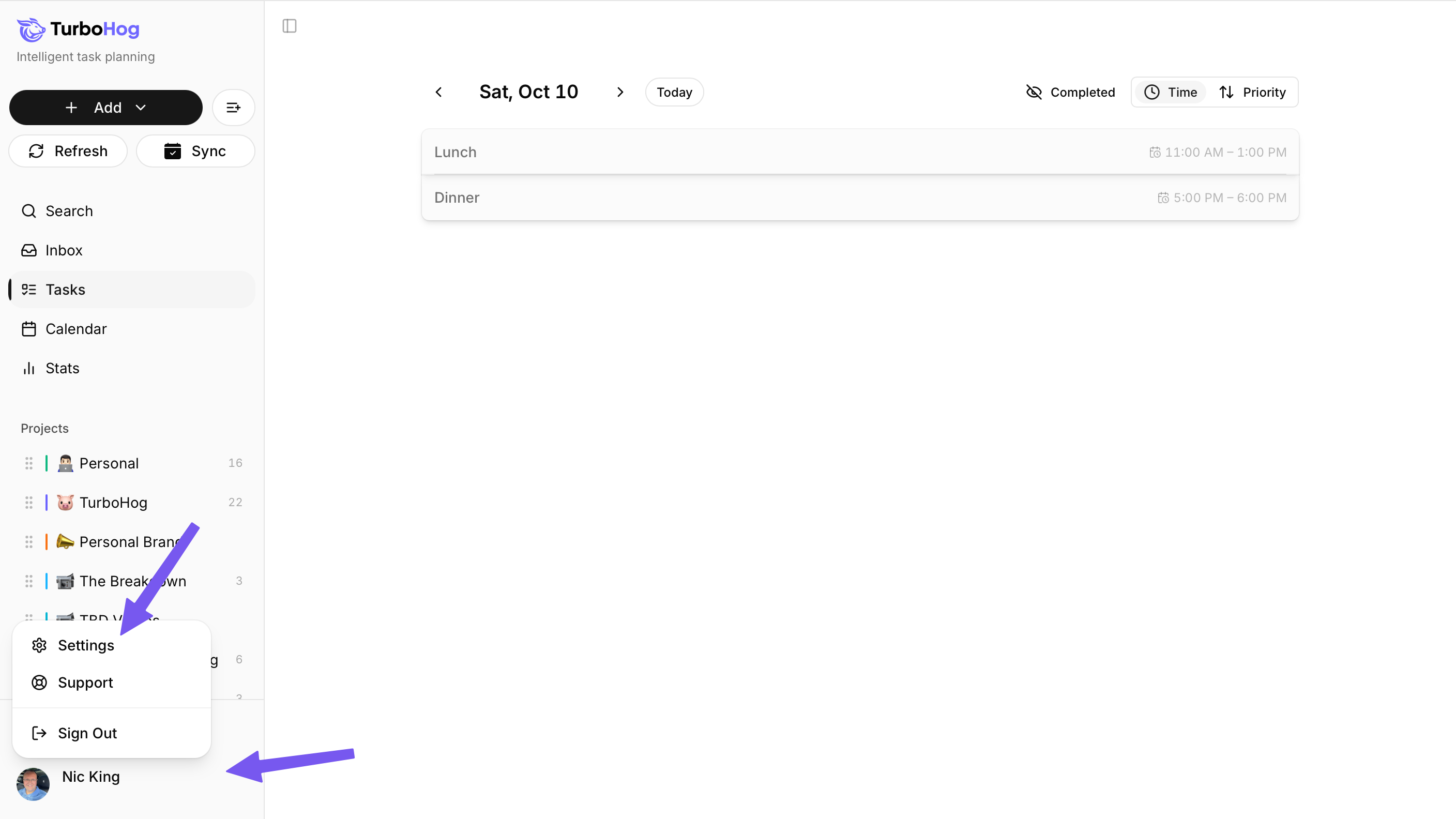
You can access settings from anywhere in TurboHog.
First, click on your Name/Email in the bottom left of the app.
Then, select “Settings” to be taken to the settings page, where you will have all of the different options laid out in one place.
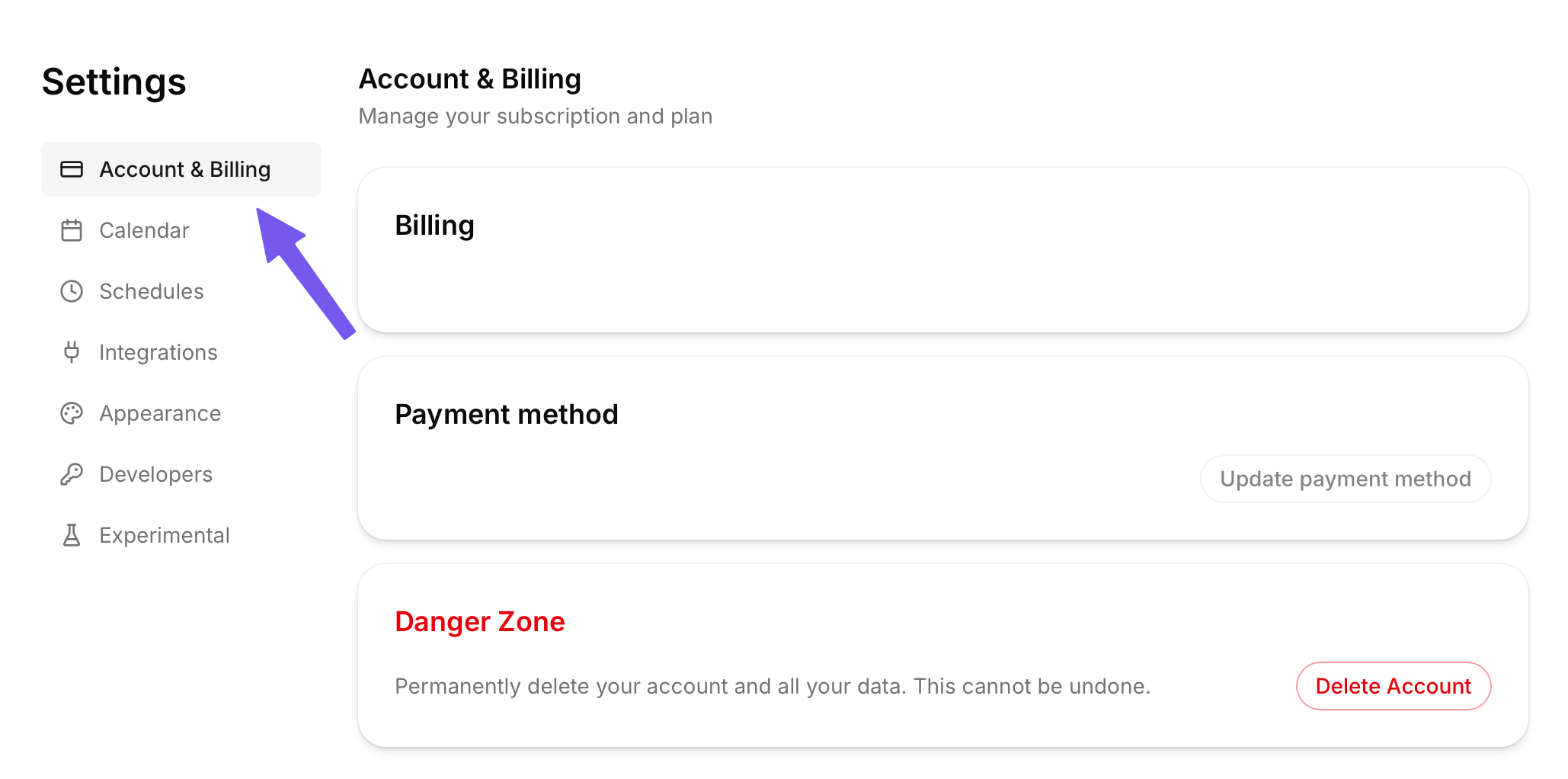
When you first land in settings, you will be on this page. Here, you can manage your subscription, payment method, and even cancel your subscription. This is where you can update payment information if needed as well, and delete your account.
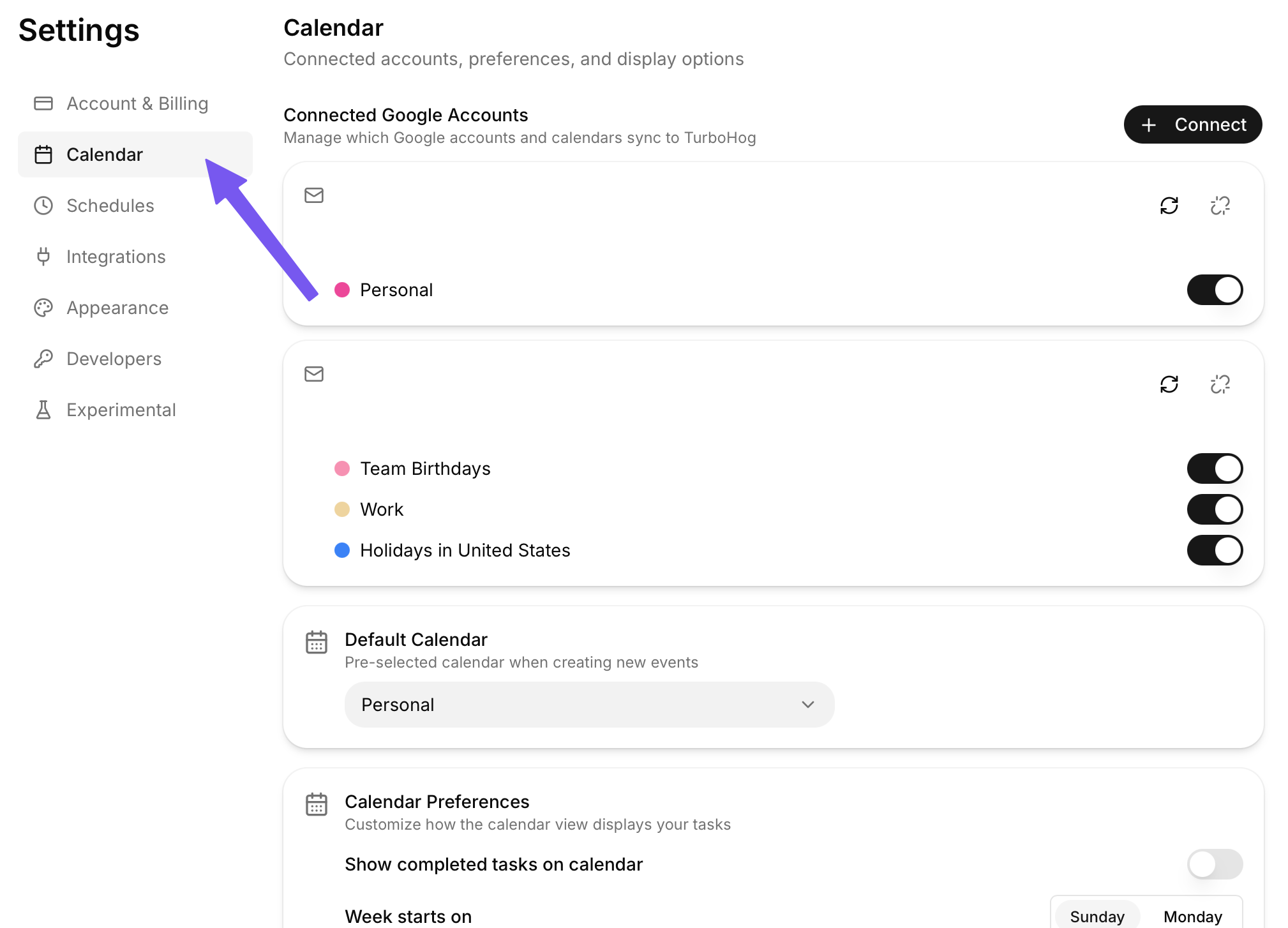
This is where you will find all of the settings related to the calendars you have linked to TurboHog.
You can connect additional Google Calendars here as well as manage calendars already in the app.
Under Connected Google Accounts, you will see all of your linked calendars broken down per account. You can toggle specific calendars on and off. Doing this removes or adds them to your calendar view and determines whether or not they affect your task scheduling.
A default calendar can be chosen here, too. This is the calendar that new events select automatically. You can manually change to other calendars when creating events.
Calendar Preferences let you toggle whether completed tasks show on your calendar as well as what day of the week your calendar starts on.
Finally, you can select your timezone here if you need to manually change it.
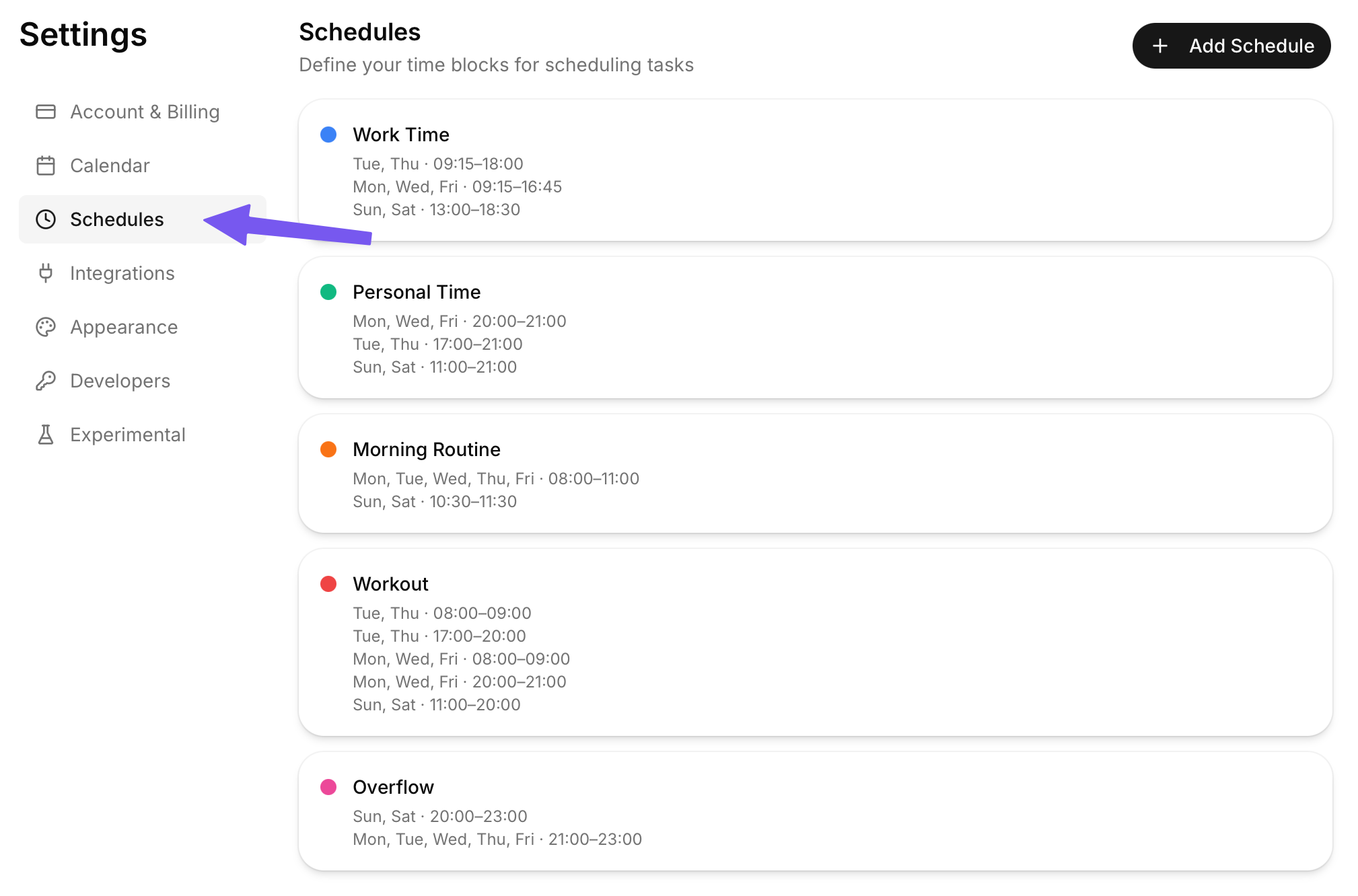
Schedules are what the auto-task scheduler uses to make sure tasks appear when you expect them to. Here, you can add, etc, and organize your schedules to make sure that they work best for you.
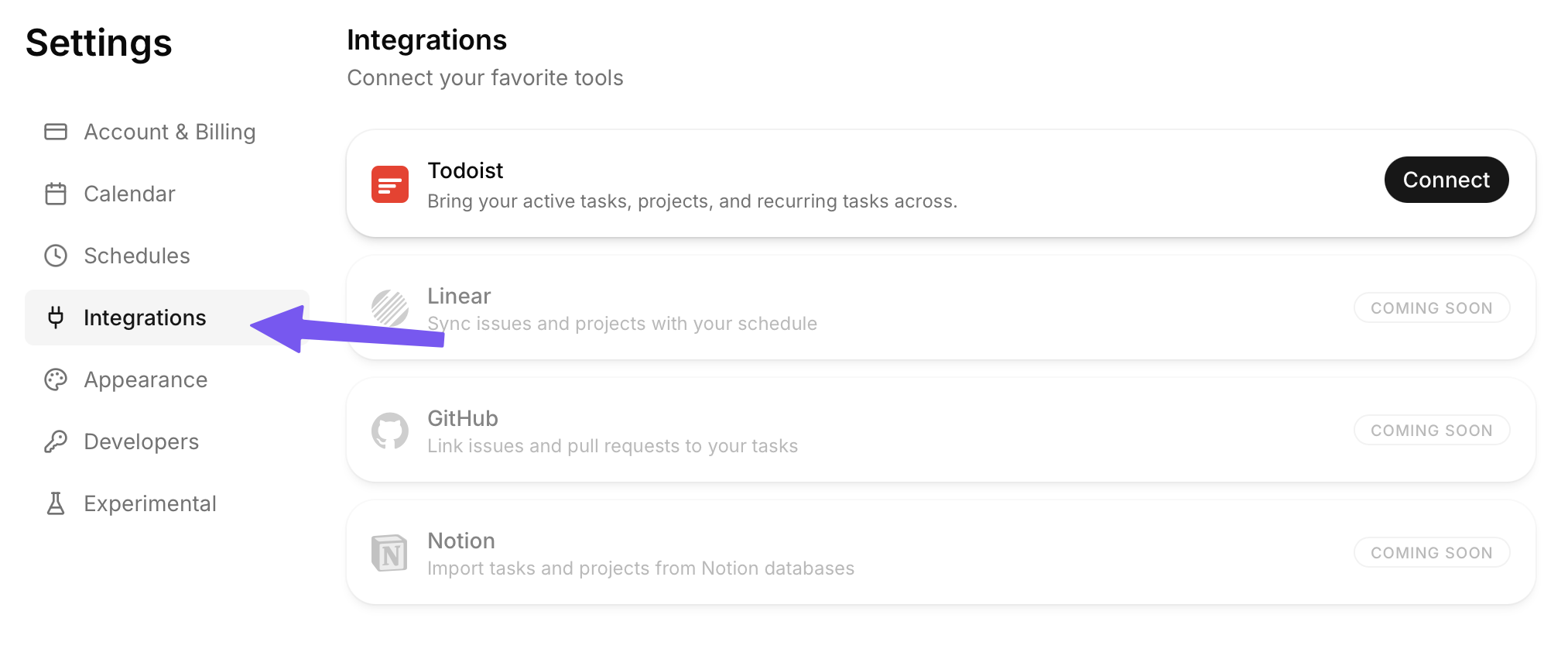
Here, you will see any integrations TurboHog has with other apps. This includes Todoist importing currently, but more integrations are on the way. If you want to see us integrate another app, let us know!
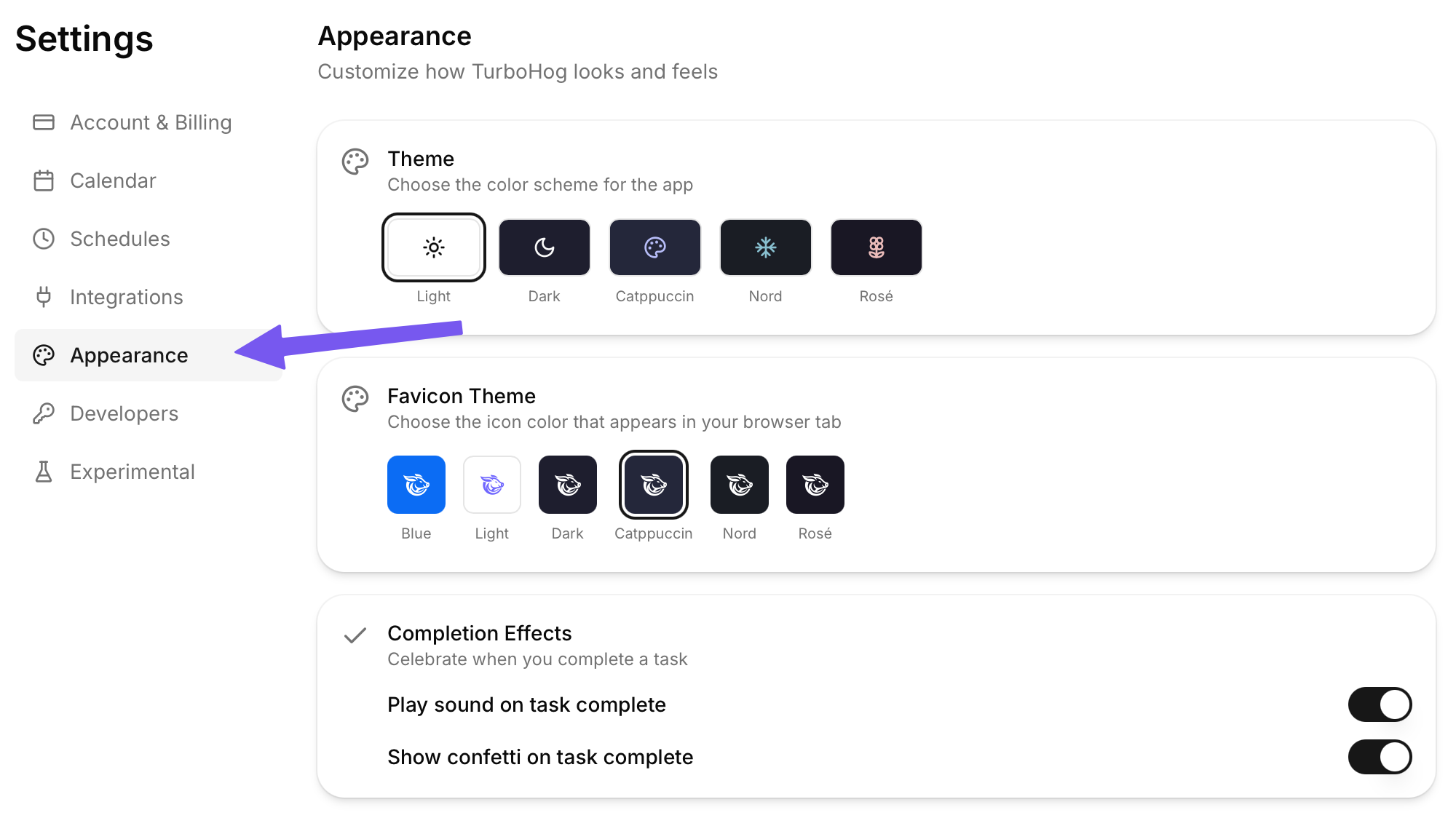
TurboHog has personality. Because of that, we have multiple themes and appearance changes you can make. In this tab, you can select from multiple themes. More themes are added all the time.
You can also select a favicon, which is great for adding TurboHog to your phone. The favicon is what the app icon will be.
Lastly, you can turn on or off the completed sound effect and confetti. The goal is to have a bit of fun when working. Turning these off makes things a bit more serious.
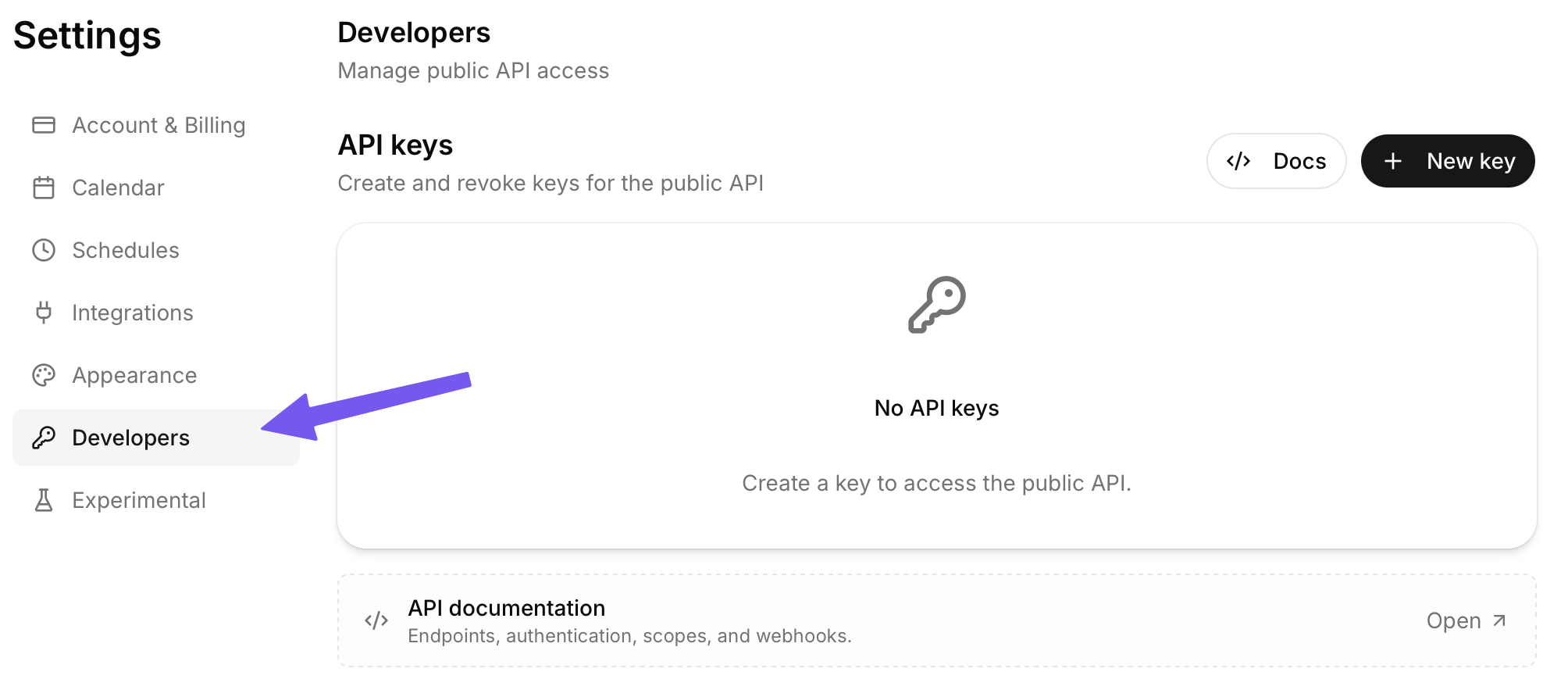
We have a full API integration. Here you can generate API keys as well as access developer documentation. This allows full integration with other apps, including MCPs.
To learn more about creating and managing API keys, check out our developer documentation.
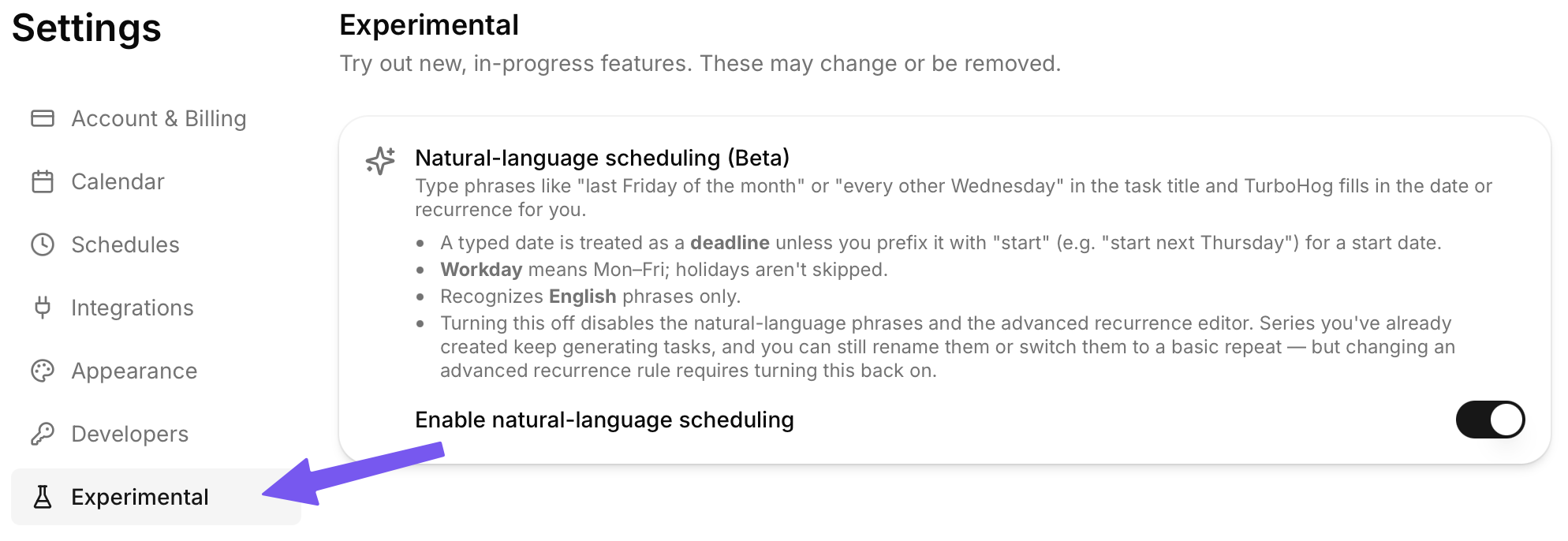
Are you a beta tester? Someone who likes living on the cutting edge? If so, you can enable the beta toggle here to test updates before they are considered stable.
When on the beta branch, things may break, have random bugs appear, or crash. If that happens, report the bug so we can squash it before things are pushed out of beta.