Click your name at the bottom left of the sidebar.
Select "Settings".
Click the "Calendar" tab.
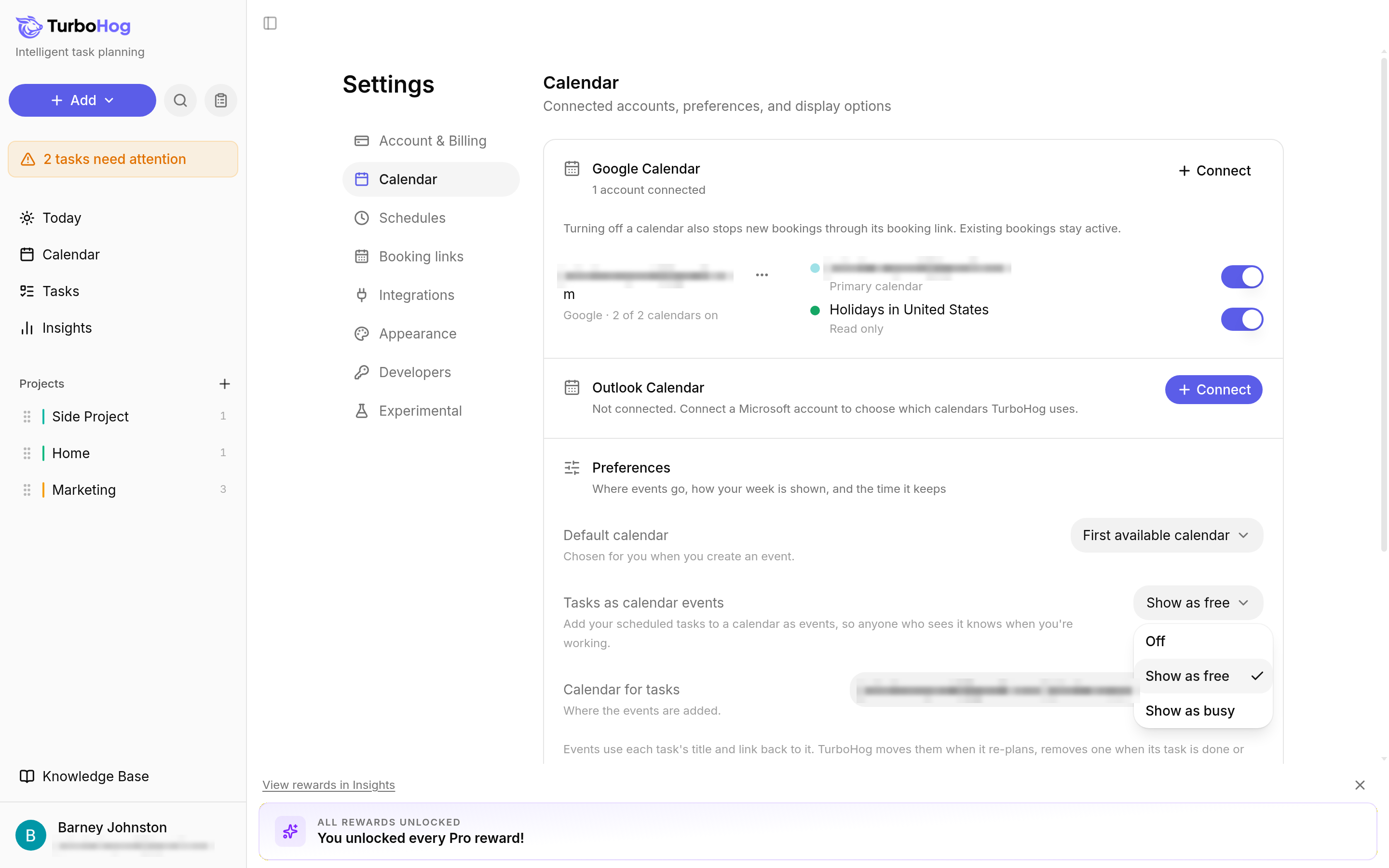
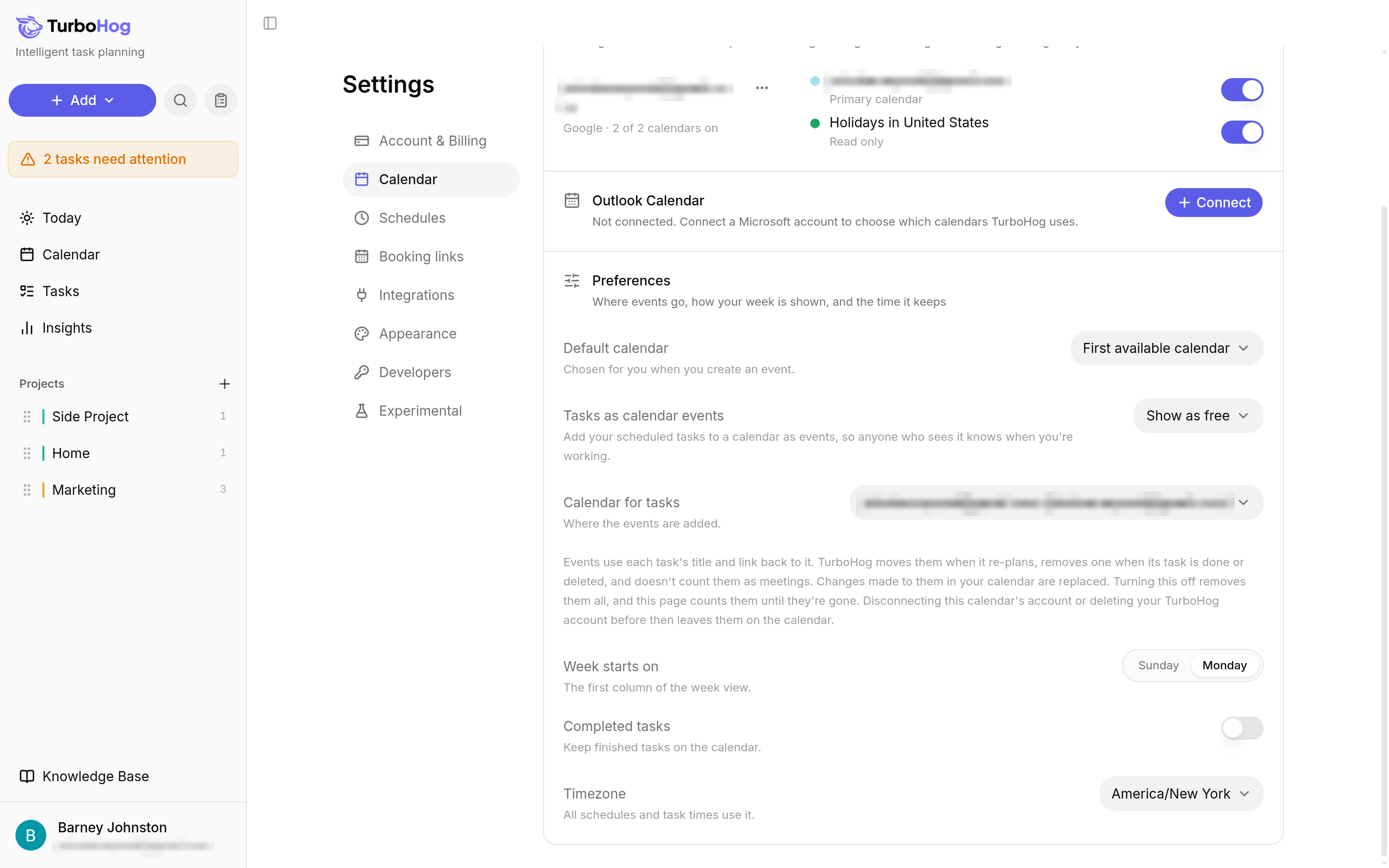
Under "Preferences", find "Tasks as calendar events".
Choose how task events show. The options are "Off", "Show as free", and "Show as busy":
Show as free: others see the tasks, but the time still looks open.
Show as busy: others see that time as busy.
Under "Calendar for tasks", choose the calendar the task events go on.
How Task Events Work
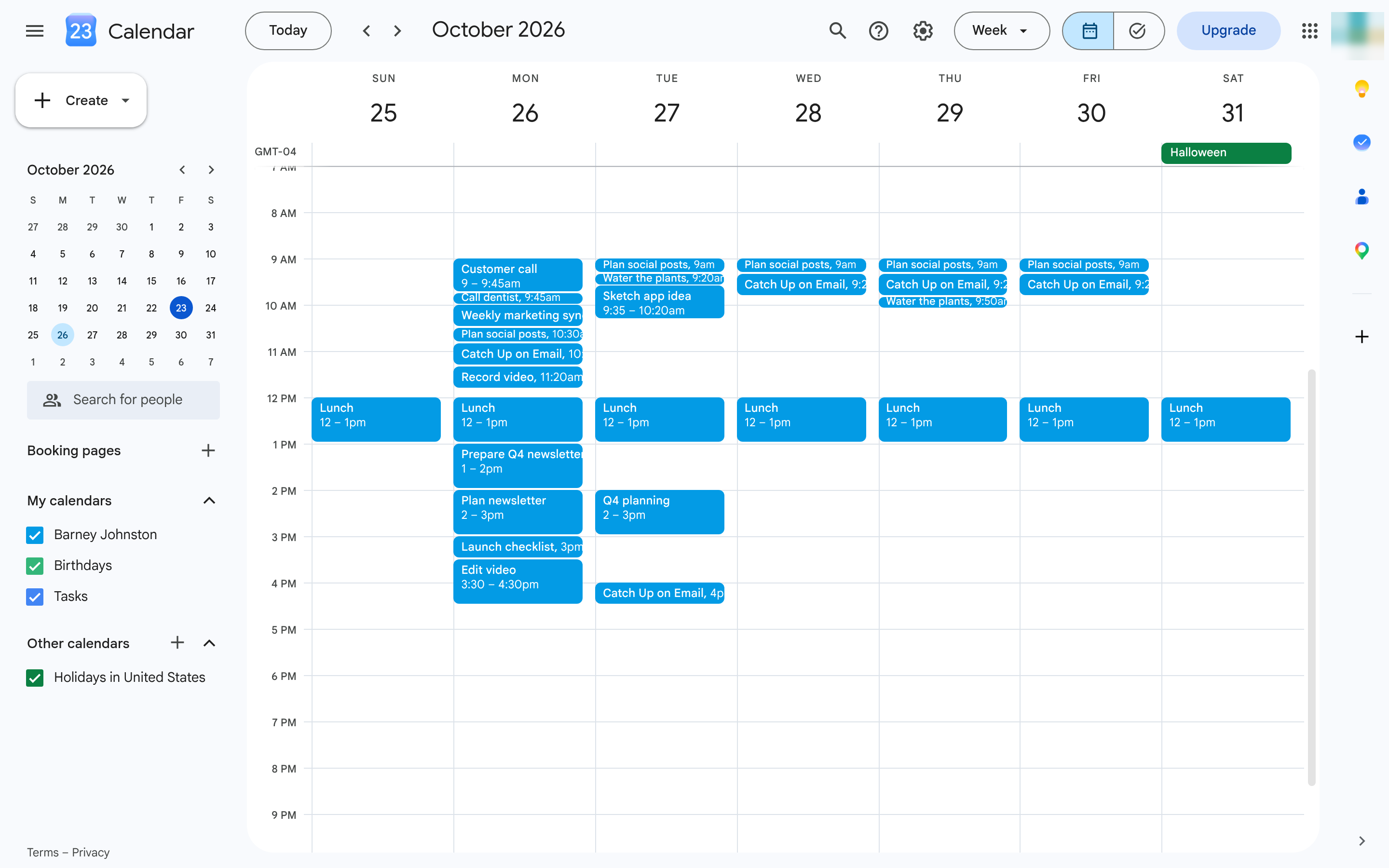
Each event uses the task's title and links back to the task.
When TurboHog re-plans your tasks, the task events update to the new times.
When you complete or delete a task, TurboHog removes its event.
Task events do not count as meetings.
Changes you make to a task event in your calendar are replaced the next time TurboHog updates it. Make changes to the task in TurboHog instead.
Turning It Off
Click your name at the bottom left of the sidebar, select "Settings", and click the "Calendar" tab.
Set "Tasks as calendar events" to "Off".
TurboHog removes all your task events. Until they are all gone, the Calendar tab shows how many are left to remove.
⚠️ If you disconnect this calendar's account before the task events are removed, they stay on the calendar.
To remove them, set "Tasks as calendar events" to "Off" first and wait until they are all gone. Deleting your TurboHog account removes the task events TurboHog can reach. Google Calendar task events are removed while your account is being deleted. Outlook task events are removed in the background before your account is fully deleted. Events TurboHog cannot reach stay on the calendar.