Currently, only Google Calendars are supported, but Outlook support is on the roadmap.
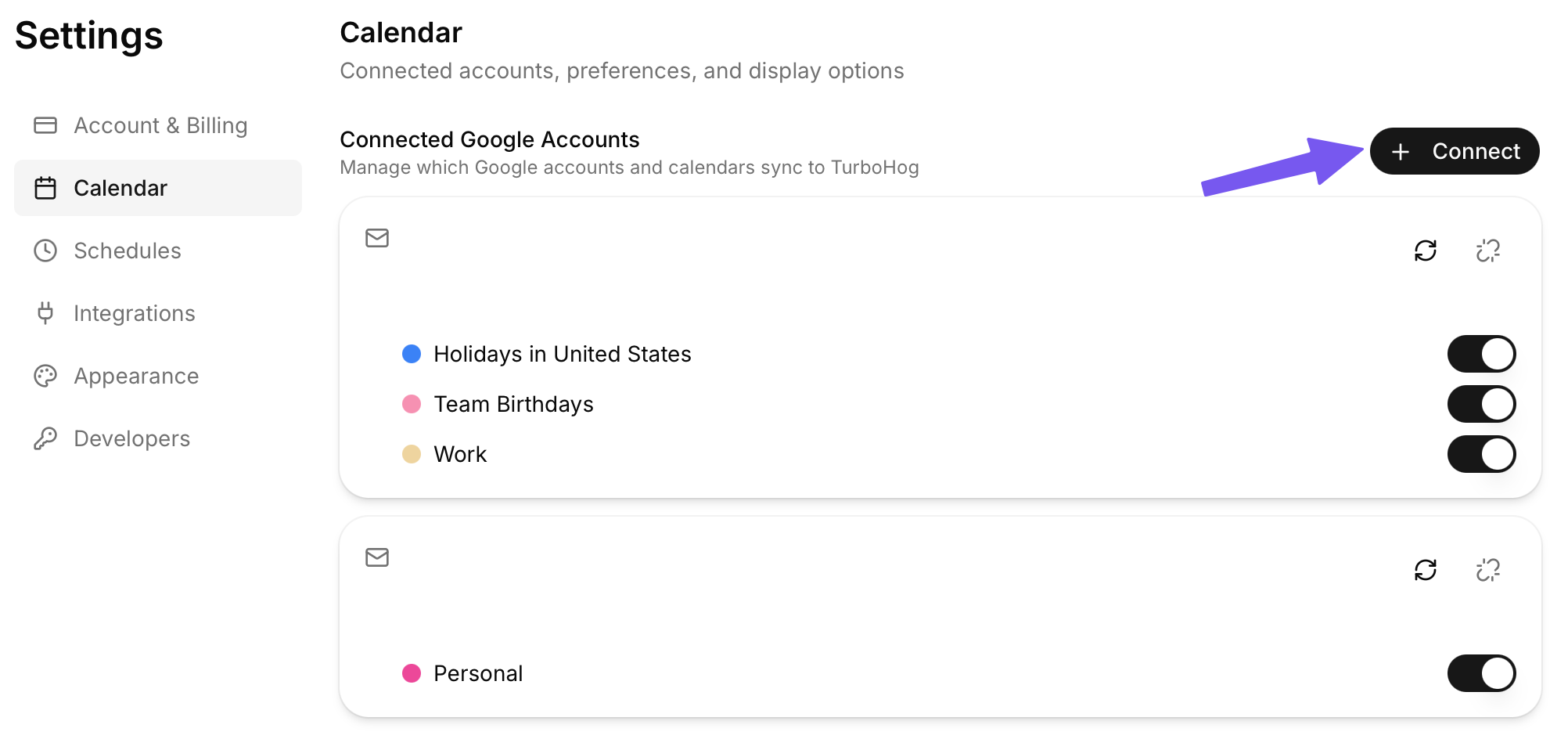
When creating your account, you can add multiple Google Accounts and select any of the Google Calendars linked to those accounts to show up automatically.
To add additional calendars to the app, click your name/email in the bottom left of the sidebar and select “Settings”.
Then, select the “Calendar” tab within Settings.
Clicking the “Connect" button in the top right allows you to link another Google Account via OAUTH.
It will then appear in your Calendar tab, and you can enable or disable any calendars linked to your accounts there.
Any enabled calendars will be considered when scheduling tasks.
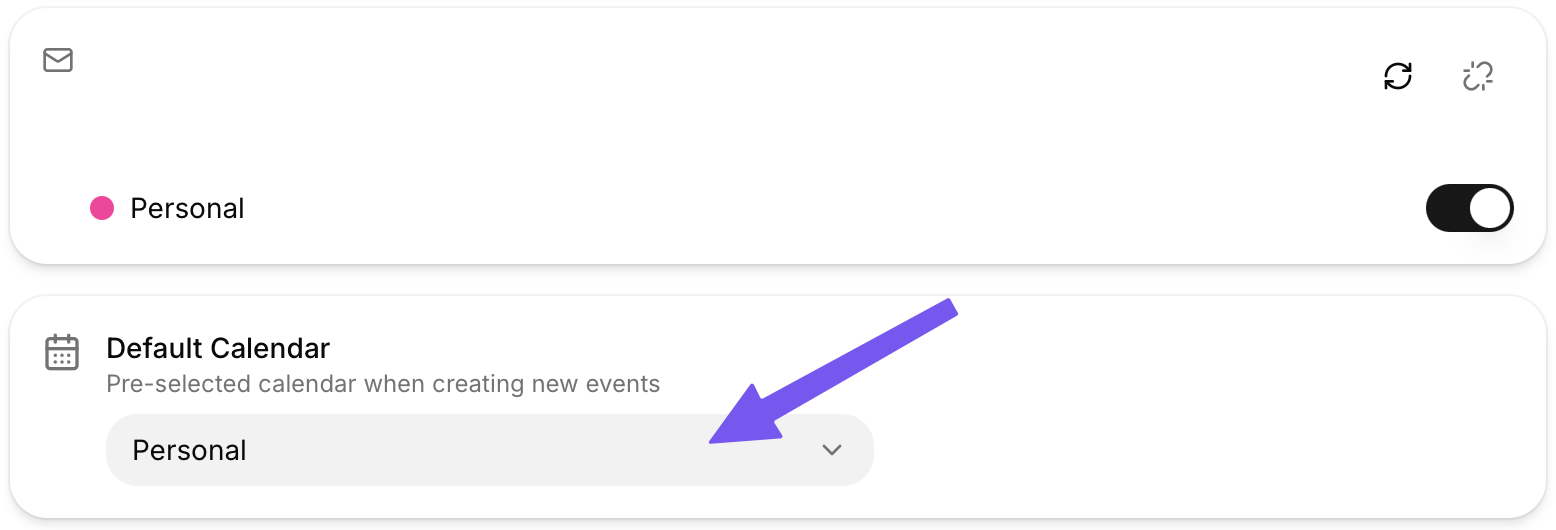
The default calendar is what will be selected automatically when creating a new event.
You can change this during event creation.
To select, go to Settings and “Calendar”. There, you will see a “Default Calendar” section. Click this will show the calendars you have linked to TurboHog, and you can select your default.
In some cases, you won't be able to link your work calendar to TurboHog. This is usually because your company doesn't allow third-party apps to connect to calendars. There are some methods to work around this.
On Google Calendar, you can invite your personal account to view your work calendar.
Generally, we recommend giving “Make changes and manage sharing” permissions.
However, at minimum, sharing “See all event details” will allow you to see your work calendar in TurboHog, and it will also be scheduled around. In this case, you will not be able to update or add things to your work calendar.
You can also manually import work calendar events onto your personal calendar. This isn't ideal, but it does allow you to see everything in TurboHog.
Usually, your IT department can allow “TurboHog” in Google Apps and allow you to link your work account and calendar to the app.
This allows you and others at your organization to easily sign-up.