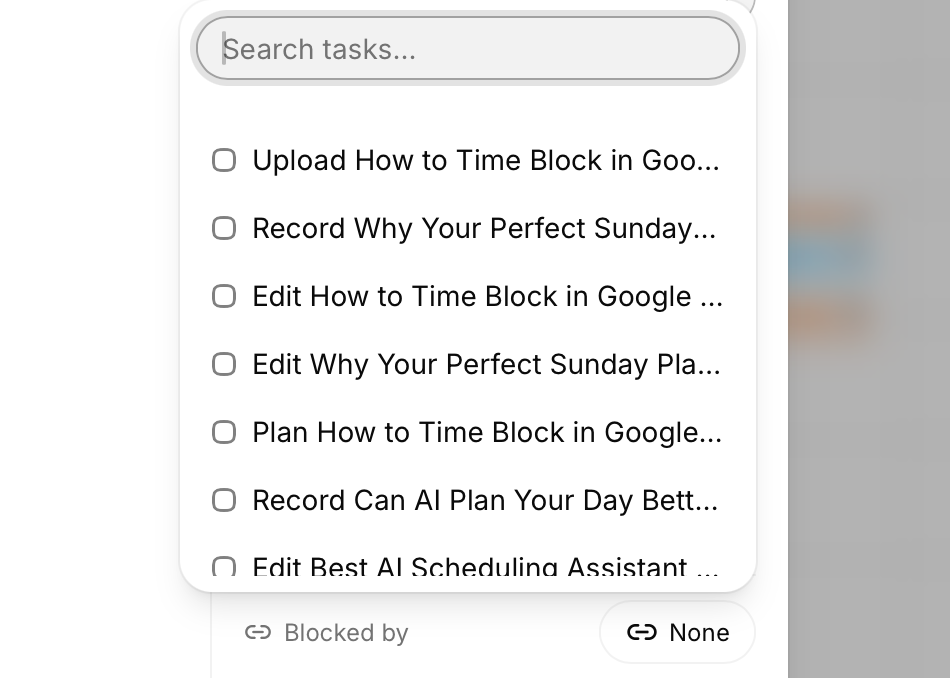
When creating a new task, you will have an option “Blocked by” property. Clicking this, will allow you to search all of your tasks.
Selecting a task here means the current task will not be auto-scheduled before the selected “Blocker” task.
This makes breaking down larger tasks into smaller tasks easier, and lets the auto-scheduler ensure they are all completed on time.
There are many use cases for blockers. Here are two quick examples of blockers in action.
When managing paid advertising, you cannot create ads until you make a budget proposal, so the tasks here would be.
Each later task is blocked by the previous one. So “Plan Ad Copy” would have the blocker of "Create Budget Proposal.
The “Create Ads” task is blocked by the “Review Ad Copy with CMO” task.
Because of this blocking structure, each sub-task of getting new ads running is never scheduled before the previous required task is complete.
Many businesses are now creating video content as a part of their marketing strategy. However, each video has very clear steps.
You cannot edit a video until it is planned and recorded. Thus, the “Record” task is blcoked by the “Plan” task, and then “Edit” task is blocked by the “Record” task.
In turn, each step will be auto-scheduled after each other, ensuring things are completed in order when assets are ready.