List your upcoming tasks, projects, and schedules.
Create, edit, complete, skip, reopen, and delete tasks.
Create and edit recurring tasks.
Read events from your connected Google Calendar and Outlook accounts, add events, and change an event's time when you ask.
When Claude completes a task, TurboHog re-plans the rest of your day.
Connecting Claude
In Claude, open the connectors directory and select the official TurboHog connector. You can also add this URL in Claude's settings, under "Connectors": https://turbohog.com/mcp
When asked, sign in to TurboHog.
TurboHog shows a page that names Claude and lists what it will be able to do.
Click "Allow".
There is no API key to copy. Claude connects with your TurboHog sign-in.
Claude Code
If you use Claude Code, run this command:
claude mcp add --transport http turbohog https://turbohog.com/mcp
Other AI Assistants
Other AI assistants that support MCP, such as ChatGPT, can also connect to TurboHog at https://turbohog.com/mcp. The steps differ in each assistant, so check its own help for how to add an MCP server.
Things to Ask
"What are my next three tasks in the Work project?"
"Which of my tasks are due this week?"
"What's on my schedule for tomorrow afternoon?"
"Create a 30-minute task in my Work schedule for tomorrow."
"I finished the quarterly report. Mark it done."
“Add event to my calendar tomorrow for 4PM.”
Disconnecting Claude
Click your name at the bottom left of the sidebar.
Select "Settings".
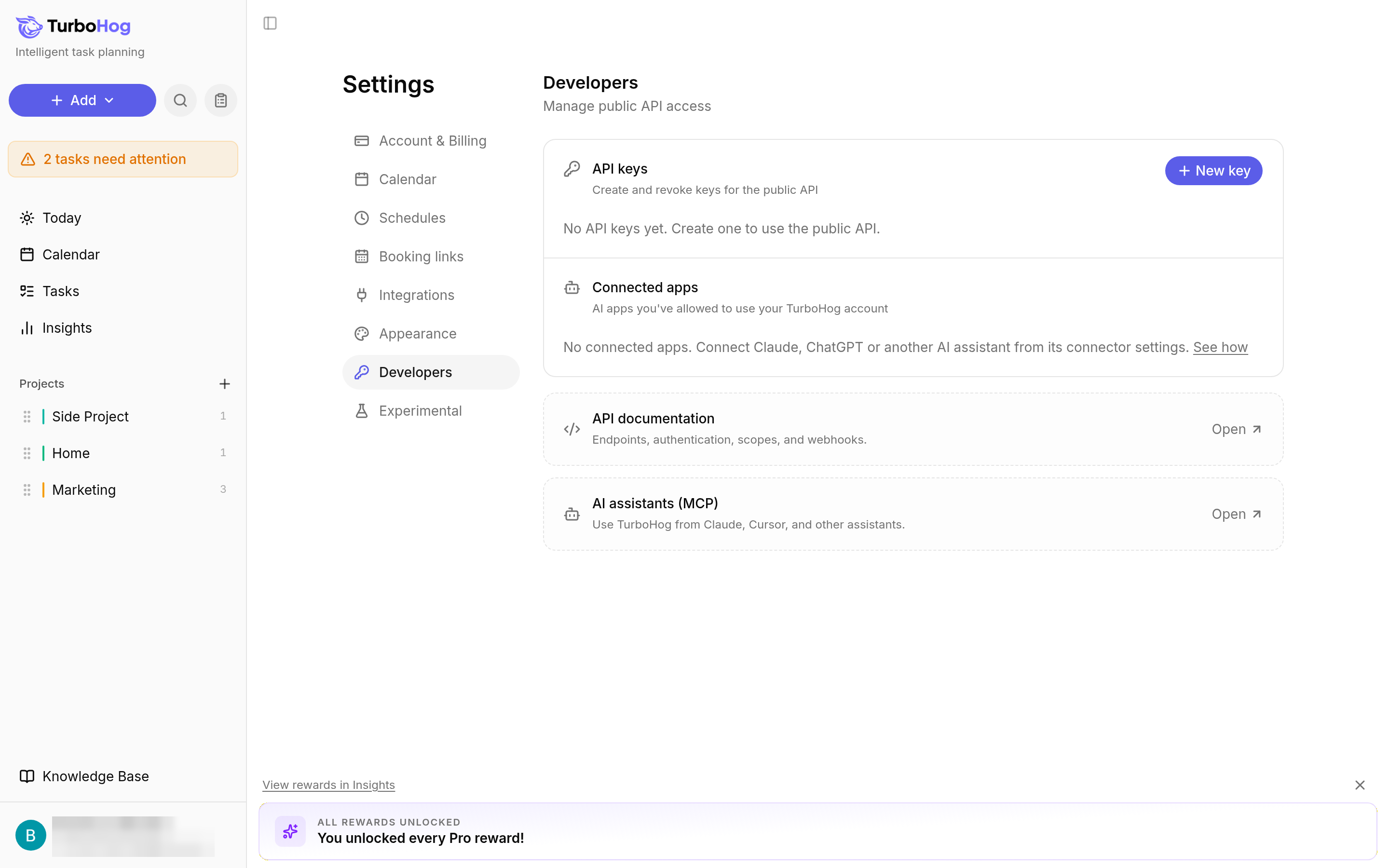
Click the "Developers" tab.
Under "Connected apps", find Claude and disconnect it.