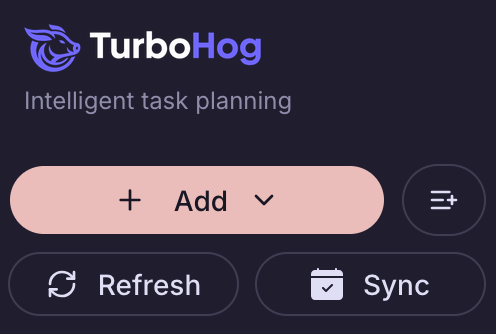
The TurboHog sidebar is made up of a few key sections. Quick actions, warnings, views, and projects. These are the primary components of the navigation.
At the bottom of the sidebar, you'll find the Knowledge Base and user settings where you can customize the look of TurboHog, add new calendars, and manage billing preferences.
The Quick Actions allow you to quickly add a task or event, bulk add tasks, refresh your tasks and manually sync your calendar.
Hitting the “+ Add” button will give you a drop down to choose between adding an Event or a Task. This can also be toggled once the view is opened, so you don't have to close the window if you accidentally click the wrong one.
The Bulk Add task button is used the same was as the on-boarding flow when you initially add all of your tasks. It's especially useful if you need to add multiple things quickly. Add the task name, duration, and a relevant project, and AI will parse the input to determine where everything should go.
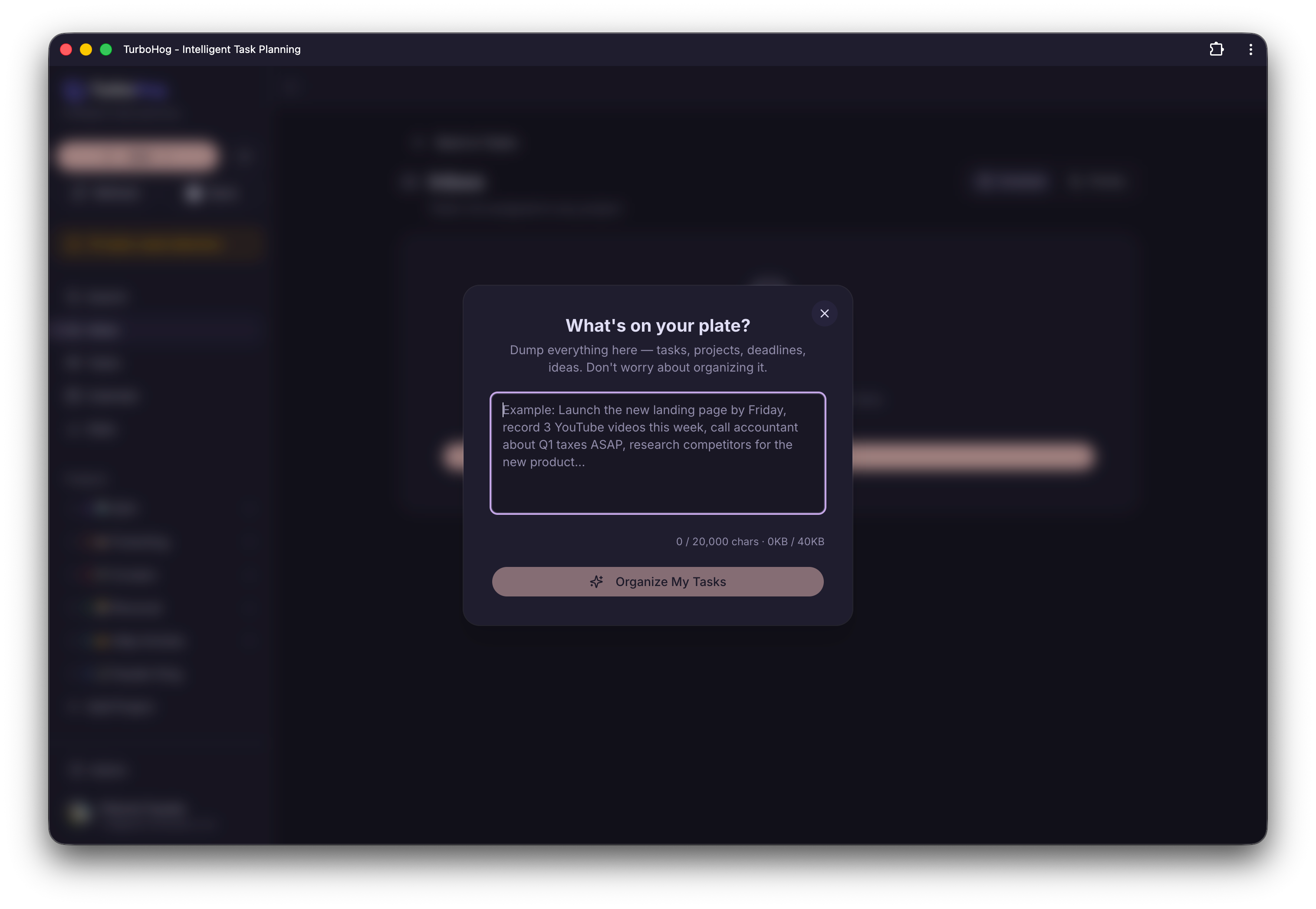
Once everything has been parsed, you can review and make any adjustments.
The Bulk Add feature is quite robust and capable of parsing large amounts of information and context with strong accuracy. It's the easiest way to quickly add tasks for a big project.
The Refresh and Sync functions generally automatic, with the calendar and schedule being updated frequently so that items are not misplaced on your schedule.
Pressing Refresh will re-calculate your current events to match the current timeline and refresh the calendar view.
The Sync function will manually push and pull calendar events from synced calendars.
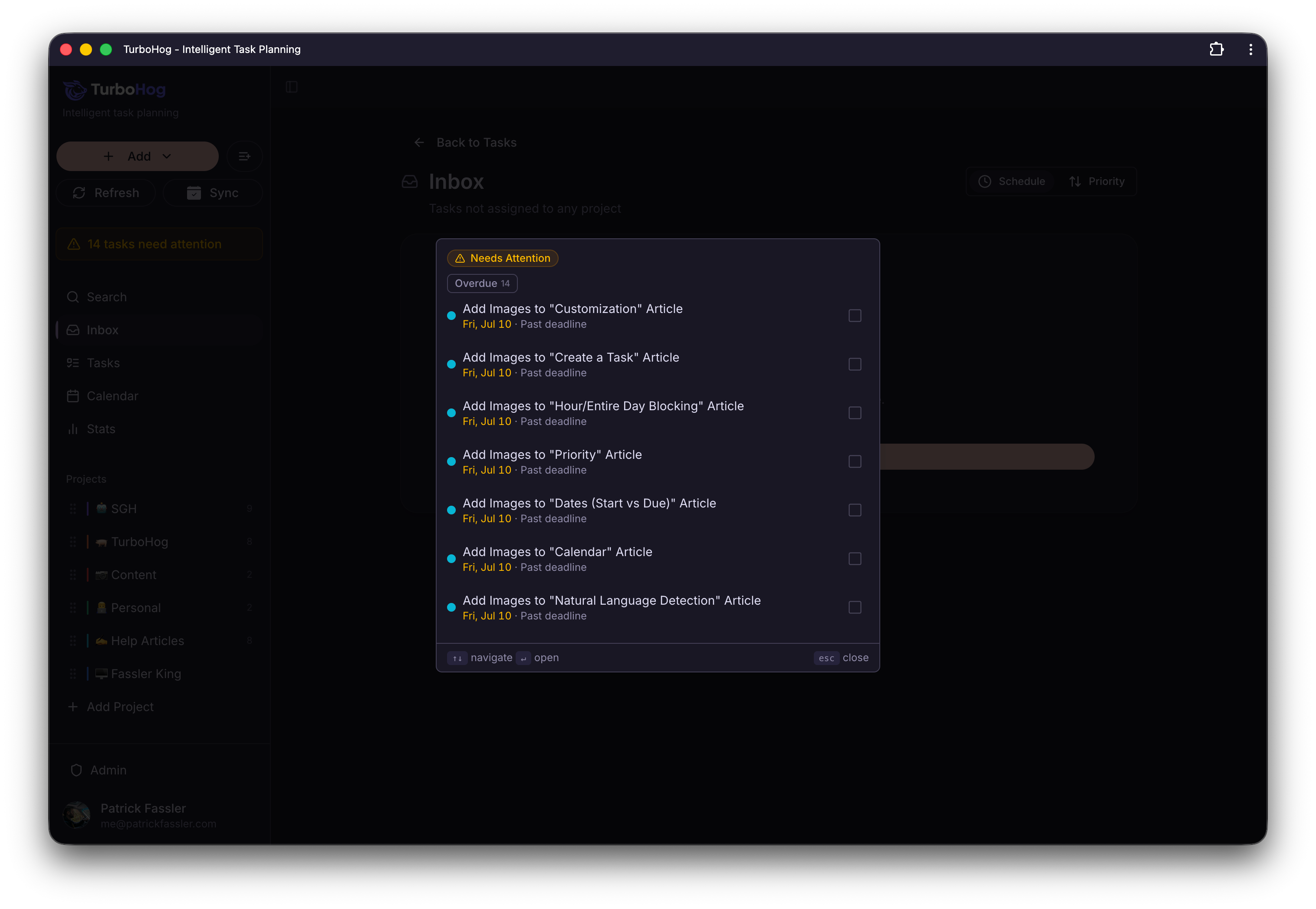
If you have a task with a deadline that is at-risk of being missed, it will appear in the “tasks need attention” warning. If the notice doesn't appear on your sidebar, there are no deadlines at risk of being missed.
When you open the Tasks Needs Attention notice, you'll see a list of every task and a quick explanation of why it is at risk of being missed. This is primarily due to a deadline being on a day that is blocked, full, or that doesn't fit within your current schedule.
TurboHog will still display the task as close to the deadline as possible, even if it is at-risk of being missed. You can reschedule or edit tasks here to resolve the notice.
The Views section is primarily composed of Search, Inbox, Tasks, Calendar, and Stats.
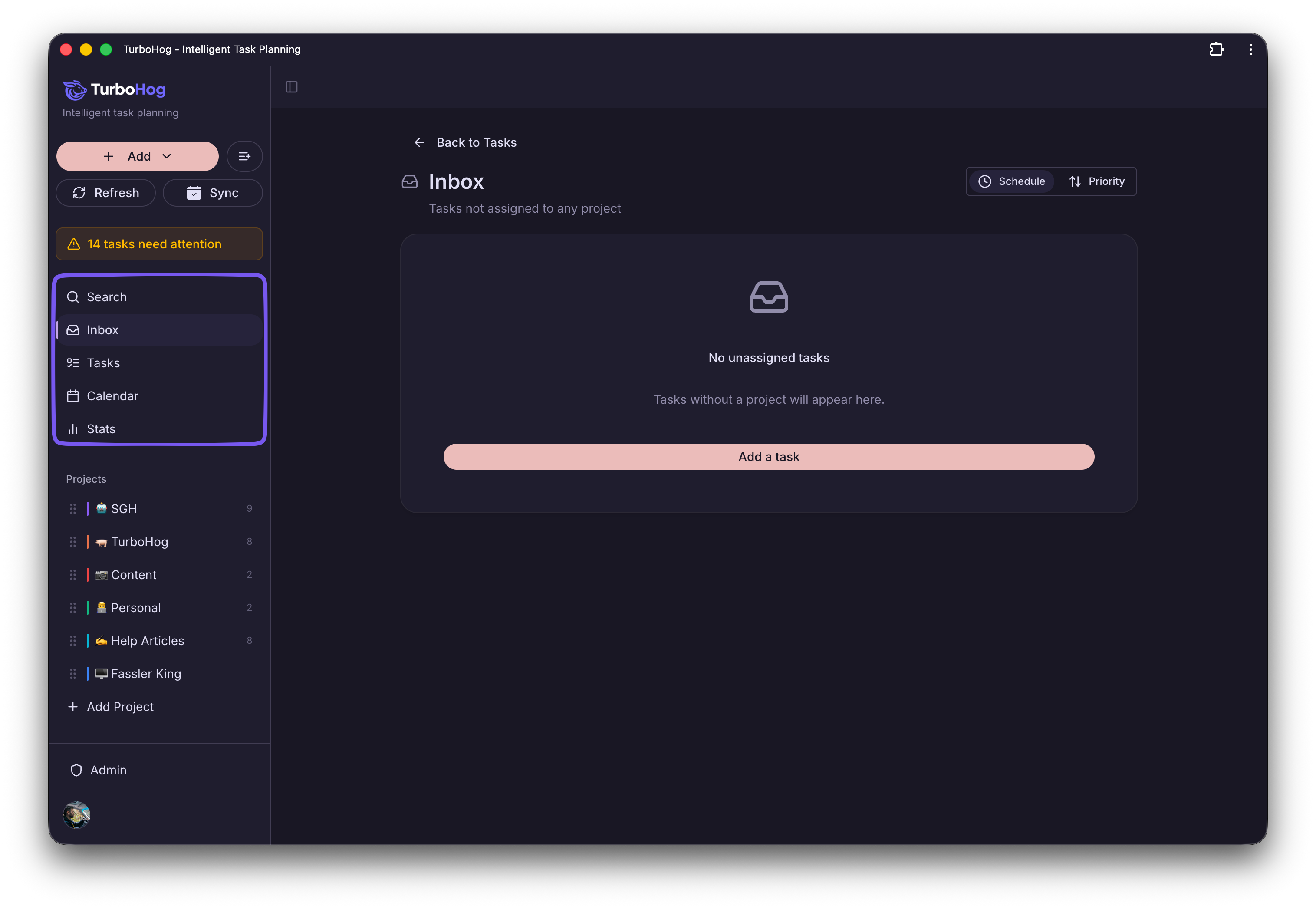
The Search function allows you to search for task names, keywords, projects, and other filters shown. You can navigate the search function with the arrow keys and press Enter to open a task. You can also press Escape to close the search view.
The Inbox is a key component of TurboHog. This is where new events you've been invited to will appear. These events will also appear on the date they are set within the Calendar view with the option to accept/reject the invitation.
The Inbox allows you to quickly accept/reject event invitations all in one place.
If you have tasks that are not assigned to a specific project, they will also appear in the Inbox, allowing you to quickly edit the task and assign it to a project.
Tasks are where you can view all the tasks set for a specific day. For users who prefer a list view over the calendar view, this is where you'll be able to see everything due today. It can be sorted by priority or time, and you can toggle to view or hide completed tasks.
Events scheduled for the day show at the top of the list with the time next to them.
Tasks can quickly be edited, marked as complete, and viewed from this page as well.
If a task isn't able to fit today, it will show at the bottom of the page under “Can't Fit Today" where you can easily reschedule or adjust your events.
The Calendar View is the default view TurboHog was built around. The Calendar view is set up to show the full week, with options to change the starting day of the week between Sunday and Monday available in the User Settings.
This view shows a complete overview of your entire week with tasks and events all in one place.
You can drag across the calendar to quickly create a new event pre-set with the times you dragged.
You can also manually lock a task in place by moving it around on the Calendar view. This will stop TurboHog from auto-scheduling your task and leave it in place. If you accidentally lock a task in place, you can undo it by clicking the lock icon.
Tasks can quickly be marked as complete in the Calendar view by hitting the circle to the left of the task name.
You can also use the Calendar View to block off an entire day or a specific amount of hours if you'll be unavailable. You can do this by hitting the clock icon next to the date at the top of the calendar.
Stats show a basic overview of the amount of tasks completed in the last 12 months, a streak of your productive days, and the completion rate of tasks compared to the previous week.
You can also see your most productive day of the week at a quick glance if you're curious about how to balance your task deadlines more effectively.
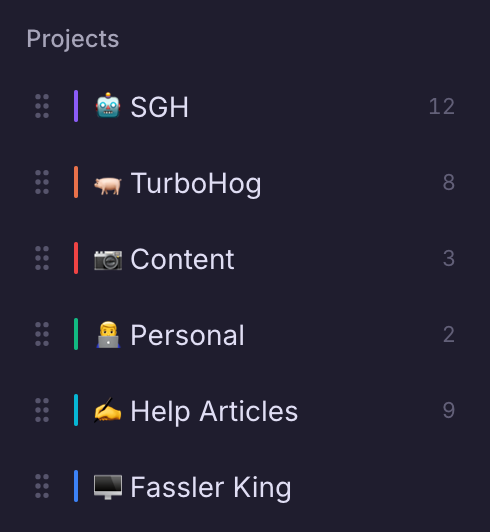
All of your created projects will display within the Projects section of the sidebar navigation. You can rearrange the order manually and add an emoji to the project name. TurboHog will ignore emojis at the start of a project name, so you can still quickly search for projects and use natural language when creating a new task to assign the task to a project.
In a specific project, you can see all the tasks currently assigned to that project. You can sort by deadline or priority, edit the project details, and show completed tasks within a project.
If you want to add a new project, hit the “+ Add Project” button under the list of your projects in the sidebar.
The Knowledge Base can be accessed any time in the sidebar. You can quickly search for articles and keywords to get an explanation of a specific feature or get a better understanding of how TurboHog functions.
Your settings can be accessed by clicking on your profile picture in the bottom of the sidebar.
This is where you can quickly manage your subscription and payment method. If you need to update your card information, you can do that here. You can also cancel your subscription in this section.
In Calendar Settings, you can modify connected accounts, preferences, and display options. This page will display all the connected Google Accounts and their corresponding calendars.
You can toggle on/off specific calendars if there's one you don't want to display in your Calendar view or effect task scheduling.
There's also an option to set your Default Calendar, which, when selected, automatically sets up new events using this calendar. This can be switched manually when creating an event, but if you have a calendar you prefer to use for meetings or events, you can change the default here.
Calendar Preferences allows you to show completed tasks on your calendar and set the day of the week your calendar starts. You can also manually set your timezone.
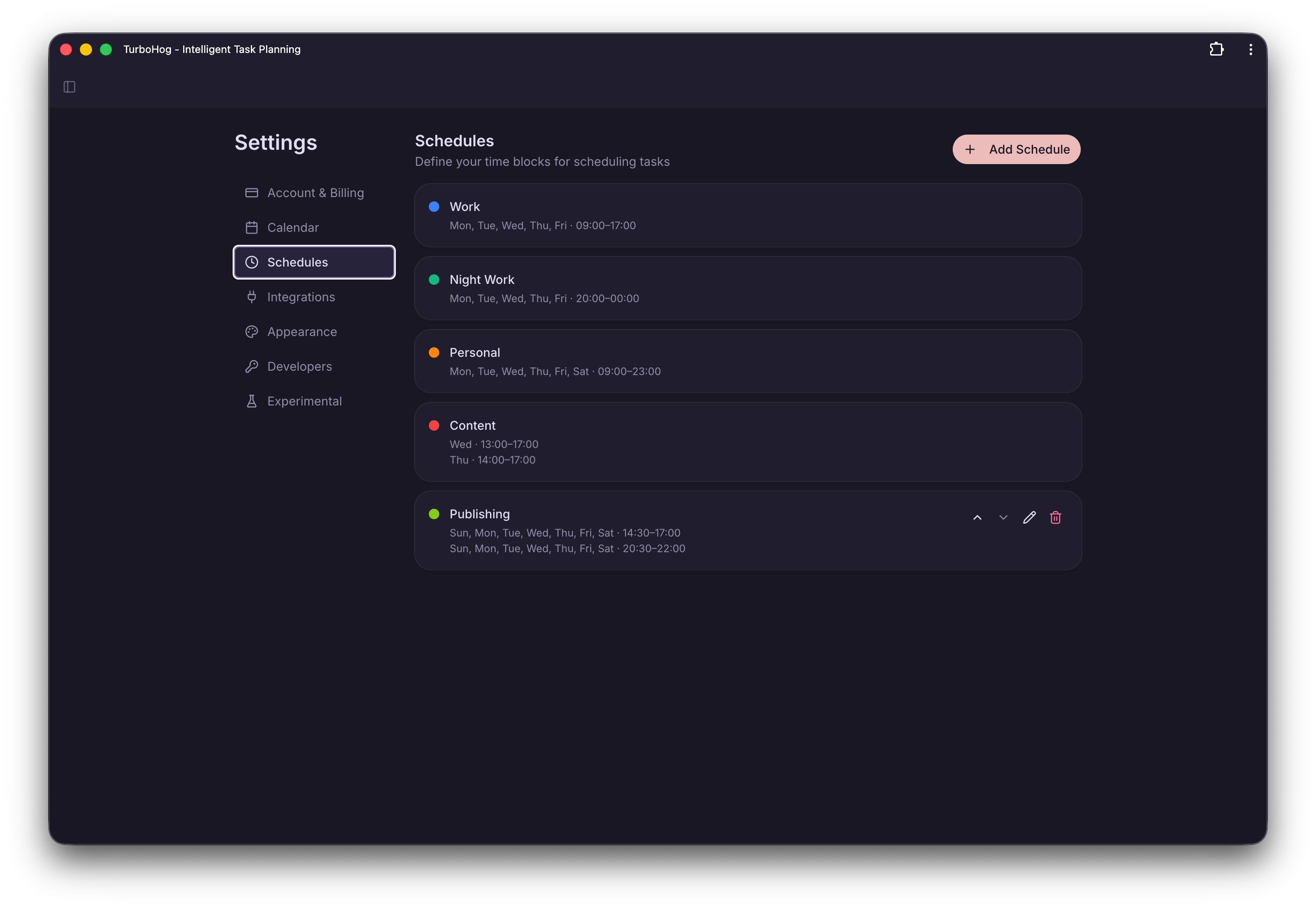
Your schedules help TurboHog know when it is appropriate to schedule your tasks automatically. You can have multiple schedules in TurboHog, allowing you to manage things more easily.
If you want to import tasks from another service, this is where you can find the integration to do so. As of now, Todoist import is the only available option. Our team is working to integrate Linear, GitHub, and Notion into TurboHog to allow you to import tasks and projects more easily.
The Appearance settings allow you to customize how TurboHog looks and feels. Here you can change your theme and favicon to a variety of different options, with more coming soon. We love adding personality into our software, and we love when people can find just the right theme for their setup or vibe.
You can also toggle completion effects. This includes a sound effect that is played when a task is completed as well as a small confetti animation the displays when a task is marked off.
Developer settings allow you to create and manage public API access and keys. You can view docs on the public API as well as create new keys.
To learn more about creating and managing API keys, check out our developer documentation.
Experimental settings allow you to opt in to features that aren't quire fully polished yet. You can choose to opt in to beta test new features here.
Keep in mind that beta features may break, change things, or cause issues. If you run in to issues, you can report them to our Support Team and/or opt out of beta feature updates.
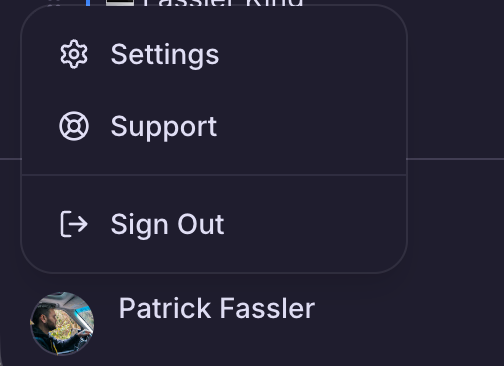
If you want to sign out of your account, click on your profile picture in the bottom of the sidebar. An option to “Sign out” will appear under Settings. This will log you out of TurboHog in the current browser/instance.