How is my day auto-planned?
TurboHog takes your tasks and automatically plans when you should do them. It factors in deadlines, priorities, your schedules, and the time your task is set to take when planning.
Automatic planning means you will never wonder what you need to work on next.
What happens if I don't complete all my tasks in a day?
Sometimes you can't get everything done. TurboHog is setup to handle this. Tasks are automatically replanned as your day progresses still ensuring things get done before deadlines.
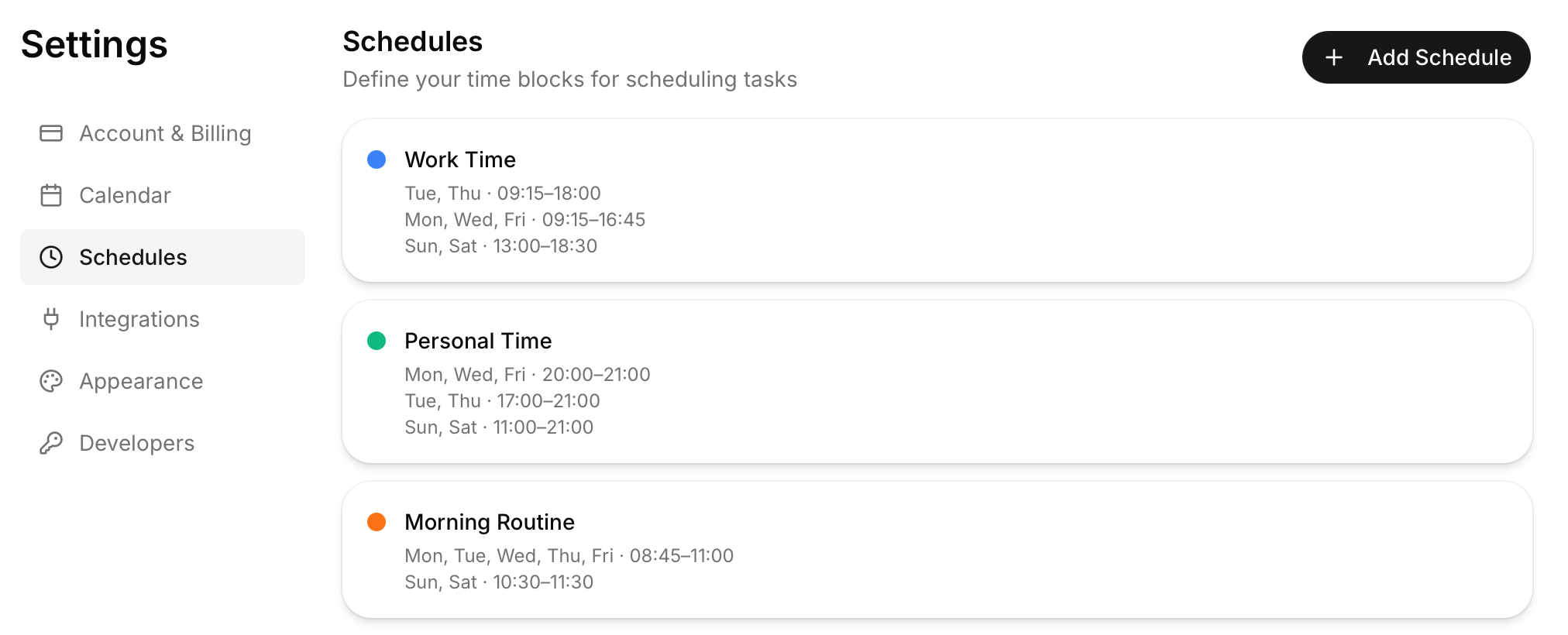
How can I view and change my schedules?
You can find your schedules by clicking on your name and email in the bottom left of the app. Then, select “Settings” and “Schedules”.
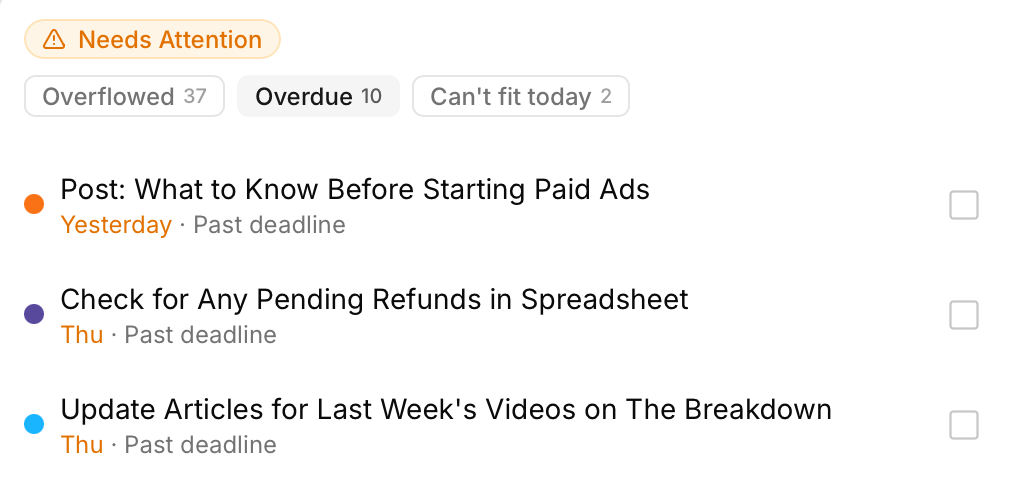
How can I view tasks that will miss their deadline?
If a task is scheduled past its deadline, you will get a “tasks need attention” warning notification in the sidebar of the app. Clicking this will allow you to see any tasks that are scheduled past their deadline.
How can I create a recurring task?
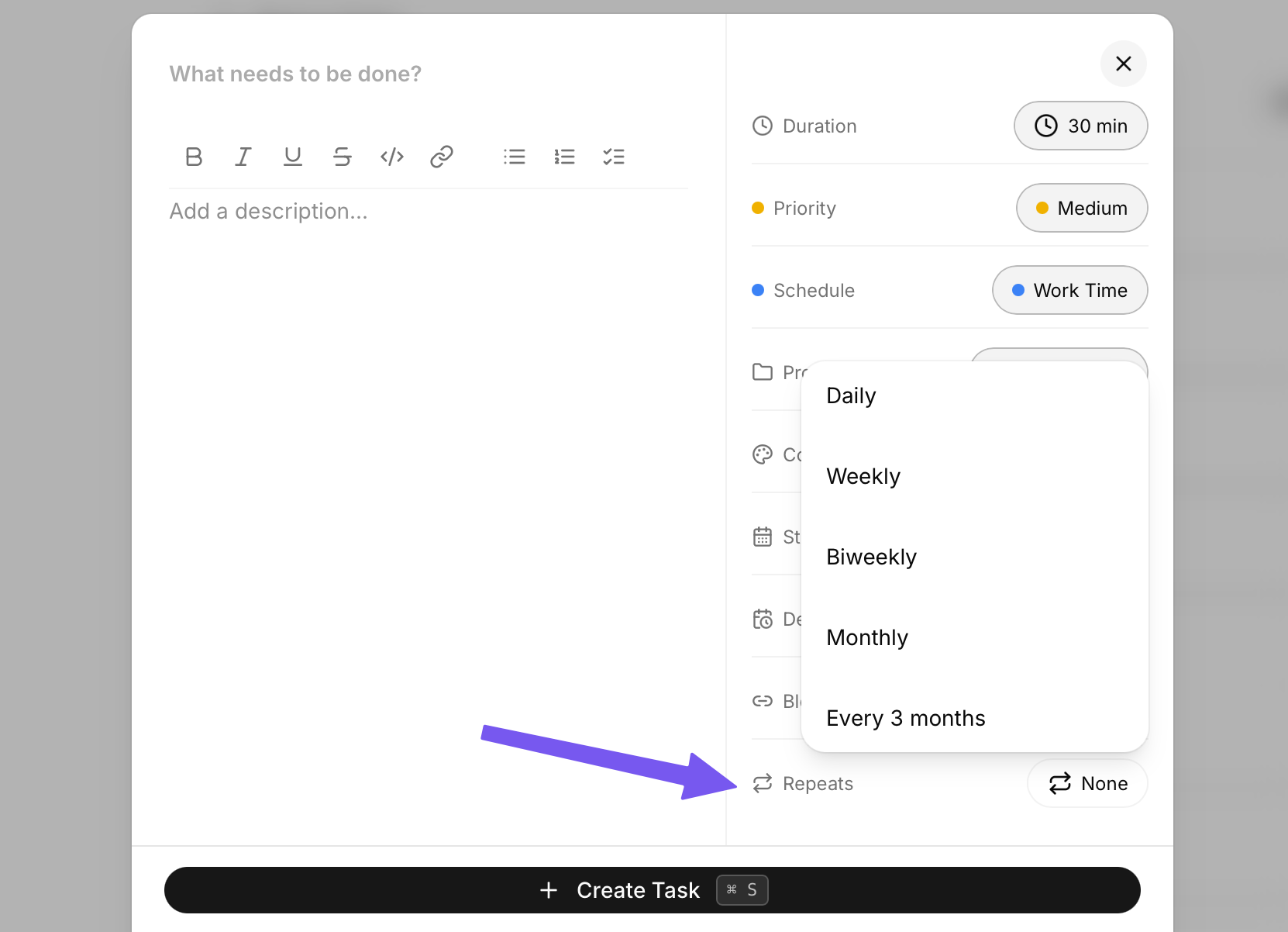
When adding a task, click the button next to the “Repeats” property in the sidebar. You can then select Daily, Weekly, Biweekly, Monthly, or Every 3 months options.
Using weekly, you can set tasks to recur multiple days in a week. Monday, Wednesday, Friday for example.
Is there a way to add sub-tasks?
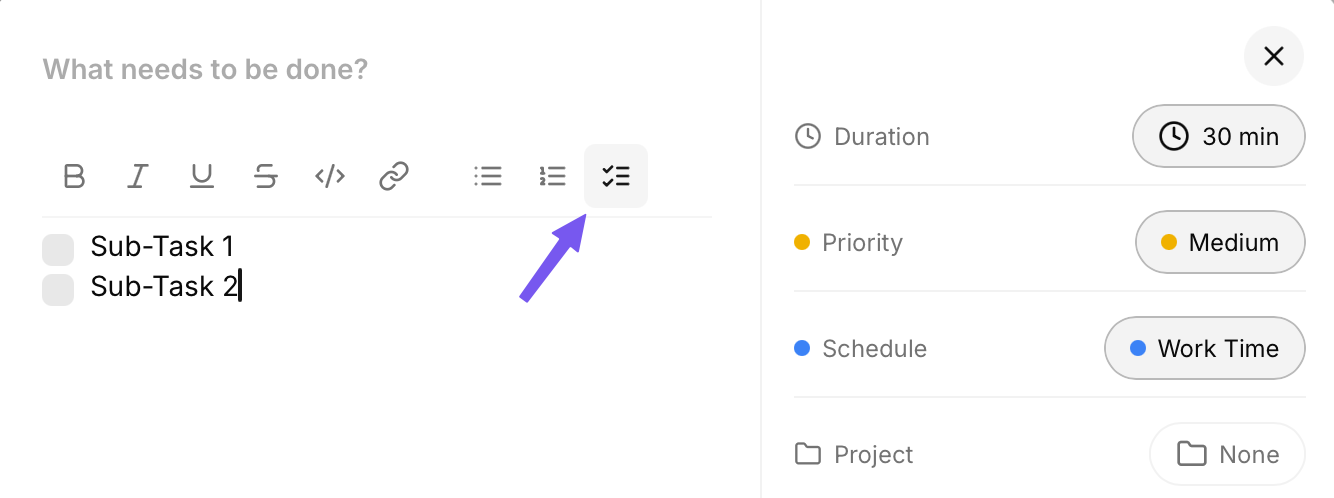
You can use tasks descriptions to add checkable task lists. This is great for sub-tasks of a main task.
How does task blocking work?
On the calendar tab, you will see a clock icon next to each date at the top. Clicking this allows you to block time on your calendar. No tasks will be scheduled during the time that is blocked. You can also block out entire days. This can be great for random out-of-office times or vacations.
What happens to recurring tasks if I miss them?
Daily tasks are skipped as they will appear on the next day automatically. Weekly, bi-weekly, or monthly tasks are moved to the next available day until they are completed.
Where can I find completed tasks?
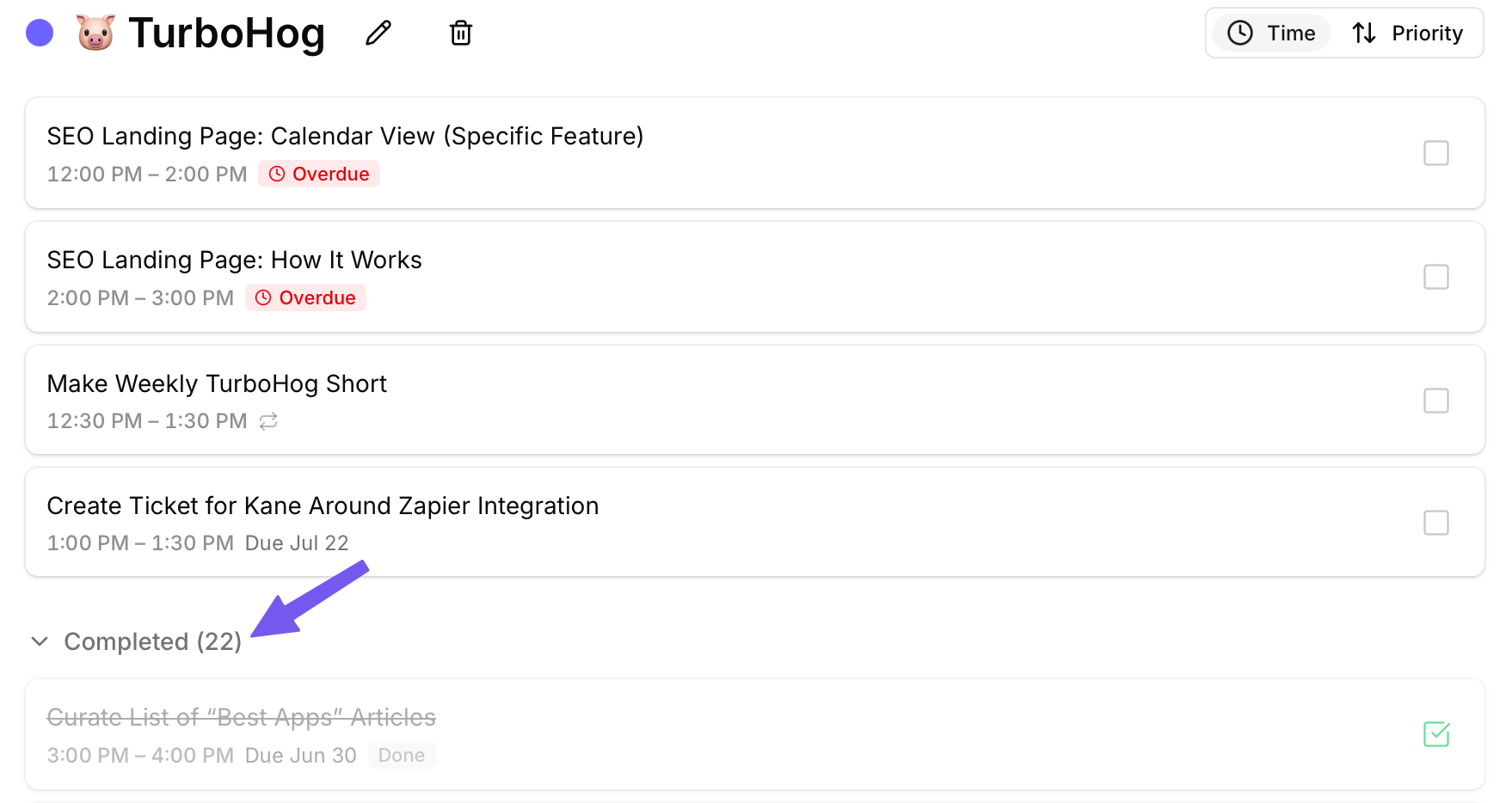
Completed tasks are located at the bottom of your Projects pages.
How can I search for tasks?
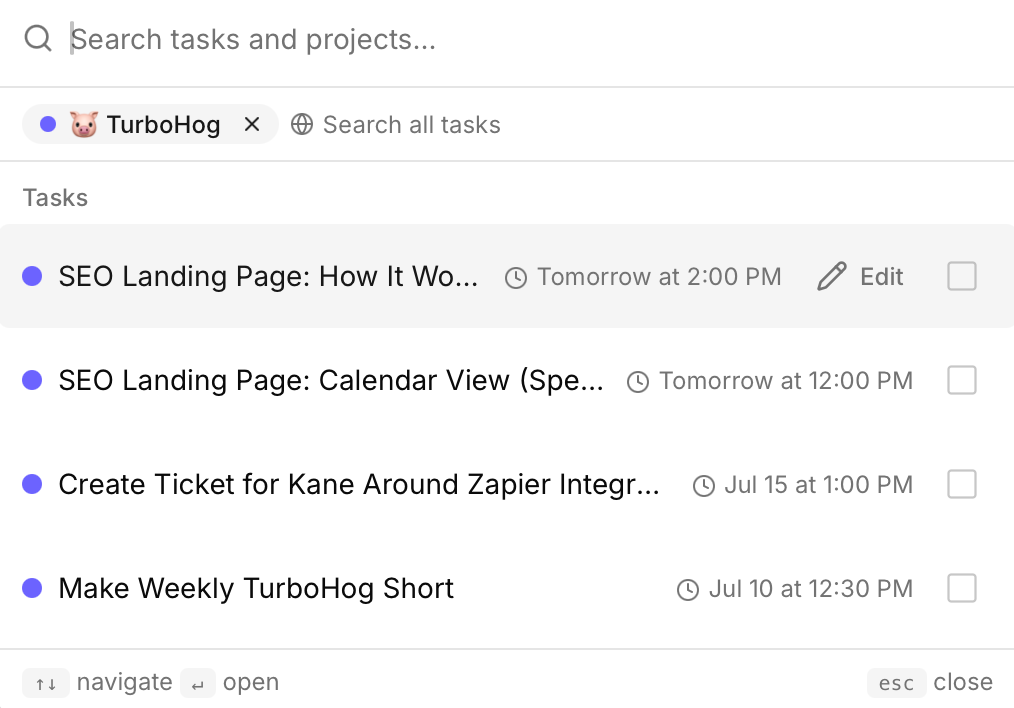
You can click the “Search” button in the sidebar to start searching your tasks. These can be filtered by project as well.
If I accidentally delete a task or project, can I recover it?
No, any deletions of tasks, events or projects are final and cannot be recovered.
How can I rename a project?
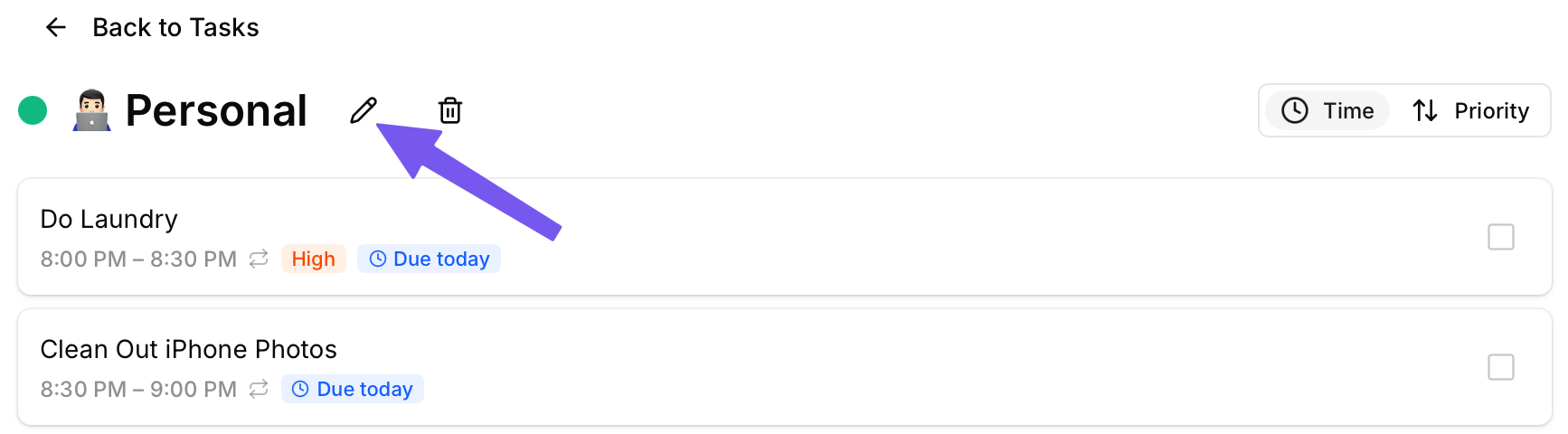
To rename a project, select in your sidebar, and click the edit pencil icon next to the project name at the top. This allows you to rename, change the color, and edit the description of a project.
Can I manually move a task to a specific time?
Yes, you can lock a task at a specific time. If it isn't completed in that time block, it will automatically reschedule.
Are events automatically imported into TurboHog?
Yes, when you link a calendar, all invites are automatically imported to TurboHog. If your account has multiple calendars, you can enable or disable any of the calendars easily.
How do free events work?
Events that are marked as “Free” on your calendar will still appear on it. However, TurboHog will auto-schedule tasks during this time.
Do edits to events in TurboHog sync back to my Google Calendar?
Yes, the app has full two-way sync. Changes made to events on TurboHog automatically sync to Google Calendar. Any changes to events on Google Calendar sync to TurboHog automatically as well. This includes event creation as well.
How do I manage event invites?
Any calendar invites you get will appear automatically in your “Inbox” tab. There, you can accept them or deny them.
How do I add more calendars to my account?
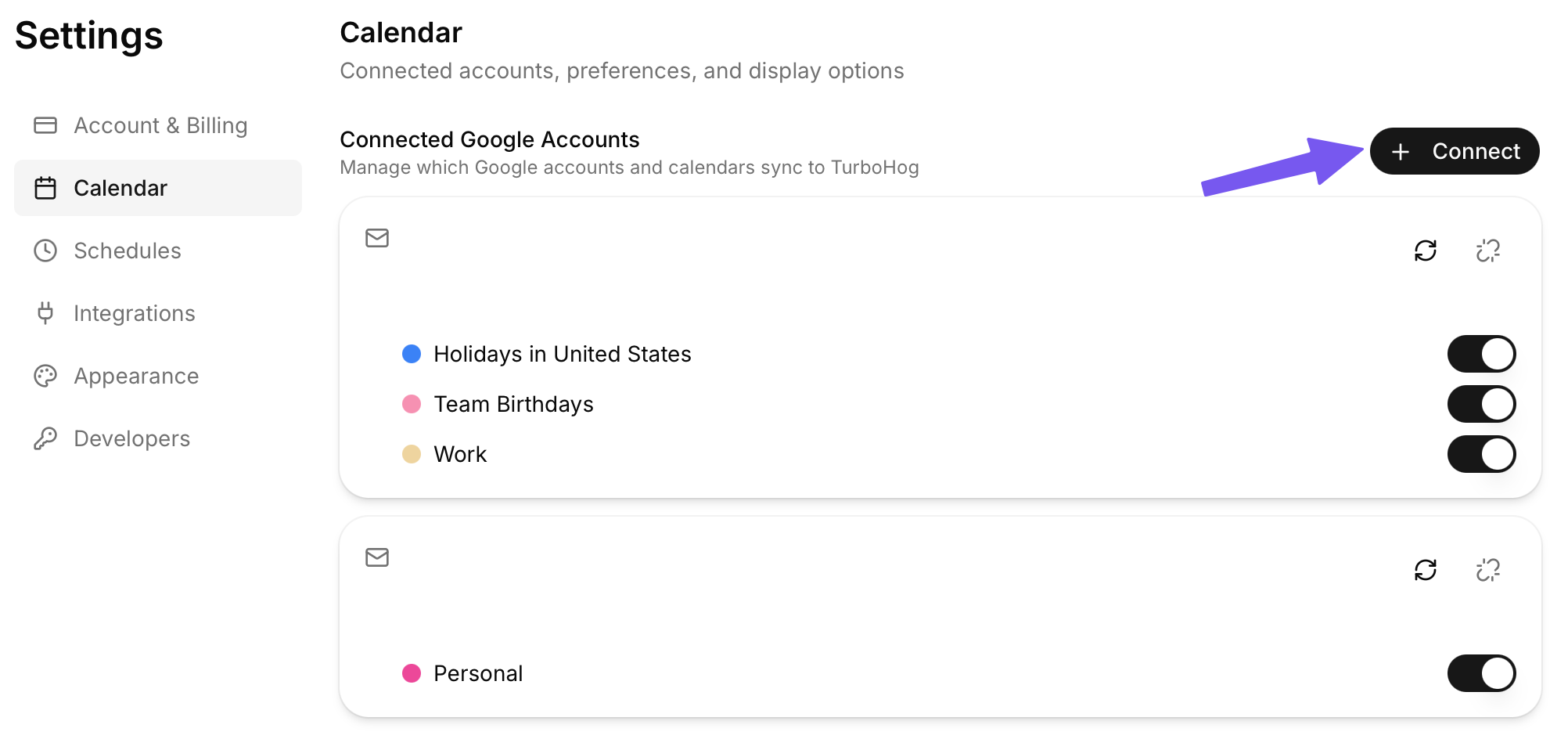
If you want to add more calendars to your account, go to settings by clicking your name/email in the bottom left of the app and selecting it. Then, go to the “Calendar” tab. Clicking the “+ Connect” will let you link more accounts to TurboHog.
You can add as many accounts and sync unlimited calendars to the app across multiple accounts. Meaning your work and personal accounts can both live in one place.
What calendar providers do you support?
Currently, we support Google Calendar with Outlook support on the roadmap.
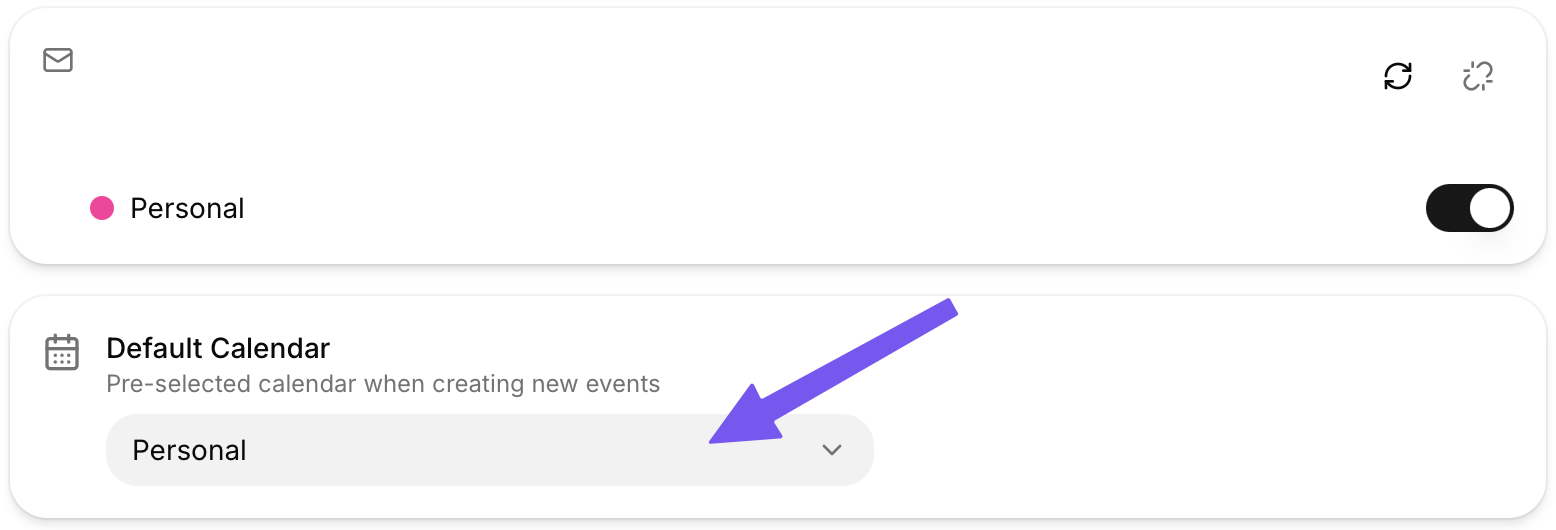
Can I change my default calendar?
Yes, you can set your Default Calendar (the calendar that select by default when creating an event) in the “Calendars” tab in your settings.
You can manually change to another calendar when creating an event as well.
What can I do if I can't integrate my work calendar?
Sometimes, you won't be able to link your work calendar due to permissions around your account.
The options here are to
Is there a free trial?
Yes, when signing up for your account, you will be added to the free trial automatically. This allows you to test TurboHog and make sure it works for you. You can cancel at anytime.
How do I log in to my account?
You can access your account using your Google account. This would be the Google account you used when first signing up for the app.
How can I update my payment information?
Payment information can be edited by going to “Settings” and “Account & Billing” in the app.
How can I delete my account?
You can request that your account is deleted by emailing [email protected]
How do I cancel my subscription?
You can cancel your subscription by going to “Settings” in the app and then “Account & Billing”. Here, you can manage and cancel your subscription.
What happens to my data when I cancel?
Your data is ready for you to come back and start using TurboHog again. Contact [email protected] for account deletion.
How do I change my plan to yearly?
Yearly plans get a discount, and you can switch from monthly to yearly at anytime.
Does TurboHog work on mobile?
Yes, you can add TurboHog to your homescreen using your web browser. On iOS, you share the site and “Add to Home Screen”. On Android, click the three dots next to the address bar and select “Add to Home Screen”.
Can I customize the app with different themes?
Yes! There are various themes in the “Appearance” tab within settings to customize the apps and icons.
How can I provide feedback, suggestions, or bug reports?
Any feedback, suggestions, bugs, etc can be reported to [email protected]